



mspBePaid
Getting started
To accept payments via bePaid you first need to submit an application for registration in the system.
You can get help with payment module integration through technical support, directly from the developer in Minsk, or through bePaid technical support.
System requirements
- PHP 5.5+
- MODX Revolution 2.4+
- MiniShop2
bePaid setup
Important
Use only the test environment to verify the payment mechanism.
First, review the requirements for sites and e-commerce stores:
You can also request additional documents from the payment system managers:
- Document list
- Client questionnaire (Sole proprietor)
- Client questionnaire (Legal entity)
- Merchant agreement (e-commerce)
- Merchant agreement (web resource)
Write to sales@bepaid.by or call +375 (17) 277-01-18, +375 (29) 664-00-24 (Republic of Belarus).
For successful work with the payment system you need the login and password issued after registration. First, log in to the control panel and perform initial system setup according to the instructions provided by bePaid staff.
Package installation and setup in MODX
When installing the package, the installer offers to enter test store credentials to start working with bePaid in MODX. If you have already registered and received all credentials, you can enter the actual store identifier and secret key in this window.
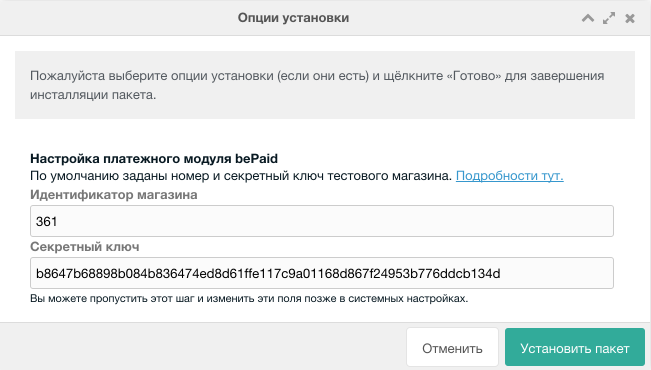
You can skip this step and fill in this data later in system settings.
Then enable the payment method in miniShop2 settings and add it to the required delivery method. If you already have an active MODX and MiniShop2 store — setup is complete. If you are building a new site — read about working with payment systems in miniShop2 in the miniShop2 documentation or ask on modx.pro.
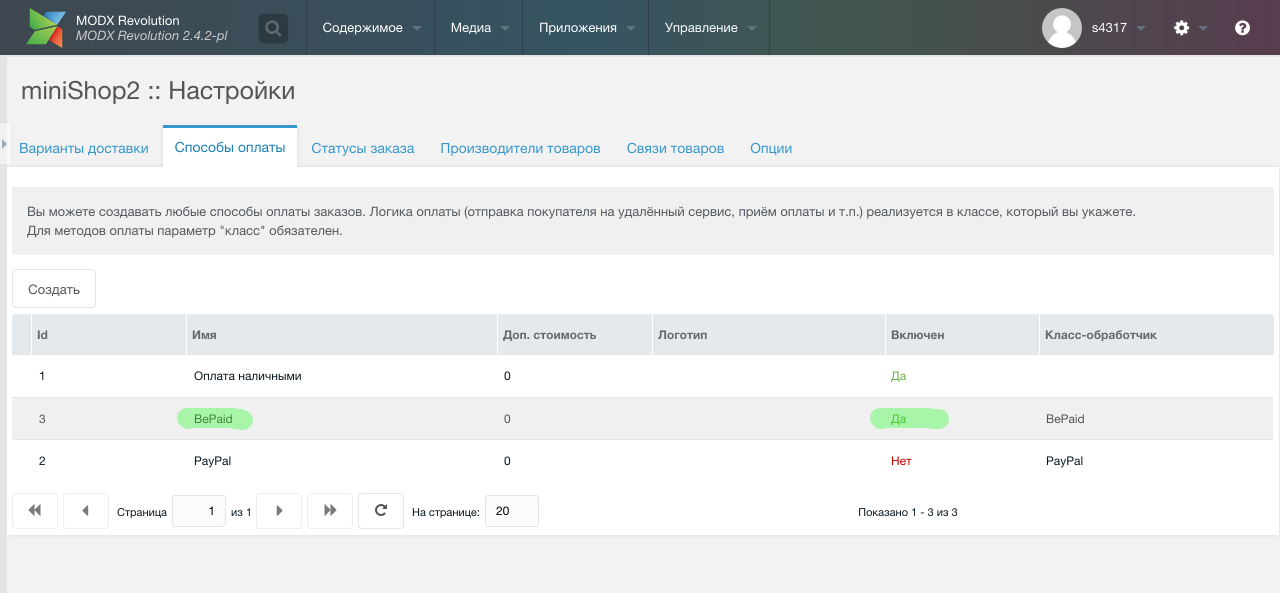
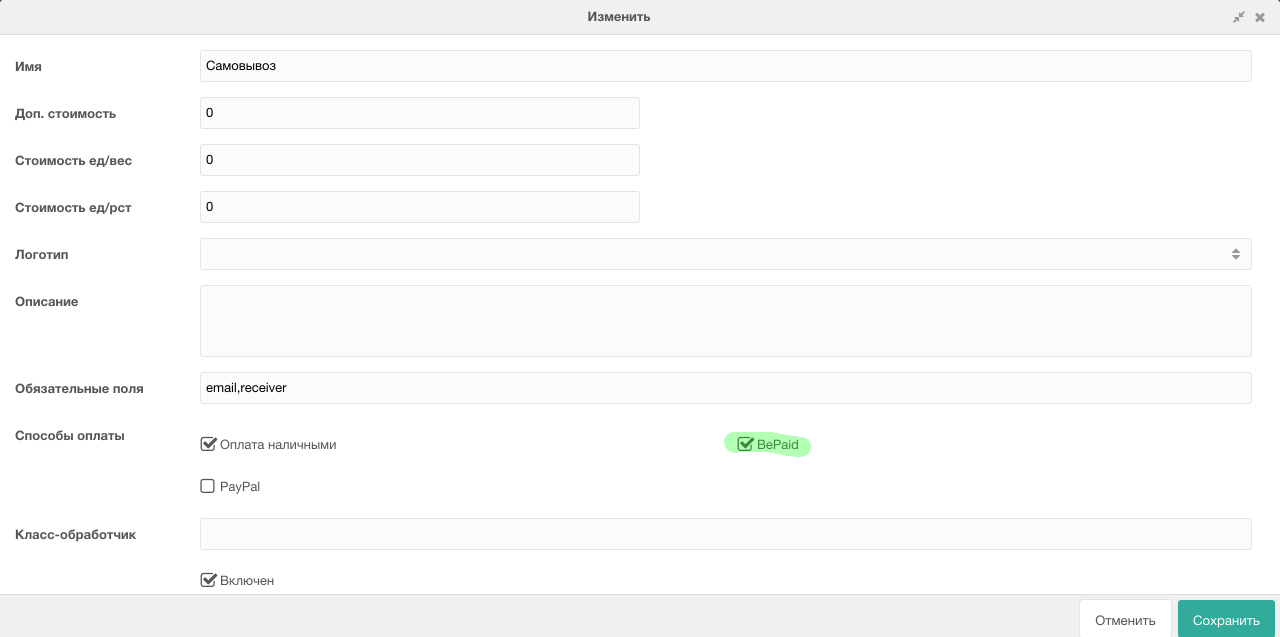
To switch payment mode from test to production, change system setting ms2_payment_bepaid_test_mode from "Yes" to "No".
For finer payment module configuration there is a set of system settings in the corresponding MODX section. To access them, select the minishop2 namespace and bePaid section.
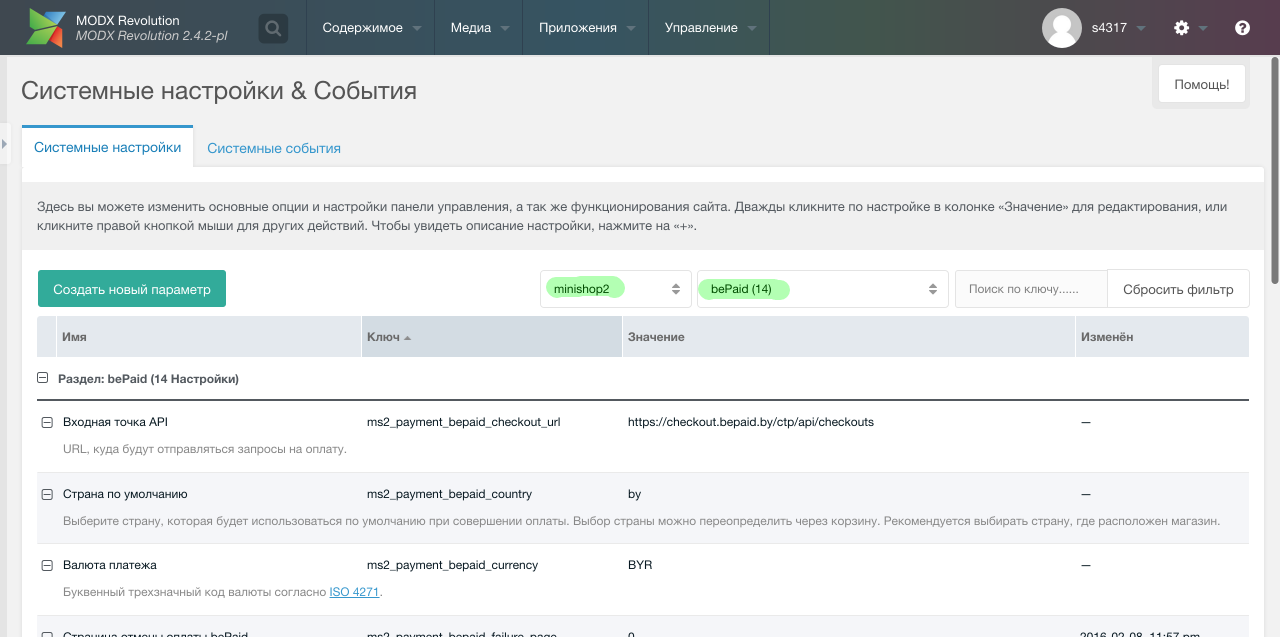
Additionally, several plugins are included with this payment module to improve working with system settings. For example, you don't need to manually enter resource or status numbers in a text field — just double-click the value and select the option from the dropdown.
ERIP and Halva
Starting from module version 2.2.0, support for "Halva" cards from MTBank and invoicing in the "Raschet" (ERIP) system is available.
The module implements two ways to add new payment methods to the site.
The first and simplest — add the required methods to system setting ms2_payment_bepaid_payment_types.
Values are comma-separated. If the field is empty, credit_card is used by default.
- credit_card — bank card payment
- erip — payment via ERIP
- halva — "Halva" installment card payment
Additionally, to correctly issue an invoice in the "Raschet" (ERIP) system, you need to know the service number assigned to the seller and specify it in setting ms2_payment_bepaid_erip_service_id. For testing you can use 99999999. Note that due to ERIP specifics, testing such payments should be done only on a site accessible on the network.
When redirecting to the payment system site it will look like this.
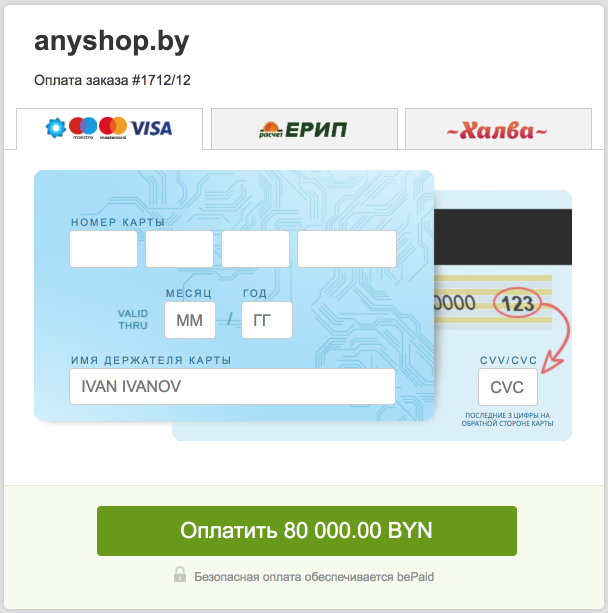
The second way is to add new payment methods in store settings — one for "Halva" card and one for ERIP — and let the customer choose on the checkout page. Both new methods inherit the base class but have a specific payment type preset by default.
System settings reference
Important! In the table below, for readability, setting keys are shown in short form without the **ms2_payment_bepaid** prefix._
| Description | Key | Default value |
|---|---|---|
| Store identifier in bePaid system Created when registering in bePaid and sent by email. | store_id | |
| Secret key Random character sequence, used in forming the order digital signature, issued when registering the store in bePaid. | secret_key | |
| bePaid language Select the language for the bePaid site during payment. By default the site language from cultureKey system setting is used. | language | ru |
| Default country Select the country used by default when paying. Country selection can be overridden via the cart. Recommended to select the country where the store is located. | country | by |
| Order status on successful payment If the order is processed without errors and the bank authorizes the transaction, the order status will be changed to this value. | success_status | 2 |
| Order status on payment errors If the order is not processed or there were payment errors, the order status will be changed to this value. | failure_status | 4 |
| bePaid success page User will be redirected here after successful payment. Recommended to specify the cart page to show order details. | success_page | 0 |
| bePaid failure page User will be redirected here on failed payment. Recommended to specify the cart page to show order details. | failure_page | 0 |
| Payment currency Three-letter currency code per ISO 4217. | currency | BYR |
| API endpoint URL where payment requests are sent. | checkout_url | https://checkout.bepaid.by/ctp/api/checkouts |
| Test payment mode When "Yes", all payment requests go to bePaid test environment. Real cards do not work in this mode. | test_mode | Yes |
| Read-only order properties Order fields listed here will be read-only on the payment page. Available fields (comma-separated): email, first_name, last_name, address, city, state, zip, phone, country. | readonly_fields | email |
| Hidden order properties Order fields listed here will be hidden on the payment page but saved to payment parameters. Available fields (comma-separated): phone, address. | hidden_fields | |
| Payment page version Current protocol version is 2.1. If you installed the component earlier, update this value manually. | api_version | 2.1 |
| Available payment methods Array of payment methods to show on the payment page. Values: credit_card, erip, halva. For ERIP you also need to specify erip_service_id. | payment_types | |
| ERIP service code Unique store or service code registered for the seller in the "Raschet" system. For testing use: 99999999. | erip_service_id |