


miniShop2
Flexible and fast e-commerce component for MODX Revolution

The miniShop2 order panel consists of filter forms and a data table.
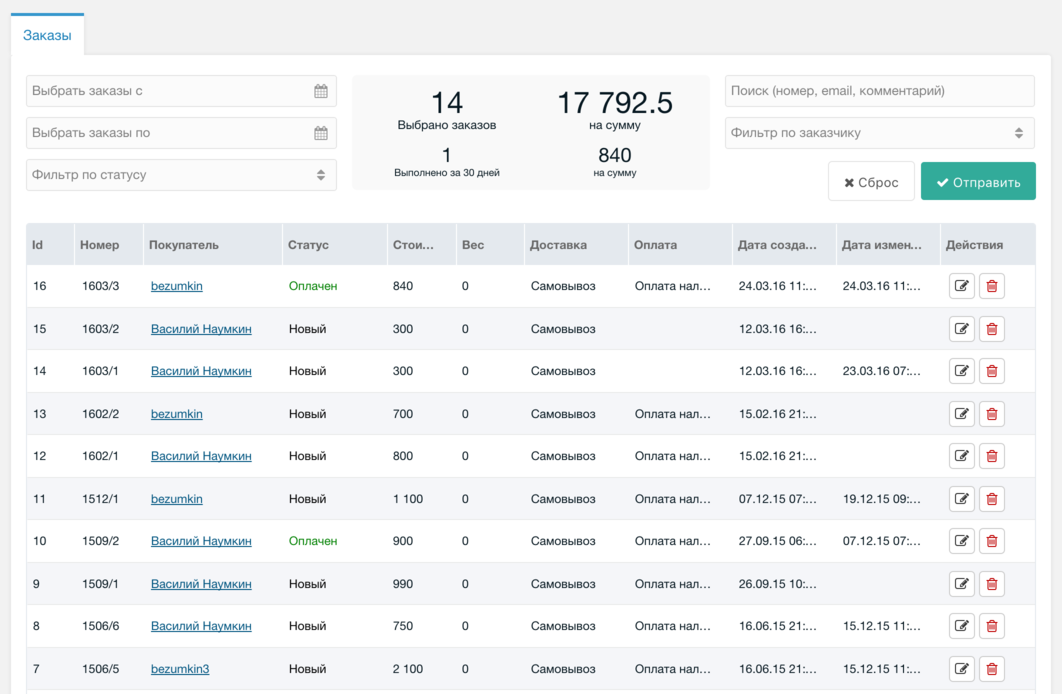
Orders can be filtered by:
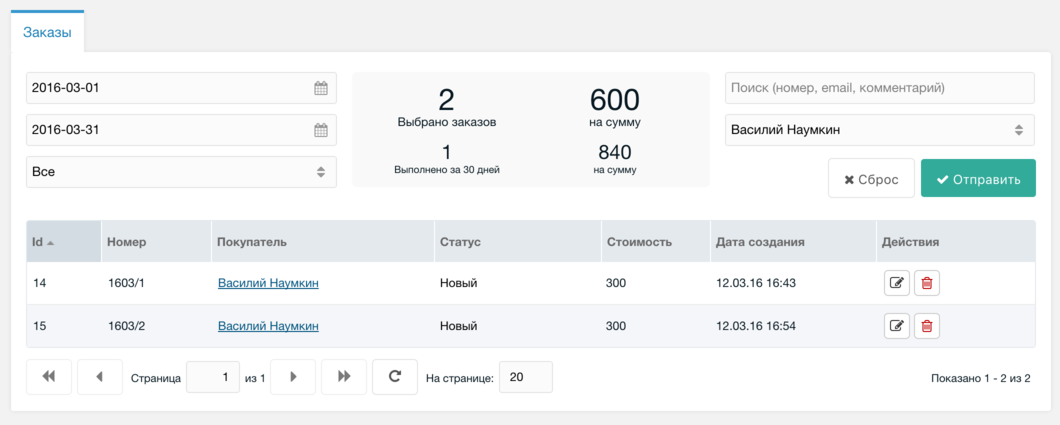
There is also an order search bar that searches by:
An info panel is shown in the middle of the filter. The first row shows sum and count of selected orders (with search and filter applied). The second row shows sum and count of processed orders (status "Completed" and "Shipped") for the last 30 days.
All orders are listed; columns and order are set in ms2_order_grid_fields. You can configure visible columns via the table header menu:
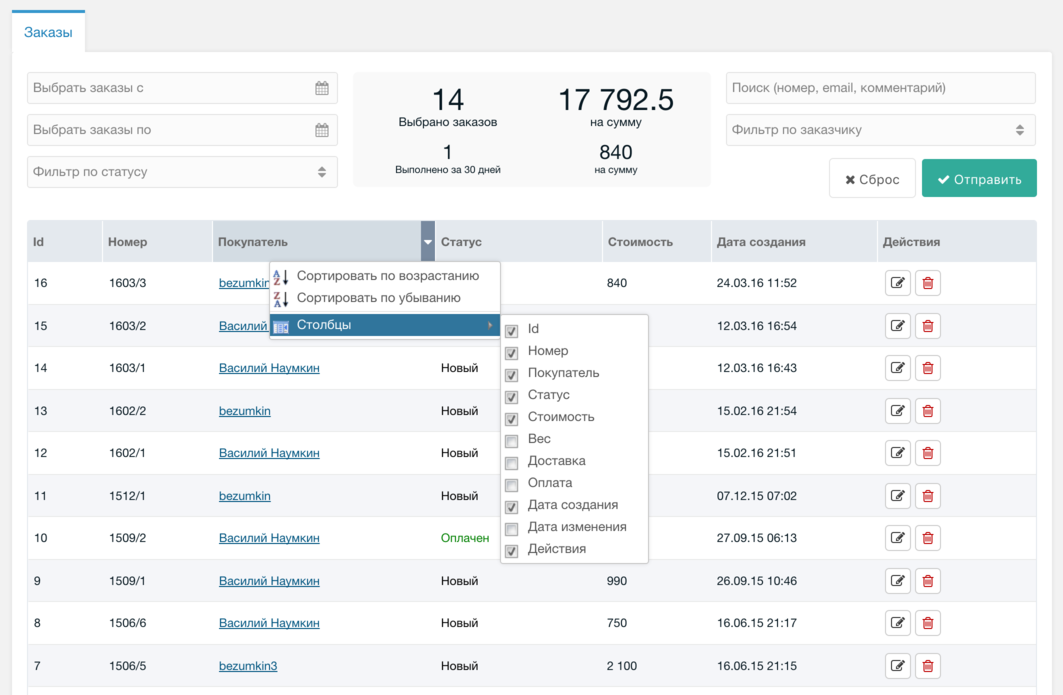
Table settings are stored in the system registry.
Click a column header to sort; sort order is remembered.
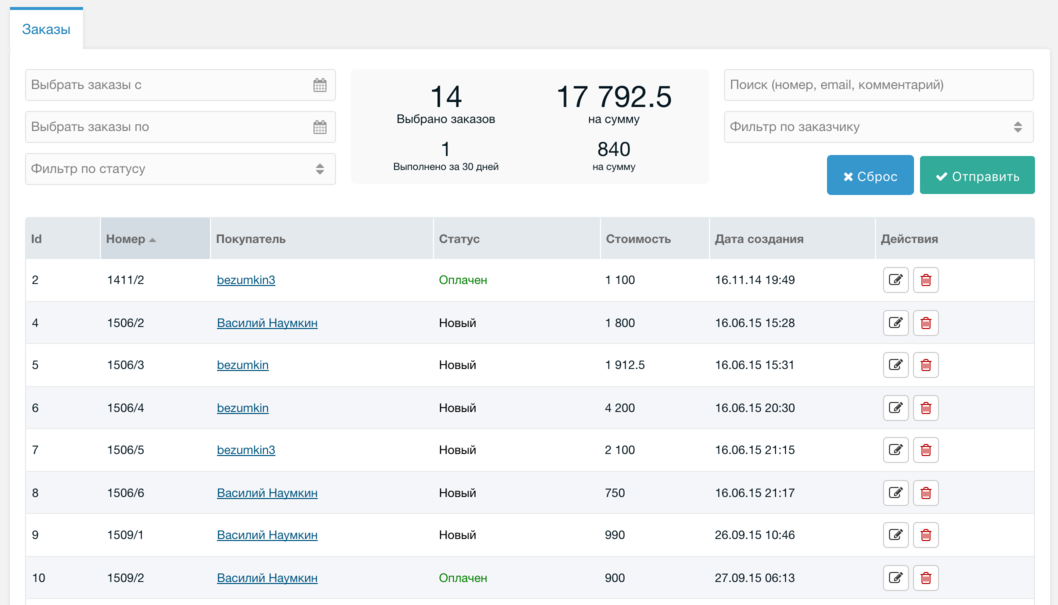
You can select multiple orders for deletion with Shift or Ctrl ⌘ Cmd.
To edit an order, click the action button in the row or double-click the row. Only one order can be edited at a time.
When opening an order, &order=order_id is added to the URL — a direct link to it.
The selected order panel tab is remembered. By default there are 4 tabs:
You can manually change order status, delivery method, and payment method via dropdowns. They are linked as defined in store settings. You cannot set a final status or choose a payment method that does not match the delivery method.
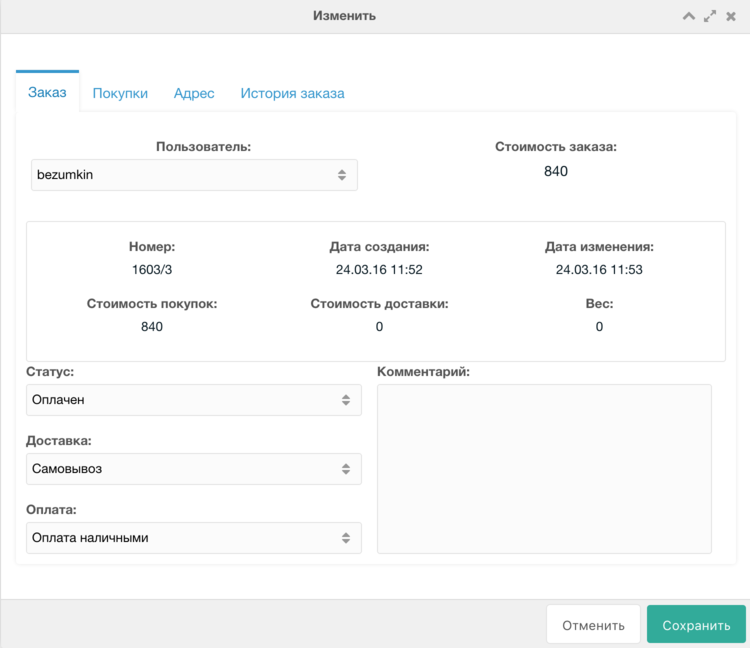
You can attach the order to another user and add a comment for search/filter.
Table of order items. You can edit, remove, or add items. Columns are set in ms2_order_product_fields and configured via the header menu.

Product settings open via button or double-click.
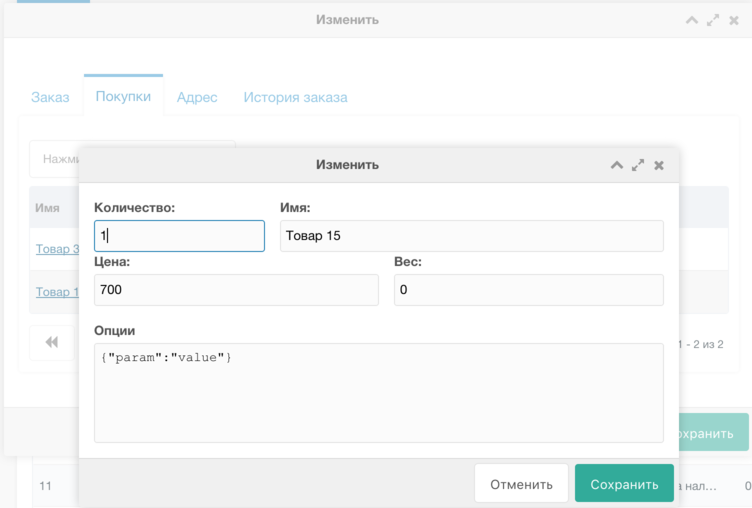
Product options can be edited in JSON format.
This tab is optional. By default it shows fields from ms2_order_address_fields.

If you do not use addresses in orders, clear this setting and the tab is hidden.
History of status changes: date, time, and user (manager).
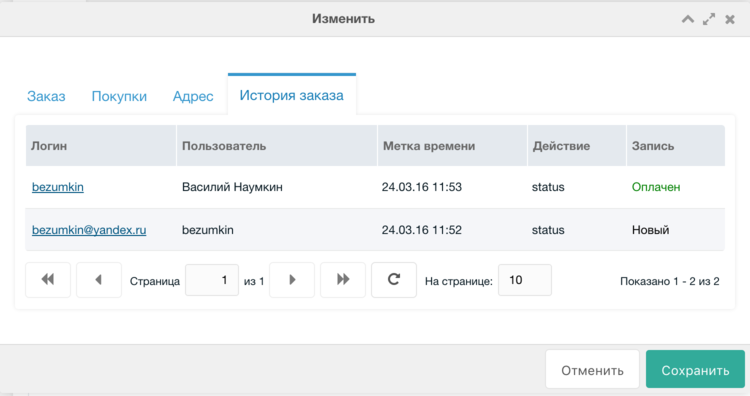
Clicking the user name opens that user’s edit page in a new browser window.