



Product gallery
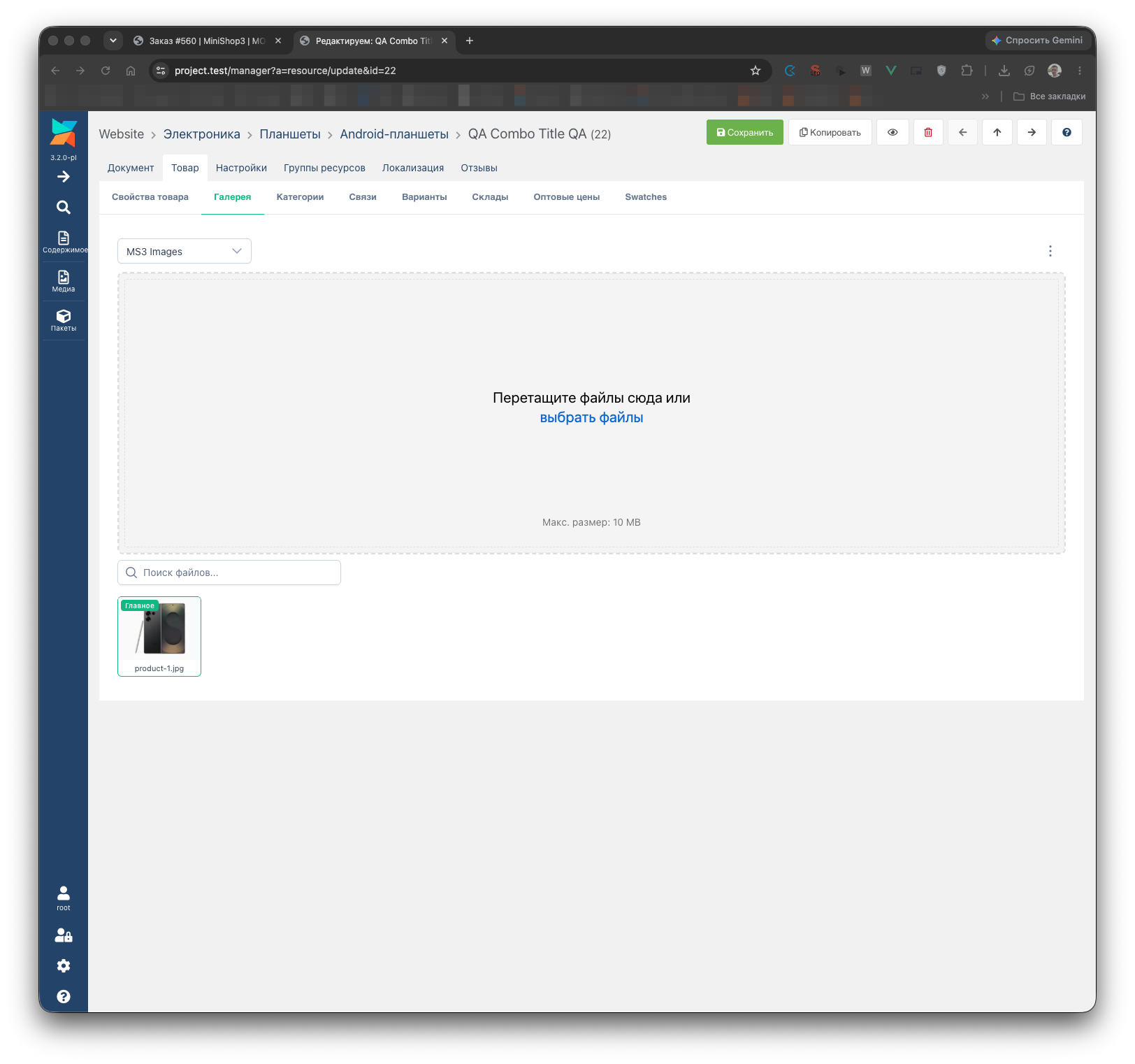
A tab on the product card: upload, thumbnails, sorting.
Image processing technology
MiniShop3 uses the Intervention Image v3 library instead of the obsolete phpThumb.
Requirements:
- PHP 8.2+
- Imagick (recommended) or the GD extension
- For AVIF — Imagick built with libheif (the code only checks that the
imagickextension is present)
Supported formats
| Format | Read | Write | Note |
|---|---|---|---|
| JPEG | ✅ | ✅ | Primary format |
| PNG | ✅ | ✅ | With transparency |
| GIF | ✅ | ✅ | Animation (first frame only) |
| WebP | ✅ | ✅ | Roughly a quarter smaller than JPEG (approximate, depends on the content) |
| AVIF | ✅ | ✅ | Roughly half the size of JPEG (approximate); writing requires Imagick |
| HEIC | depends on the build | ❌ | Reading depends on Imagick with libheif — the code does not check it |
Management interface
- Image grid — drag-and-drop sort, search, and pagination
- Context menu — right-click: edit, show, set as main, generate thumbnails, delete
- Toolbar — Media Source selection, bulk delete and thumbnail regeneration
- Edit dialog — file name, title (goes into
alton the frontend), description
Changing Media Source
Selecting a file source in the toolbar switches Media Source without saving the whole product form. Uses the Product\UpdateSource processor.
Main image (preview)
The “Set as main” action in the context menu does not change position in the gallery. It calls processor MiniShop3\Processors\Gallery\SetPreview, which writes preview_file_id to msProductData. Method ProductImageService::setProductPreview() links the file to the product card. Drag-and-drop sort and the preview on the frontend are separate mechanisms.
Image uploader
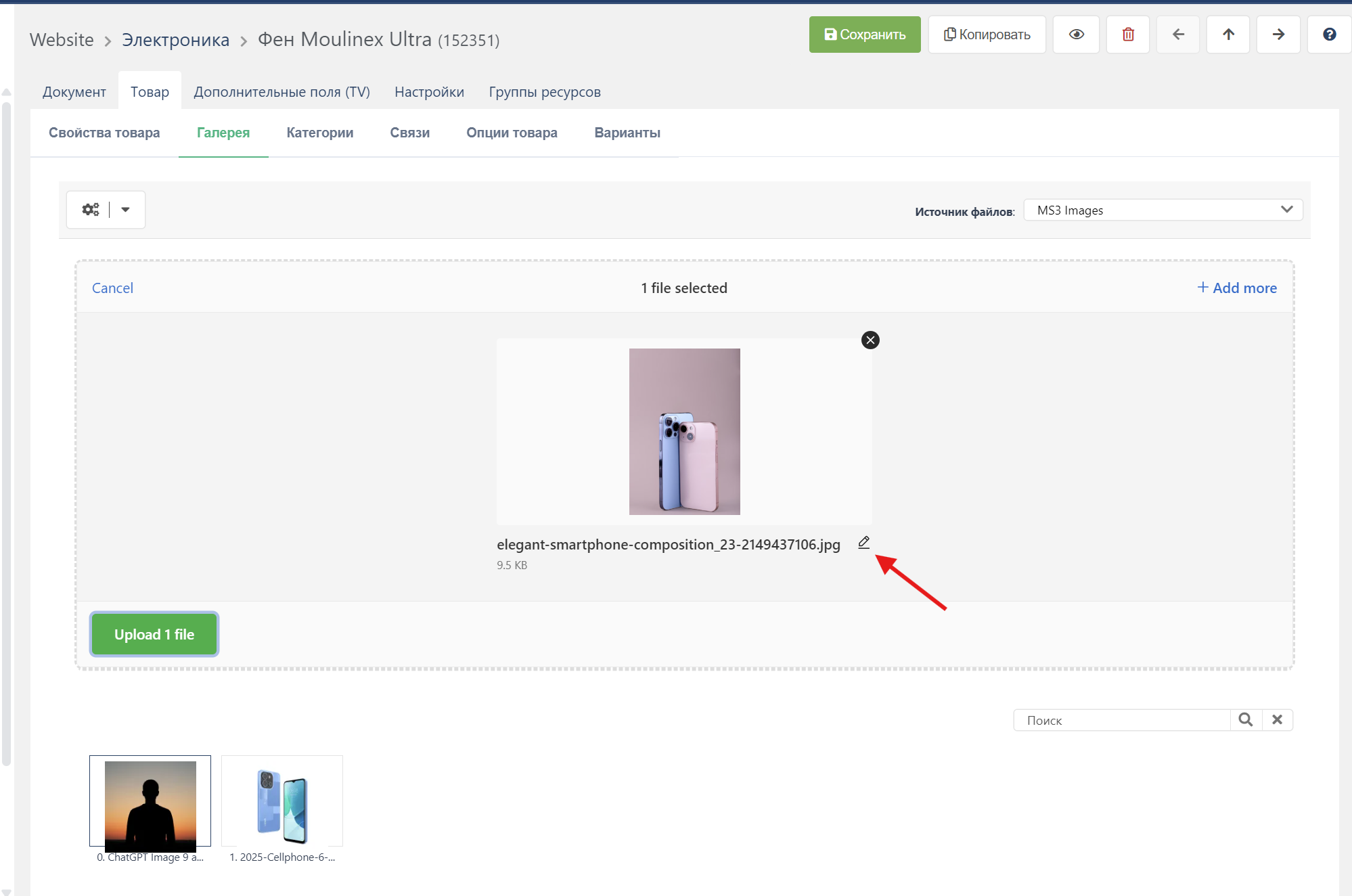
The uploader is built on the Uppy library.
Features:
- Drag & Drop — drag files into the upload area
- Multiple upload — several files at once
- Preview — thumbnails before upload
- Progress — upload progress display
- Validation — file type and size checks
Uploader parameters
| Parameter | Default | Description |
|---|---|---|
maxFileSize | 10 MB | Maximum file size |
allowedFileTypes | JPEG, PNG, GIF, WebP, AVIF, HEIC | Allowed types |
Upload has no width or height limits: only file type and size are checked. The Media Source properties maxUploadWidth / maxUploadHeight do not affect upload.
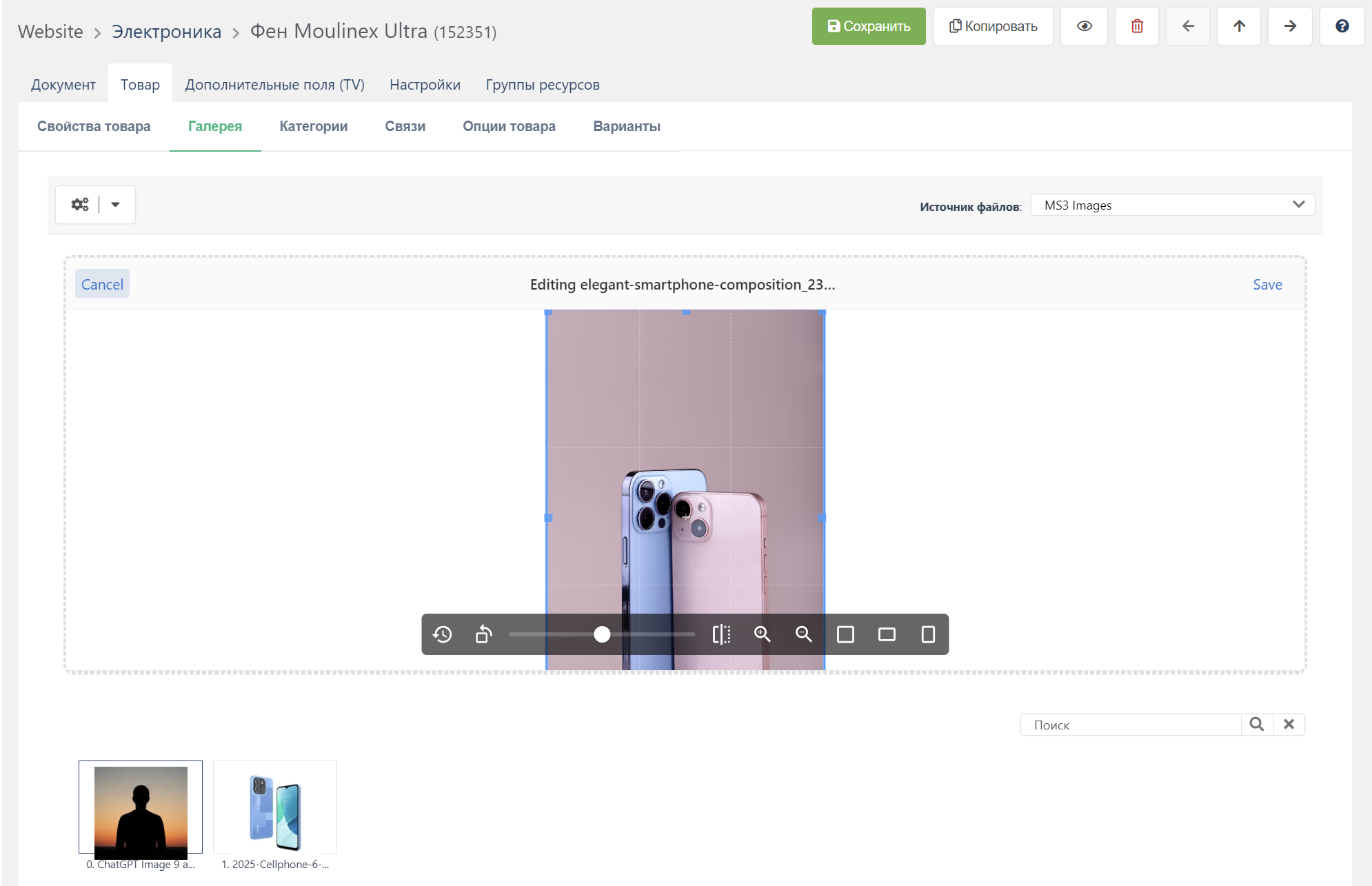
Image editor
Before upload you can edit the image:
- Crop — select the desired area
- Rotate — 90° in any direction
- Flip — horizontal/vertical
- Scale — resize
Thumbnail configuration
Where to configure
Thumbnail configuration is stored in Media Source:
- Go to Media → File sources
- Open the product source (default:
MS3 Images) - Find the
thumbnailsproperty - Enter JSON configuration
Configuration format
json
{
  "small": {
    "width": 150,
    "height": 150,
    "quality": 85,
    "mode": "cover",
    "format": "webp"
  },
  "medium": {
    "width": 400,
    "height": 400,
    "quality": 88,
    "mode": "cover",
    "format": "webp"
  },
  "large": {
    "width": 800,
    "height": 800,
    "quality": 90,
    "mode": "max",
    "format": "jpg"
  }
}
Thumbnail parameters
| Parameter | Type | Description |
|---|---|---|
width | int | Width in pixels |
height | int | Height in pixels |
quality | int | Compression quality (0-100) |
mode | string | Scaling mode |
format | string | File format |
Scaling modes (mode)
mode | Behavior | When to use |
|---|---|---|
cover | Fills the area and crops the rest | One fixed size: product cards, grids, thumbnails |
contain | Fits inside with proportions kept, via scale(). The code draws no background and ignores a background parameter | Show the whole object without cropping |
max | Shrinks to the given size, never enlarges | Product gallery and zoom: keep the quality |
stretch | Exactly width×height, proportions not kept (resize()) | A strict rectangle, distortion acceptable |
Ready configurations
Basic (minimal)
For small shops with limited disk space.
json
{
  "thumb": {
    "width": 150,
    "height": 150,
    "quality": 80,
    "mode": "cover",
    "format": "webp"
  },
  "medium": {
    "width": 600,
    "height": 600,
    "quality": 85,
    "mode": "cover",
    "format": "webp"
  },
  "large": {
    "width": 1200,
    "height": 1200,
    "quality": 85,
    "mode": "max",
    "format": "jpg"
  }
}
Result (approximate): ~256 KB per image, 12-20 files per product — depends on the content and the settings.
Optimal (recommended)
Balance of quality and performance with support for all browsers.
json
{
  "thumb_webp": {
    "width": 150,
    "height": 150,
    "quality": 80,
    "mode": "cover",
    "format": "webp"
  },
  "thumb_jpg": {
    "width": 150,
    "height": 150,
    "quality": 85,
    "mode": "cover",
    "format": "jpg"
  },
  "card_webp": {
    "width": 300,
    "height": 300,
    "quality": 82,
    "mode": "cover",
    "format": "webp"
  },
  "card_jpg": {
    "width": 300,
    "height": 300,
    "quality": 85,
    "mode": "cover",
    "format": "jpg"
  },
  "gallery_webp": {
    "width": 800,
    "height": 800,
    "quality": 85,
    "mode": "max",
    "format": "webp"
  },
  "gallery_jpg": {
    "width": 800,
    "height": 800,
    "quality": 88,
    "mode": "max",
    "format": "jpg"
  },
  "zoom": {
    "width": 1500,
    "height": 1500,
    "quality": 90,
    "mode": "max",
    "format": "jpg"
  }
}
HTML with fallback:
html
<picture>
  <source srcset="[[+card_webp]]" type="image/webp">
  <img src="[[+card_jpg]]" alt="[[+pagetitle]]">
</picture>
Premium (with Retina)
Maximum quality for large stores.
json
{
  "card_webp": {
    "width": 350,
    "height": 350,
    "quality": 82,
    "mode": "cover",
    "format": "webp"
  },
  "card_webp_2x": {
    "width": 700,
    "height": 700,
    "quality": 78,
    "mode": "cover",
    "format": "webp"
  },
  "card_jpg": {
    "width": 350,
    "height": 350,
    "quality": 85,
    "mode": "cover",
    "format": "jpg"
  }
}
HTML with Retina:
html
<picture>
  <source
    srcset="[[+card_webp]] 1x, [[+card_webp_2x]] 2x"
    type="image/webp">
  <img src="[[+card_jpg]]" alt="[[+pagetitle]]">
</picture>
Watermarks
json
{
  "watermarked": {
    "width": 800,
    "height": 600,
    "quality": 85,
    "mode": "cover",
    "format": "jpg",
    "watermark": {
      "enabled": true,
      "path": "assets/watermark.png",
      "position": "bottom-right",
      "offset_x": 10,
      "offset_y": 10,
      "opacity": 50
    }
  }
}| Key | Description |
|---|---|
enabled | Turns the watermark on. If the watermark is on and path is empty, the thumbnail is built without it and the reason goes to the log |
path | A path from the site root, with or without a leading slash. A file outside the site root, or an unreadable one, is rejected and logged |
position | Intervention names: top-left, top, top-right, left, center, right, bottom-left, bottom, bottom-right, plus tile — the watermark fills the whole frame. Case and spaces do not matter, an empty value gives bottom-right |
offset_x, offset_y | Margins from the edge in pixels. With tile they are the gaps between tiles |
opacity | 0–100: the value is cast to an integer, anything outside the range is clamped; empty or null gives 100. Works on both GD and Imagick, including transparent PNG and WebP |
phpThumb and miniShop2 codes (BR, C, * and the like) are not supported: an unknown value leaves the image without a watermark and logs Unknown watermark position.
Text watermark
The watermark can be text instead of an image — the type: text key:
json
{
  "watermark": {
    "enabled": true,
    "type": "text",
    "text": "© My store",
    "font": "assets/fonts/roboto.ttf",
    "size": 24,
    "color": "#ffffff",
    "angle": 0,
    "position": "bottom-right",
    "opacity": 60
  }
}
font is required — a path to a TTF file from the site root. With no font or no text the watermark is skipped and the reason goes to the log. The position, offset_x, offset_y and opacity keys work as they do for an image, but tile is not available for text.
Quality recommendations
| Image type | WebP | JPEG | Comment |
|---|---|---|---|
| Thumbnails (≤200px) | 75-80% | 85% | Artifacts not visible |
| Cards (200-400px) | 80-85% | 85-88% | Optimal balance |
| Gallery (400-1000px) | 85% | 88-90% | Details matter |
| Zoom (>1000px) | — | 90-92% | Maximum quality |
Rule
Roughly speaking, WebP can use 3-5% lower quality than JPEG for the same visual result (a measurement, not a guarantee from the component).
File structure
text
assets/images/products/
└── {product_id}/
    ├── photo.jpg           # Original
    ├── thumb_webp/
    │   └── photo.webp      # WebP thumbnail
    ├── thumb_jpg/
    │   └── photo.jpg       # JPEG thumbnail
    ├── card_webp/
    │   └── photo.webp
    ├── card_jpg/
    │   └── photo.jpg
    └── ...
Developer API
Service ms3_image:
php
// Get the service
$imageService = $modx->services->get('ms3_image');

// Generate thumbnail
$thumbnailData = $imageService->makeThumbnail($sourceInfo, [
    'width' => 300,
    'height' => 200,
    'quality' => 85,
    'mode' => 'cover',
    'format' => 'webp'
]);

// Save to Media Source
$path = $imageService->saveThumbnailToSource(
    $thumbnailData,
    'products/123/',
    'photo_thumb.webp',
    $mediaSource
);

// Driver info
$driverInfo = $imageService->getDriverInfo();
// ['name' => 'Imagick'|'GD', 'supports_webp' => true, 'supports_avif' => true|false]
Troubleshooting
Thumbnails not created
Check:
- Imagick or GD:
php -m | grep -E "(imagick|gd)" - Write permissions for
assets/images/products/ - Valid JSON in Media Source settings
- MODX logs in
core/cache/logs/error.log
WebP not generated
Requirements:
- Imagick with WebP support, or GD compiled with
--enable-webp
Check:
php
$imageService = $modx->services->get('ms3_image');
$info = $imageService->getDriverInfo();
var_dump($info['supports_webp']);
AVIF not generated
AVIF requires Imagick with libheif. GD does not support AVIF.
Check:
bash
php -r "var_dump(Imagick::queryFormats('AVIF'));"Images upload but don't display
Check:
- Media Source URL in settings
- File accessibility at the given path
.htaccessfor static files
Related pages
- Utilities: Gallery — bulk thumbnail regeneration
- msGallery — gallery output snippet on the site