



Utilities: Import
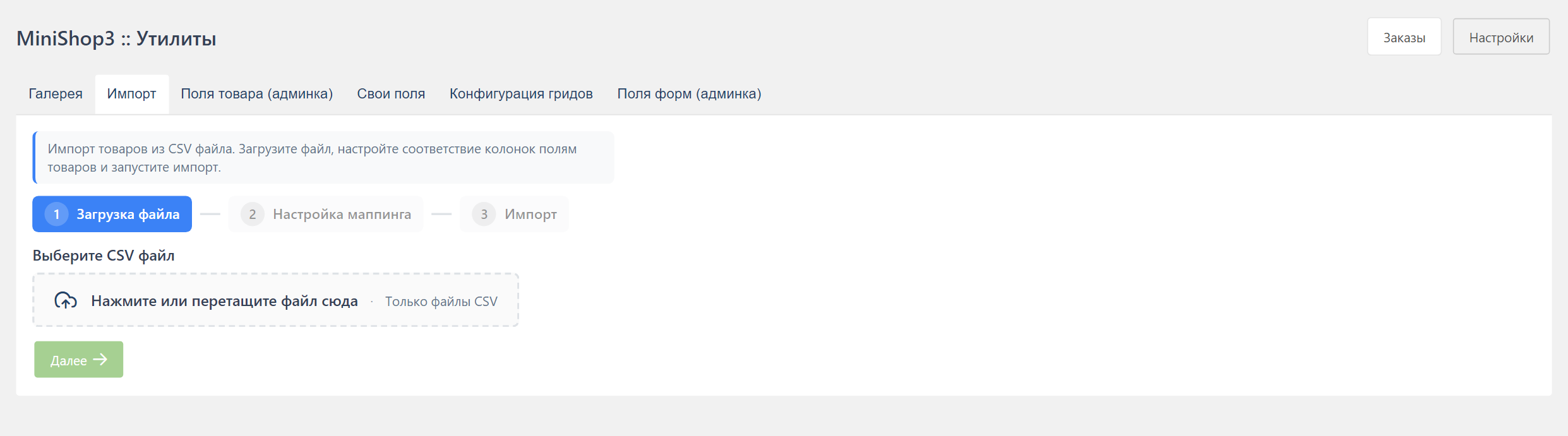
Step-by-step wizard for importing products from CSV.
Purpose
- Encoding detection (UTF-8, Windows-1251, KOI8-R, ISO-8859-5, ASCII; UTF-16 by BOM). When detection fails, Windows-1251 is assumed
- Mapping columns to product fields
- Update by a key field
- TV fields, options (
option.*), images into the gallery - Active extra fields (
msExtraField) formsProduct/msProductData
Step-by-step process
Step 1: Upload file
- Drag a CSV file into the upload area, or click to choose one
- Only files with the
.csvextension are accepted - The maximum size depends on the server settings
Settings:
| Parameter | Description | Default |
|---|---|---|
| Delimiter | Column separator. Supported values are ;, ,, and Tab | ; |
| Skip header | The first row holds the column names | Yes |
After upload you see the row count, the encoding, and a warning when the file is large.
System settings
| Setting | Default | What it sets |
|---|---|---|
ms3_import_sync_limit | 300 | The threshold above which the import goes to a background task instead of running synchronously |
ms3_import_preview_rows | 5 | How many rows the preview shows |
ms3_import_upload_path | assets/import/ | Where the uploaded CSV files go |
ms3_utility_import_fields | pagetitle,parent,price,article | The default column mapping |
ms3_utility_import_fields_delimiter | ; | The default delimiter |
The 300 threshold is a setting value, not a constant: on a capable server it can be raised.
Encoding
Windows-1251 files are converted to UTF-8 during processing.
Step 2: Field mapping
Say which product field each CSV column fills.
Required fields: pagetitle (name), parent (category ID).
Mapping table:
| CSV column | Product field | Preview |
|---|---|---|
| A: "Name" | pagetitle | iPhone 15 |
| B: "Category" | parent | 5 |
| C: "Price" | price | 99990 |
Automatic mapping
The system maps columns by their headers. A column named "name" goes to pagetitle.
Update settings:
| Parameter | Description |
|---|---|
| Update existing | If a product is found by the key, update it |
| Lookup key | Field used to find duplicates |
Lookup keys: article (better), pagetitle, alias, id.
Extra fields
GET /api/mgr/import/fields builds the column list for mapping:
- The static catalog
config/import-fields.php(resource,msProductData, options). - Active
msExtraFieldrows formsProductandmsProductDatawhose column already exists in the database (column_exists).
Widget type ms3-repeater is left out of import. Repeater JSON rows are not mapped through CSV. Simple extra fields (varchar, int, decimal, text, …) and key-value fields (when the column exists) show up as ordinary product fields.
A key of an extra field cannot override a reserved name from the static catalog.
Options still use the option. prefix (a dot) in the CSV, or an explicit mapping to the option key.
Step 3: Import
Summary before the run:
- File name
- Row count
- Count of mapped fields
Import modes:
| Mode | Description |
|---|---|
| Synchronous | The import runs immediately and you wait for the response |
| Asynchronous | The task goes to Scheduler (large files) |
Large files
For files over 300 rows, use asynchronous mode through Scheduler.
Debug mode:
- Processes only the first row
- Useful for checking that the mapping is right
Import results:
text
Import complete!
- Total processed: 150
- Created: 120
- Updated: 25
- Errors: 3
Available fields
Main resource fields
| Field | Description |
|---|---|
pagetitle | Product name (required) |
longtitle | Extended title |
description | Description (meta) |
introtext | Intro text |
content | Main content |
alias | URL alias |
parent | Parent category ID (required) |
template | Template ID |
published | Published (0/1) |
hidemenu | Hidden from the menu (0/1) |
menuindex | Menu position |
menutitle | Menu item title |
searchable | Searchable (0/1) |
cacheable | Cacheable (0/1) |
link_attributes | Menu link attributes |
pub_date | Publication date |
unpub_date | Date the resource is unpublished |
uri | Ready resource URI |
uri_override | Use a custom URI (0/1) |
show_in_tree | Show in the resource tree (0/1) |
Product fields (msProductData)
| Field | Description |
|---|---|
article | SKU |
price | Price |
old_price | Old price |
weight | Weight |
color | Color |
size | Size |
stock | Stock |
remains | Stock, a separate entry in the mapping list kept for miniShop2 compatibility — the value is written to stock |
vendor | Vendor (name or ID) |
made_in | Country of origin |
new | New (0/1) |
popular | Popular (0/1) |
favorite | Favorite (0/1) |
image | Main image |
thumb | Thumbnail |
tags | Tags. Type json: a comma-separated value is parsed into an array |
source_id | Product media source id |
What ends up in the TV and option lists
The mapping dropdowns are built with limits: 50 entries each, TVs come only from the template named by the ms3_template_product_default setting, and options only cover keys that already appear on at least one product.
So a TV from another template, or an option never used yet, will not be in the list. The import itself is unaffected: a tv.name or option.key written into the CSV by hand is processed.
Special fields
| Field | Description |
|---|---|
gallery | Image path (relative to the site root) |
tv.{name} | TV field by name (for example tv.brand) |
option.{key} | Product option (for example option.color) |
CSV file format
Example structure
csv
pagetitle;parent;article;price;old_price;vendor;gallery
iPhone 15 Pro;5;IP15PRO;119990;129990;Apple;assets/import/iphone15.jpg
Samsung Galaxy S24;5;SGS24;89990;99990;Samsung;assets/import/galaxy.jpg
Recommendations
- Quote text that contains the delimiter
- Leave the cell empty for an empty value
- For the gallery, use a path relative to the site root
Multiple values
To upload several images, add several gallery columns:
csv
pagetitle;gallery;gallery;gallery
Product;img/1.jpg;img/2.jpg;img/3.jpg
Troubleshooting
Error "Required field is not set"
Cause: pagetitle or parent is not mapped.
What to do: Go back to step 2 and map the required fields.
Products are not created
Possible causes:
parentpoints at a category ID that does not exist- No permission to create resources
- Data validation errors
What to do: Turn on debug mode and check the MODX log.
Wrong encoding
Symptom: Cyrillic looks wrong.
What to do:
- Save the file as UTF-8 without BOM
- Or make sure the detected encoding matches the file
Images are not uploaded
Check:
- The files exist at the given path
- The path is relative to the site root
- The process can read the files
For a programmatic gallery upload, use the processor MiniShop3\Processors\Gallery\Upload (see Product API).
Programmatic use
Import processors
| Processor | Purpose |
|---|---|
MiniShop3\Processors\Utilities\Import\Fields | Field list for mapping |
MiniShop3\Processors\Utilities\Import\Upload | CSV upload |
MiniShop3\Processors\Utilities\Import\Preview | Preview |
MiniShop3\Processors\Utilities\Import\Import | Start the import |
MiniShop3\Processors\Utilities\Import\Progress | Progress |
MiniShop3\Processors\Utilities\Import\SaveConfig | Save field settings. Call it only through runProcessor. It has no REST route under /import/* |
API endpoint
http
POST /api/mgr/import/startEvery /api/mgr/import/* route requires the msproduct_save permission.
Parameters:
json
{
  "importfile": "assets/import/2026-10-29_10-15-42_products_a1b2c3d4.csv",
  "mapping": "{\"0\":\"pagetitle\",\"1\":\"parent\",\"2\":\"price\"}",
  "delimiter": ";",
  "skip_header": true,
  "update": true,
  "key": "article",
  "scheduler": false,
  "debug": false
}
Import events
Extend the import through import events:
msOnBeforeImport: before the startmsOnImportRow: on each rowmsOnAfterImport: after it finishes