



Utilities: Product fields
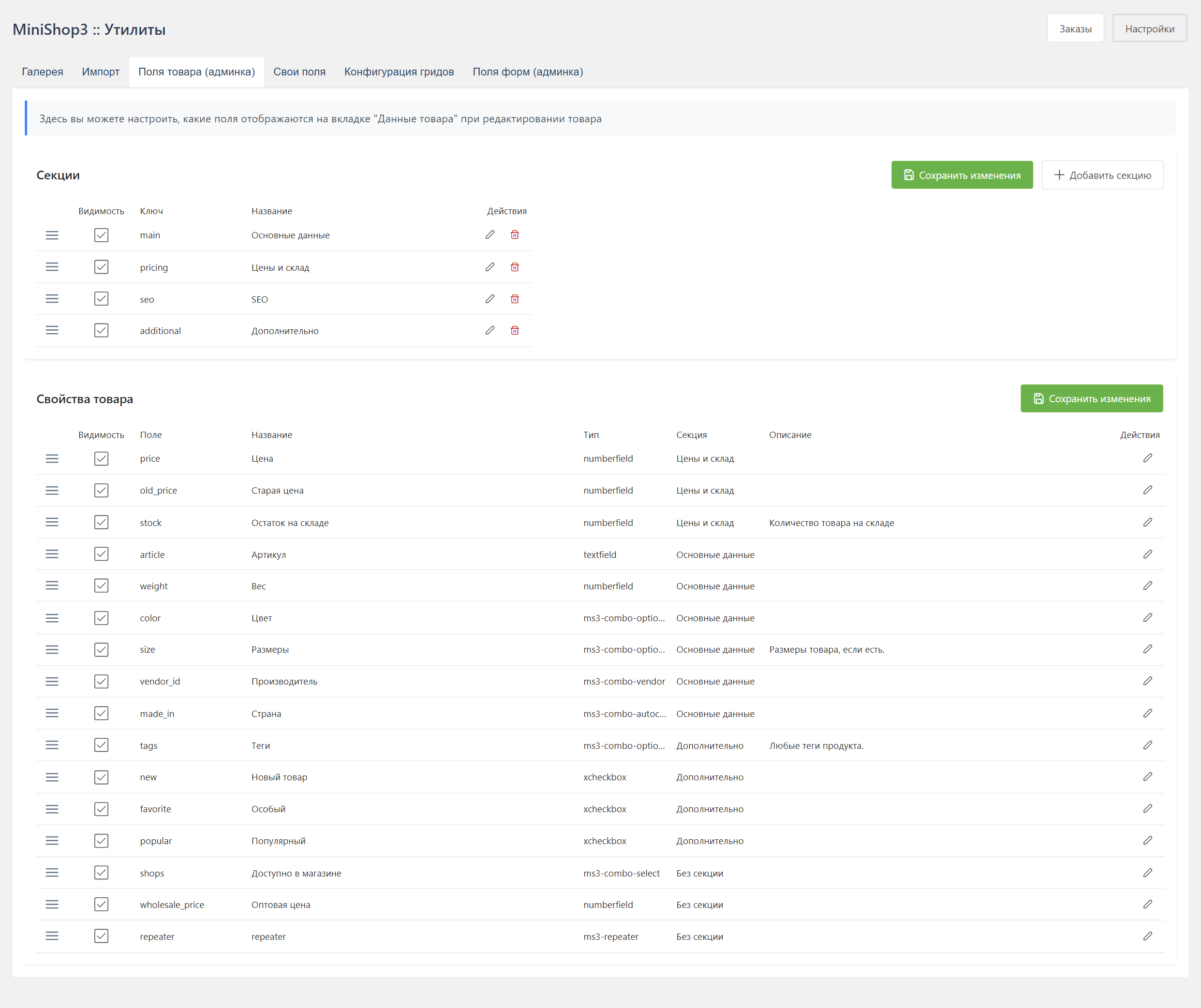
Field layout on the Data tab of the product card.
Cookbook
Sections, hiding fields, and the link to extra fields: Product fields cookbook. End-to-end example: Wholesale price.
Purpose
The tool controls the layout of fields on the Data tab:
- visibility and order
- groups by section
- labels and widget xtypes
A new column in ms3_product_data is created in Extra fields. After you create the field, a row appears here on its own.
Interface
Sections
The left panel lists sections. Drag them to sort.
Fields
The right panel lists fields of the selected section.
In the row:
- Field name (key)
- Label
- Widget type (xtype)
- Visibility
Section management
Creating a section
- Click Add section
- Fill the form:
| Field | Description | Required |
|---|---|---|
| Section key | Unique identifier (Latin letters) | Yes |
| Lexicon key | Key for the translated title | No |
| Title | Display name | No |
| Hidden | The section is hidden on the product card | No |
Lexicon
If a lexicon key is set, the title comes from the localization files. The interface is translated into several languages.
Editing a section
Click the edit icon to the right of the title, or double-click the section.
Deleting a section
Caution
When you delete a section, its fields move to No section. The fields themselves stay.
Field management
Editing a field
Click a field. The edit dialog opens.
Available parameters:
| Parameter | Description |
|---|---|
| Title (label) | Display name of the field |
| Placeholder | Hint inside the input |
| Description | Hint under the field |
| Section | Which section the field belongs to |
| Widget type (xtype) | Only while creating the field. The edit dialog locks this control |
| Visibility | Whether the field shows on the card |
| Width | Grid columns: 3, 4, 6, 8, 12 |
Widget types (xtype)
| Type | Description |
|---|---|
textfield | Single-line text |
numberfield | Number |
textarea | Multiline text |
xcheckbox | Checkbox |
ms3-combo-vendor | Vendor picker |
ms3-combo-autocomplete | Autocomplete from a list |
ms3-combo-options | Pick from product options |
Moving fields
You move fields like this:
- Inside a section, drag them up or down
- Between sections, change the section in the edit dialog
Default sections
Defaults (seed product_data):
| Key | Title | Seed fields |
|---|---|---|
main | Main data | article, weight, color, size, vendor_id, made_in |
pricing | Prices and stock | price, old_price, stock |
seo | SEO | empty section. You add the fields |
additional | Additional | tags, new, favorite, popular |
Saving changes
- Dragging saves automatically
- When you edit a field or a section, click Save
- Reload the page to see the change on the product card
API endpoints
Get field configuration
http
GET /api/mgr/config/page-fields/product_dataResponse:
json
{
  "success": true,
  "data": {
    "fields": [
      {
        "name": "article",
        "label": "SKU",
        "xtype": "textfield",
        "section": 1,
        "visible": true,
        "sort_order": 0
      }
    ]
  }
}
Get sections
http
GET /api/mgr/config/sections/product_dataSave field configuration
http
PUT /api/mgr/config/page-fields/product_dataWrite permission: mssetting_save. A GET is available to any manager session without mssetting_save.
Request body is a fields array (not one field):
json
{
  "fields": [
    {
      "name": "article",
      "label": "Product SKU",
      "section": 1,
      "visible": true,
      "sort_order": 0
    }
  ]
}
Save sections
The UI adds a new section locally, then saves the whole list:
http
PUT /api/mgr/config/sections/product_datajson
{
  "sections": [
    {
      "section_key": "custom",
      "lexicon_key": "ms3_section_custom",
      "label": "Additional",
      "hidden": false,
      "sort_order": 100
    }
  ]
}
Delete a section
http
DELETE /api/mgr/config/sections/product_data/{section_key}Base sections cannot be deleted. There is no POST /config/sections/... in 1.13.x.
Configuration examples
Hide fields you do not need
If color and size are options, turn off visibility for color and size.
Create an "SEO" section
The seo section is already in the seed. If you deleted it, add it again (key seo). Document tab fields (longtitle, description) are not part of product_data. Their visibility is ms3_product_main_fields. Into the empty SEO section you move your own fields from main / additional, or extra fields.