



Quick start with mFilter2
This quick start sets up one rule for the "color" field from miniShop2 options. You should already be filtering by this field in mFilter2.
Setup
First check that the aliases setting is set in your mFilter2 snippet call in the template you use. Example from the demo site:
modx
[[!mFilter2?
  &class=`msProduct`
  &element=`msProducts`
  &setMeta=`1`
  &filters=`
    ms|price:number,
    parent:categories,
    msoption|color`
  &aliases=`
    ms|price==price,
    resource|parent==category,
    msoption|color==cvet`
  &tplFilter.outer.price=`tpl.mFilter2.filter.slider`
  &tplFilter.row.price=`tpl.mFilter2.filter.number`
]]
Because we filter by the color option, the aliases entry is msoption|color==cvet. We care about the right side of ==, i.e. cvet. In the category, when you choose "blue" in the filter you get URLs like /razdel/?cvet=sinij. Terminology: parameter = cvet, value = sinij (or blue, etc.).
Also check SeoFilter system settings under Main. Some defaults are already set; word declension is off by default — you can enable it without login/password for now. Details on the Additional features page.
Add field to SeoFilter
Go to Applications → SeoFilter and add a field to define what URLs you want for this field. All values (blue, green, etc.) are processed according to your friendly URL system settings (e.g. translit module, or Yandex translator, etc.).
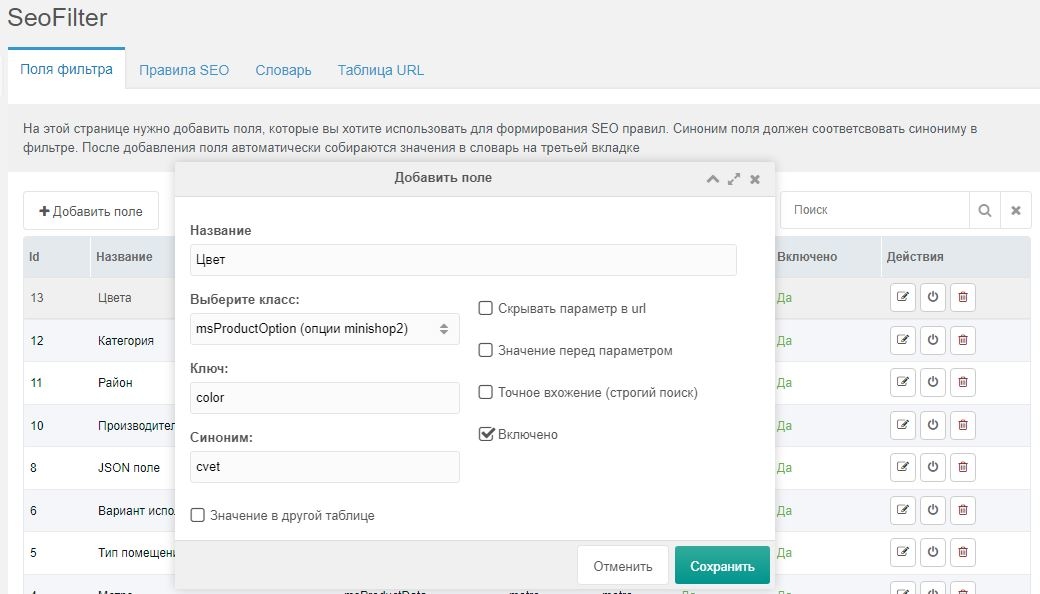
Field settings:
- Name — for your reference when adding rules.
- Class — one of: msProductData (product fields), modResource (resource fields), msVendor (vendor), msProductOption (miniShop2 options), modTemplateVar (TVs).
- Key — field name (Latin). In our case, what is to the right of msoption| in filters, i.e. color.
- Alias — what we used in aliases, i.e. cvet.
Внимание
All other settings optional
At this stage, rules using this field will produce URLs like "cvet-sinij", "cvet-krasnyij", etc.
- Value in other table — see Additional features. Not needed for this example.
- Hide param in URL — when checked, rules use only the value, e.g. "sinij", "krasnyij".
- Value before param — produces URL parts like "sinij-cvet", "krasnyij-cvet".
- Exact match (strict search) — use when the field stores only ids or numbers.
Dictionary
After saving the field, all color values already used in your products are collected into the Dictionary. You can fix misrecognized values and change aliases there.
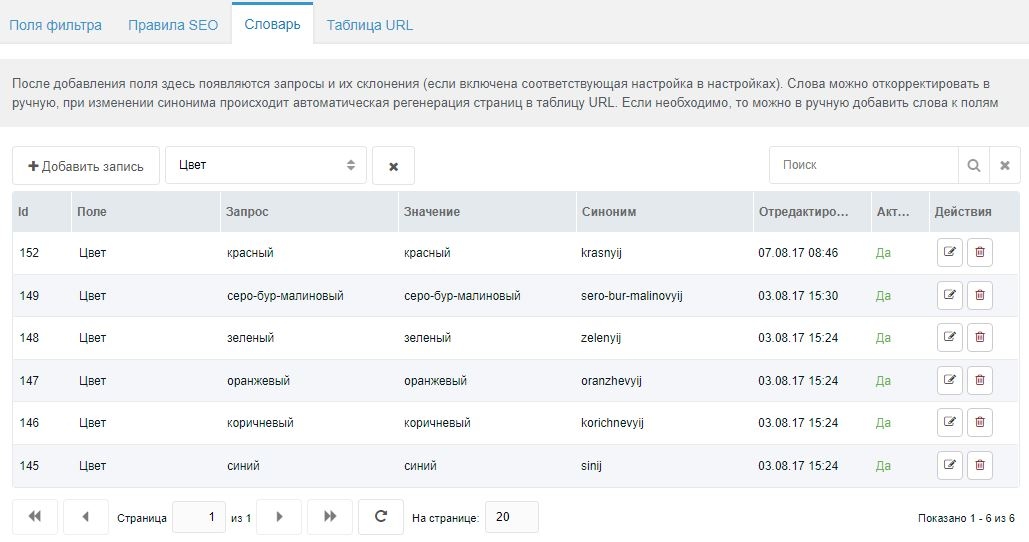
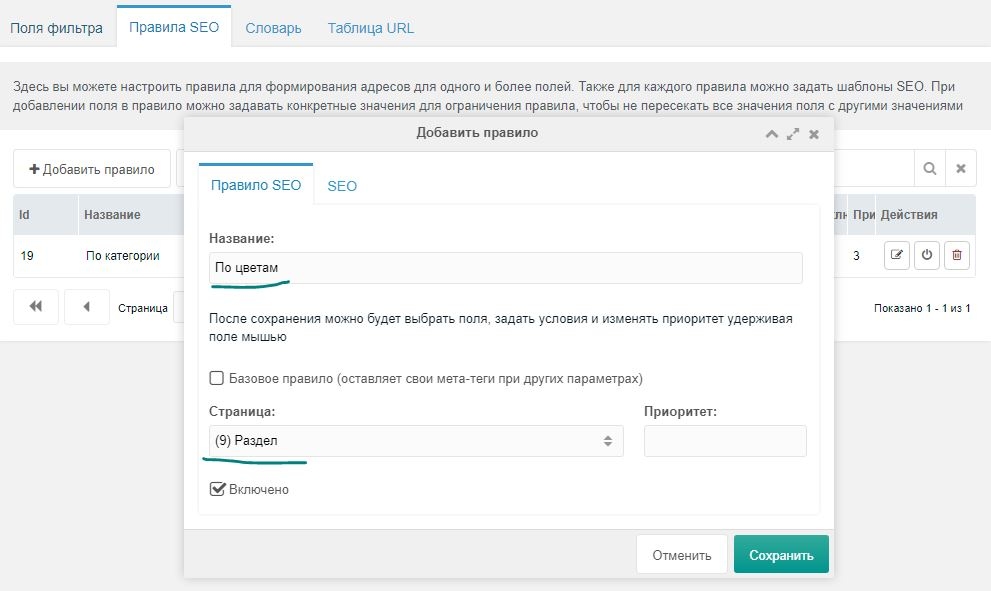
Create rule
Add a rule with Name and Page so you can attach fields. You can fill SEO tags later if you prefer.
Terms
- Base rule — keeps a pretty URL and adds other filter values as GET params (/cvet-krasnyij?size=M), and keeps rule texts on the page. Use mainly for rules whose fields are filled in all products (e.g. color). Important when the rule has one field that is also used in two- or three-field rules.
- Priority — for resolving conflicts between base rules (e.g. category is also base but required). Higher priority wins (0 = highest, 1 = lower, etc.). More in Additional features.
Add field to rule
After saving, open the rule again in edit mode. You'll see a table with "Add field" and URL mask (the mask is filled automatically after save when fields are added).
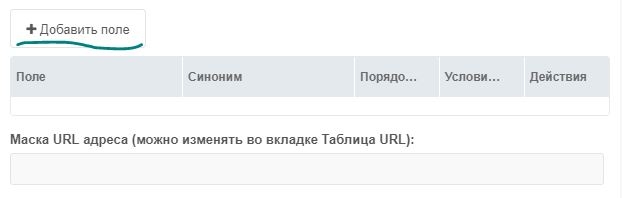
Click "Add field" and in the popup choose "Color" from the list.
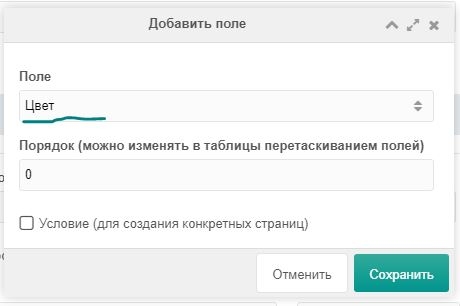
- Order — set automatically starting from 0 (second field would be 1). Needed for URL order.
- Condition — extra option; not needed for now.
After Save, the table shows the field and its alias for use in texts.

SEO templates for texts
Go to the SEO tab and set texts for Page title and H1.
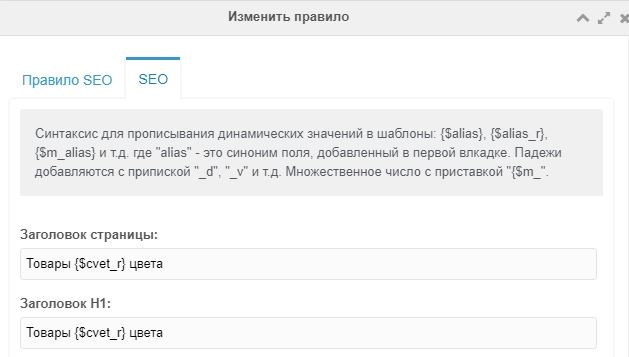
Texts are processed by Fenom; you can use its features. Basics: string modifiers like lower (lowercase), ucfirst (first letter of first word uppercase). In the example we use {$cvet_r} (color in genitive) because declension is enabled. By default only {$cvet} or {$value} would be available.
For rules with only one field you can use {$value_r} etc.
All placeholders are described on Substitutions in SEO texts. Save the rule and open the URL table tab to confirm pages were generated.
URL table
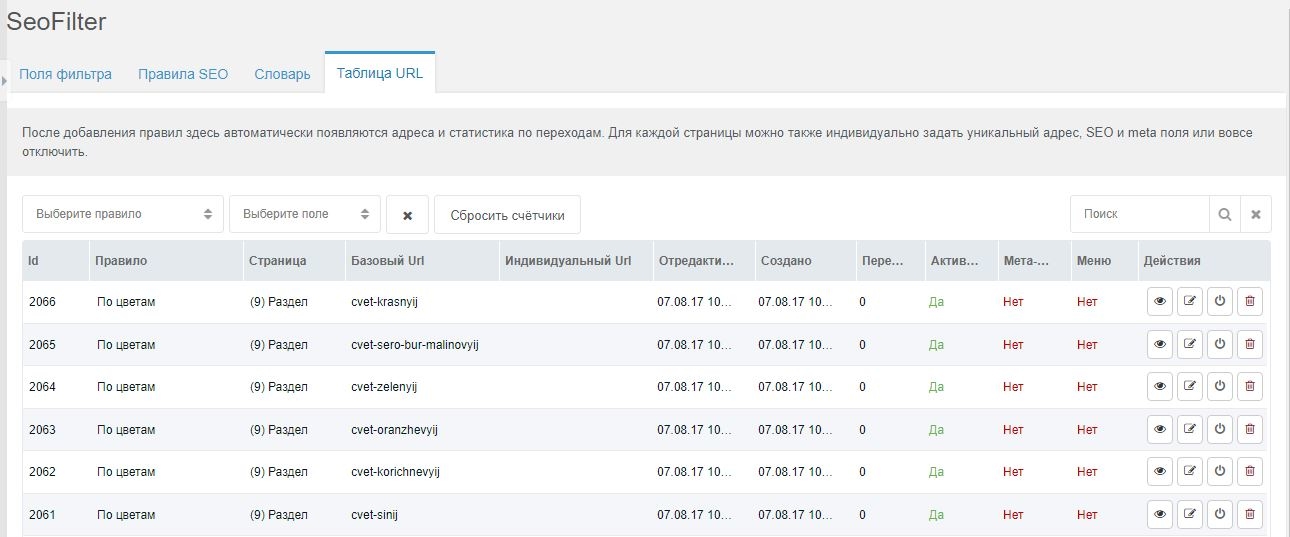
If everything is correct, clicking the eye icon opens the page: URL is pretty, filter is checked, results match, but texts are not replaced yet — that's expected until you add placeholders and classes for AJAX in your templates.
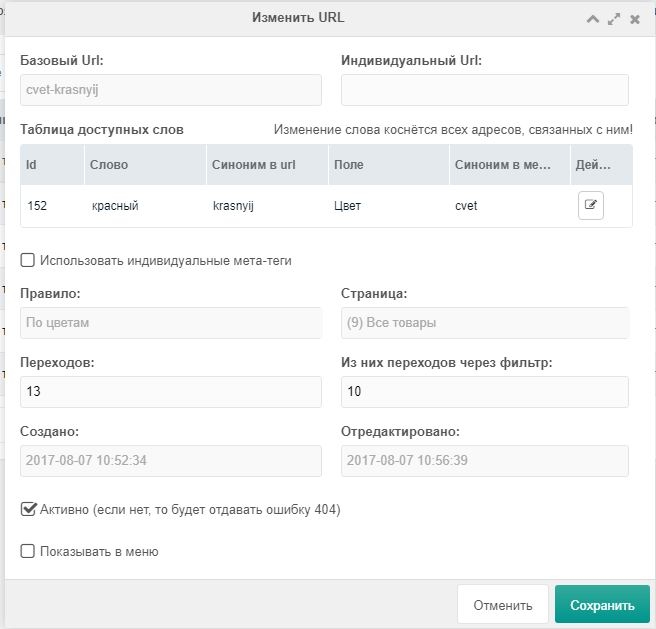
In the URL table you can set a custom address per page, custom meta tags, reset view counters, and control the link as a menu item (menu/sitemap snippets coming in future versions).
Layout and AJAX replacements
So far we only set two fields: Page title and H1. For the page title, change the Head chunk like this:
modx
<title>[[!+sf.title:default=`[[*pagetitle]]`]]</title>With pdoTitle (AJAX pagination in title):
modx
<title>[[!+sf.title:notempty=`[[!+sf.title]] / `]][[!pdoTitle? ®isterJs=`1` &limit=`2`]]</title>Enable Add SEO title with separator.
For H1:
modx
<h1 class="sf_h1">[[!+sf.h1:default=`[[*pagetitle]]`]]</h1>Adjust "Default substitution fields" in settings. Used when filter is reset or no rule matches.
Summary
Visit generated pages; content and AJAX replacements work. For more, see Additional features.