


Interface
Property settings
Creating
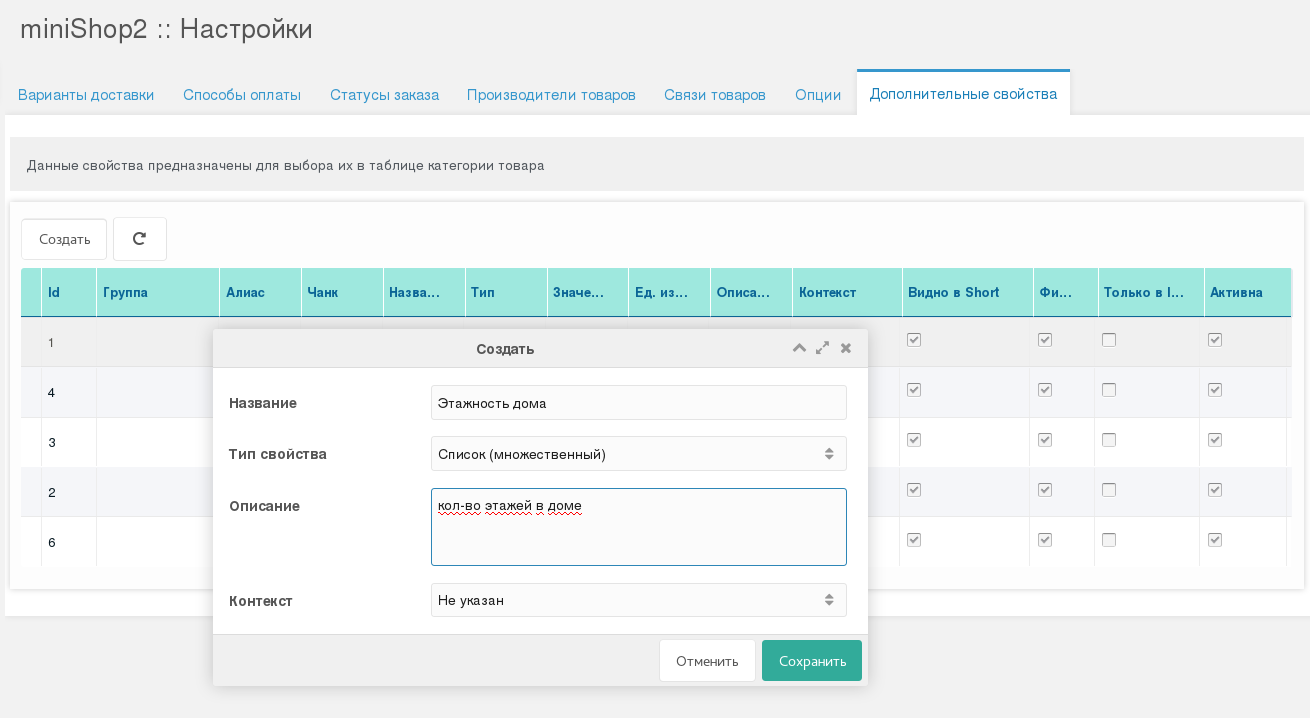
Before working with products you need to define the properties. Do this in miniShop2 settings (Applications → miniShop2 → Settings → Extra properties tab). Click "Create" and in the dialog set property name, type, context (default "Not specified" means the property is visible in all contexts), and description — this information is mainly for site managers, not for the client.
Editing
Edit common parameters by right-clicking (RMB) and choosing Edit, or by double-clicking (LMB) the table cell. Changes save immediately. Main options:
Groups — properties are grouped when building data in the client window. To create a group, type its name and press Ctrl+Enter or click in another row or elsewhere on the screen. If the group already exists, you can select it from the list. Only one group can be selected per property.
Chunk — name of a chunk in JSON format used instead of the default. See "chunk customization".
Name — property name; changing it updates all places where it is used.
Type — list of configured property types; each has its own behavior and display in the manager and on the frontend. See "Property types". Note: switching between very different types (e.g. "text" to "range") that were created earlier and are already used in products can break or misbehave in the filter on the frontend — use with care.
Value — input type for this field (x-type changes automatically with the selected type). When you change the property type, values are not converted automatically; adjust them manually if needed.
Unit of measure — shown when viewing product(s) via the parseMeasure snippet based on system setting ms2efs_product_custom_measure.
Show in short — when true, the property is shown by [[!msExtraFields? &display=`short`]]; by default the chunk from the short group is used, and if not found the info group is used.
Filter — when true, the property appears in mSearch2 filter.
Only in info — in snippet msExtraFields, regardless of the display parameter (edit or short), the property is always shown in the info type. Use it when you want to show the property only as information to the client on the product page, or when the property does not affect the product price or is unique and fixed (e.g. a characteristic that does not change).
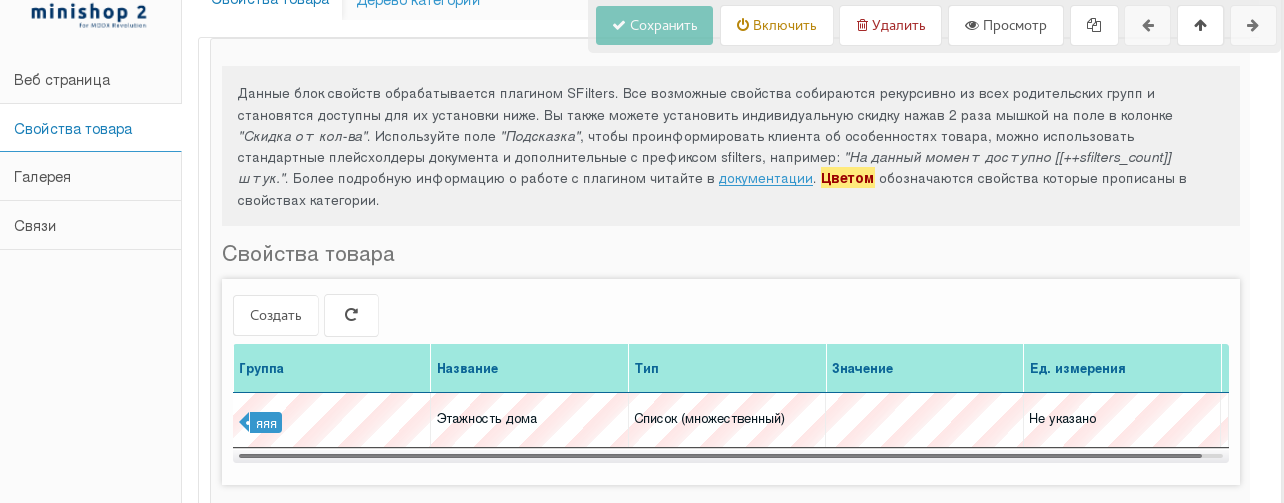
Active — when false, the property is not shown in the filter or on the product page to the client. In the manager on the product page such a property is shown with a red background.
Deleting
Deletion is done one record at a time: right-click the row and choose "Delete".
Property types
Text
Plain text; MODX tags are processed. In the filter it is built as info, so using it as a search criterion is not recommended.
List
Builds an element with option inside select. If Bootstrap Multiselect is loaded, it styles the element. List values are separated by double pipe "||", e.g. "red|| green || blue". To save after entering values use Ctrl+Enter. In the product manager this property is a dropdown (single value). On the product page the first available value is auto-selected because a select cannot stay empty. If all values are inactive, the property is not set. In the product filter, depending on settings, it can become List (multiple).
List (multiple)
Same as "List" but select has multiple="multiple". Bootstrap Multiselect turns it into checkboxes. Inactive values are not selectable on the product page.
Radio
Visually similar to "List" but uses <input type="radio".... Also handled by Bootstrap Multiselect. In the manager, values are separated by ||.
Checkbox
Shown as a checkbox in the manager and on the frontend. In short mode the client sees "Yes" and "No".
Number
In the manager only digits and a decimal point are allowed. Save with Ctrl+Enter. Like "Text", not useful as a search criterion except when customizing the filter display chunk via the "chunk" parameter.
Range
Allows output of a range in two modes:
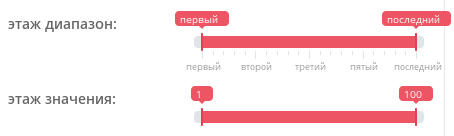
Range — data in the form n-n2, n3-n4, n5. Only digits (including a decimal point), hyphen, comma and space are allowed. On the client the "Step" parameter is used to split the range into parts automatically.
Values — values entered in sequence, in double quotes and separated by commas. Example:
"cold","cool","warm","hot". On the client all values fill the slider scale evenly.
In the "Properties" field you can add your own parameters in JSON format without errors, e.g. {"prefix": "Age ", "max_postfix": "+"}. See the Ion.RangeSlider documentation for all options.
In the filter the client sees a RangeSlider; in all other cases the set property value is shown. On the product page, depending on the range type, the value can be either an input (only numeric values allowed, validated against the range) or a dropdown when the type is "Values". In any case only one value from the range can be selected.
Product category page
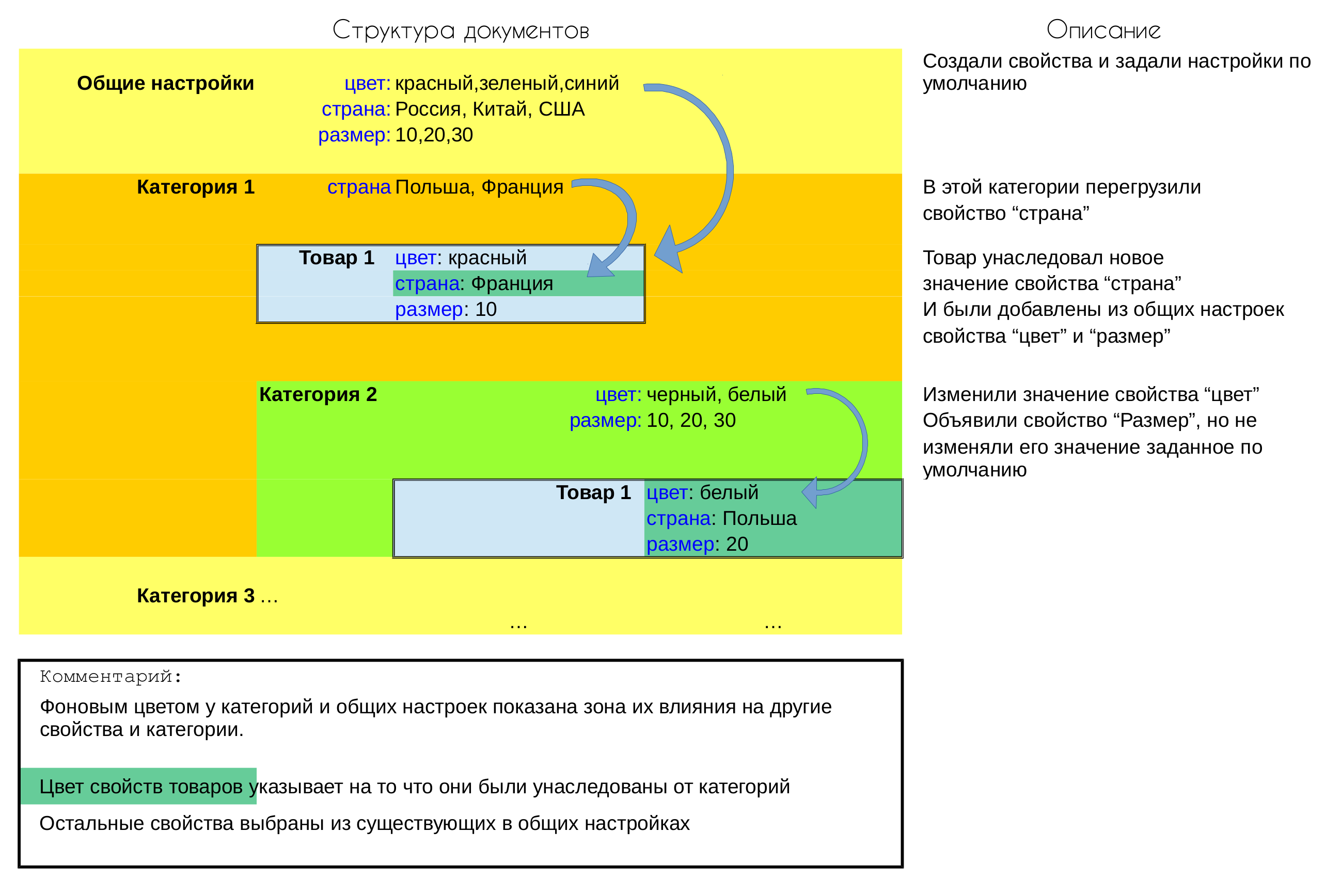
Before describing how this page works, you need to understand how properties are filled for a product. Properties that exist on parent categories (categories of the current product) inherit all characteristics from the nearest parents, overriding any declared earlier. So with a multi-level category structure you can declare common properties at the top levels, then only category-specific ones at lower levels; products in the deepest category then get properties from all parents. Product properties are not limited to those declared in categories. The diagram below shows property inheritance when changing their values inside a product.
Add the properties you want in products of this category. You can add more later. These properties become search criteria in mSearch2.
Open the "Product properties" tab and click "Create". Choose only properties already declared in miniShop2 settings and belonging to the current context or all contexts. Added properties go into the table. Functionally it is the same as the settings table with some extras. Name changes and group creation apply only to child products and categories.
To replace a wrong property, double-click it and pick another from the list. If the property is used in child products, you'll be warned about possible issues when changing types.
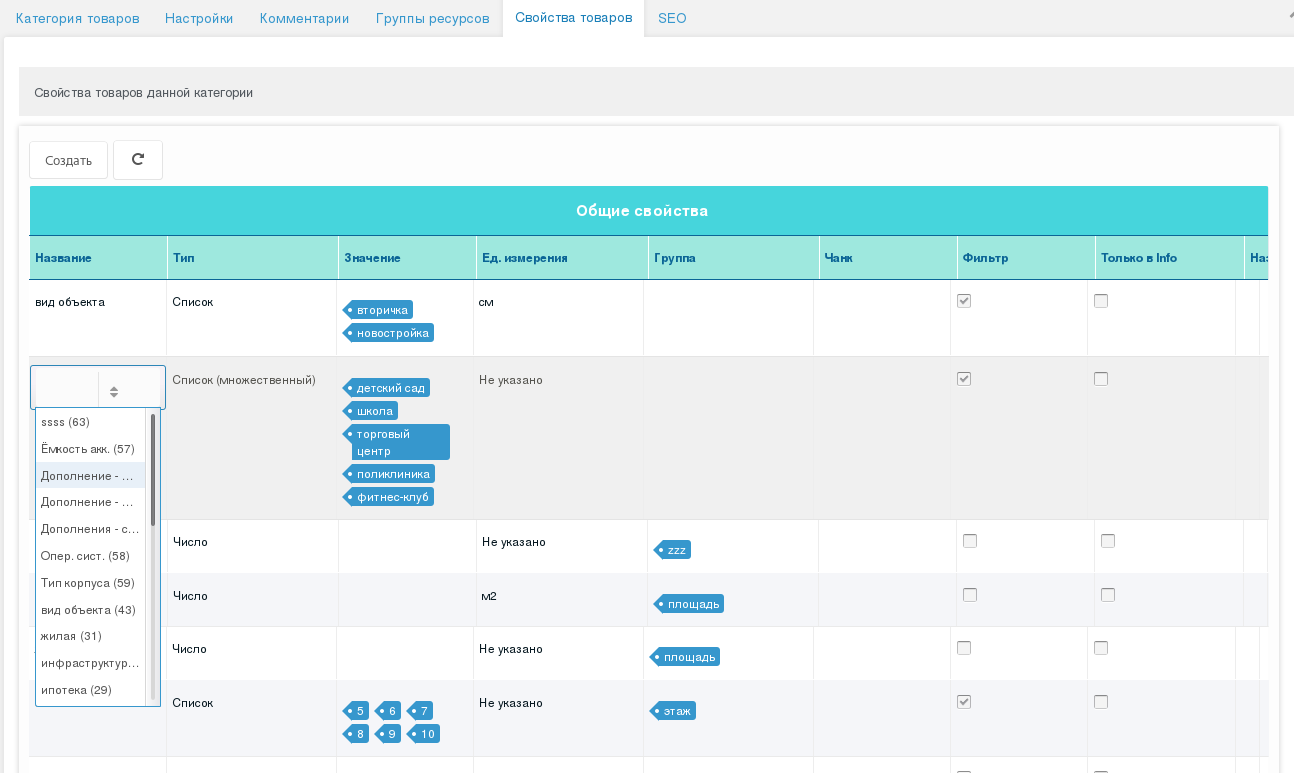
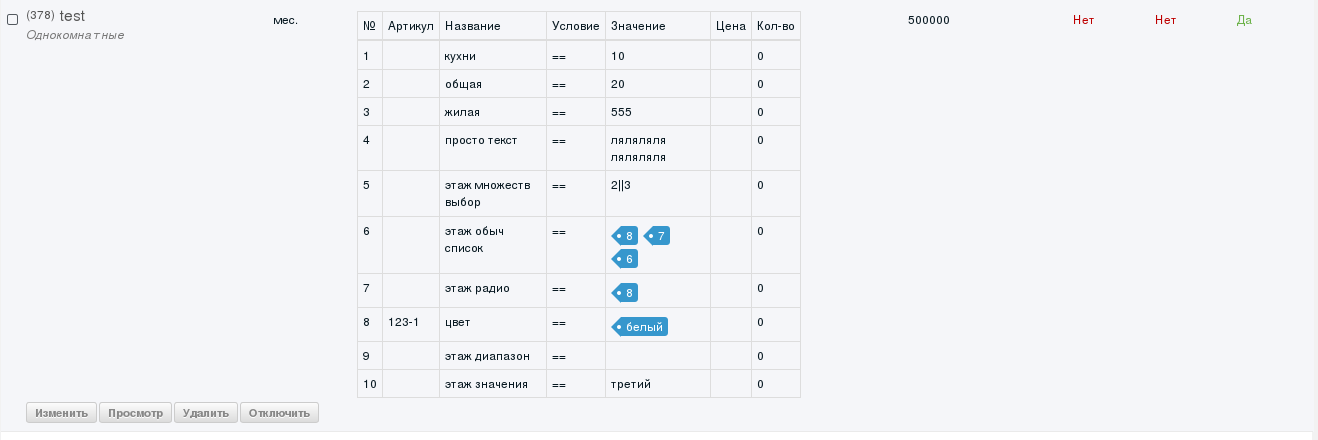
The product table shows properties of the current product. Double-click to open quick edit for that product's properties.
On delete, the component checks if the property is used in child elements. If so, you can:
- remove the property from all child products;
- keep the property in products (visible on the product page) but exclude it as a filter on the category page.
Product page
msExtraFields settings control the product page layout. By default:
- new property Unit of measure added;
- Product properties page split into 2 tabs:
- first: Dynamic properties table and discount management;
- second: Category tree in its own tab.
Unit of measure
Used to show the "measure type" on the product page. The list is set by ms2efs_product_custom_measure. Output via snippet parseMeasure with the input value matching a key in that array.
Product properties
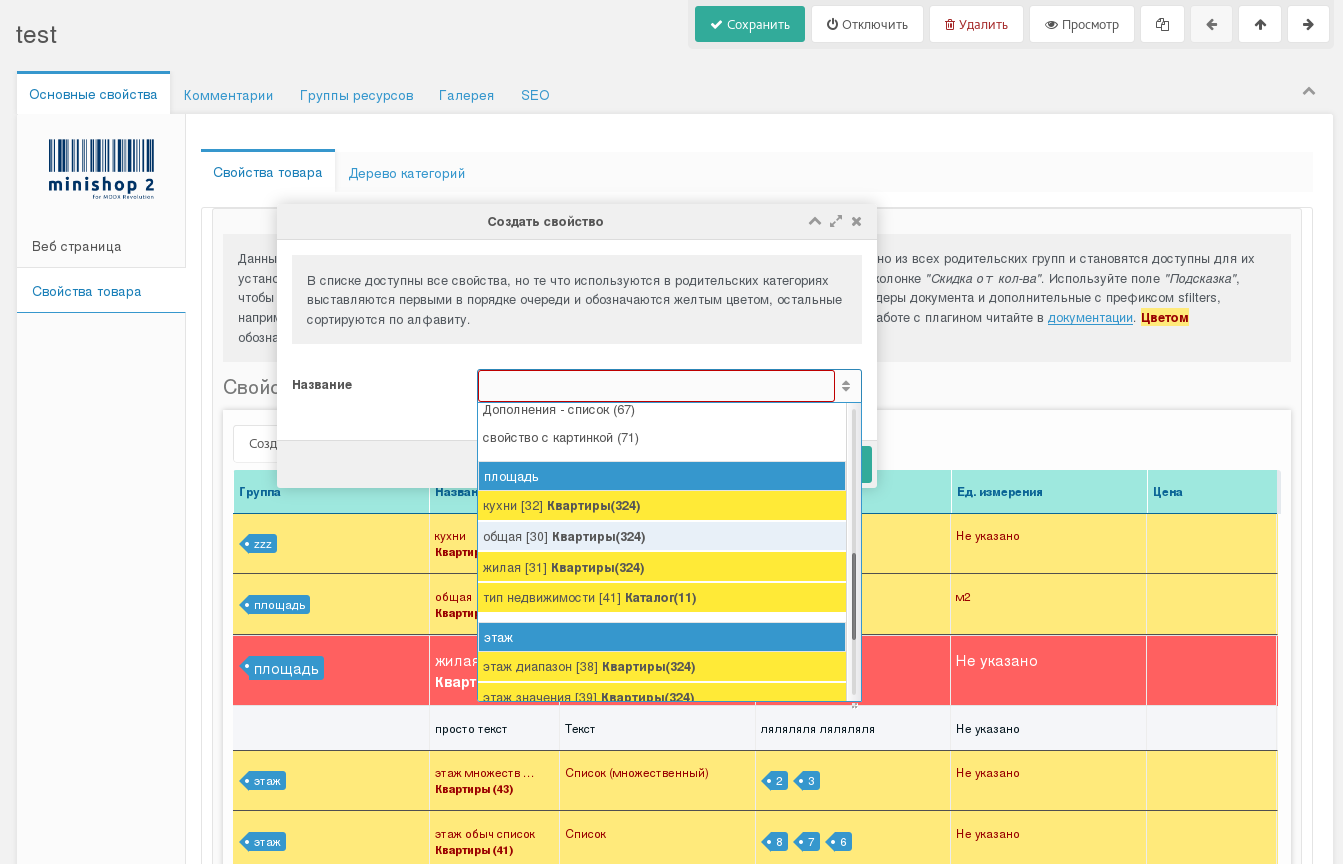
The add-property list shows all properties available in the current context or all contexts. Sorted alphabetically: ungrouped first, then by group (groups in blue). Properties from a parent category have a yellow background and show the category name and ID in bold next to the property name.
For list-type properties you can add multiple rows with different values, prices and discounts. On the frontend they combine into one block with different behavior when the value changes. See product price management and quantity discounts.
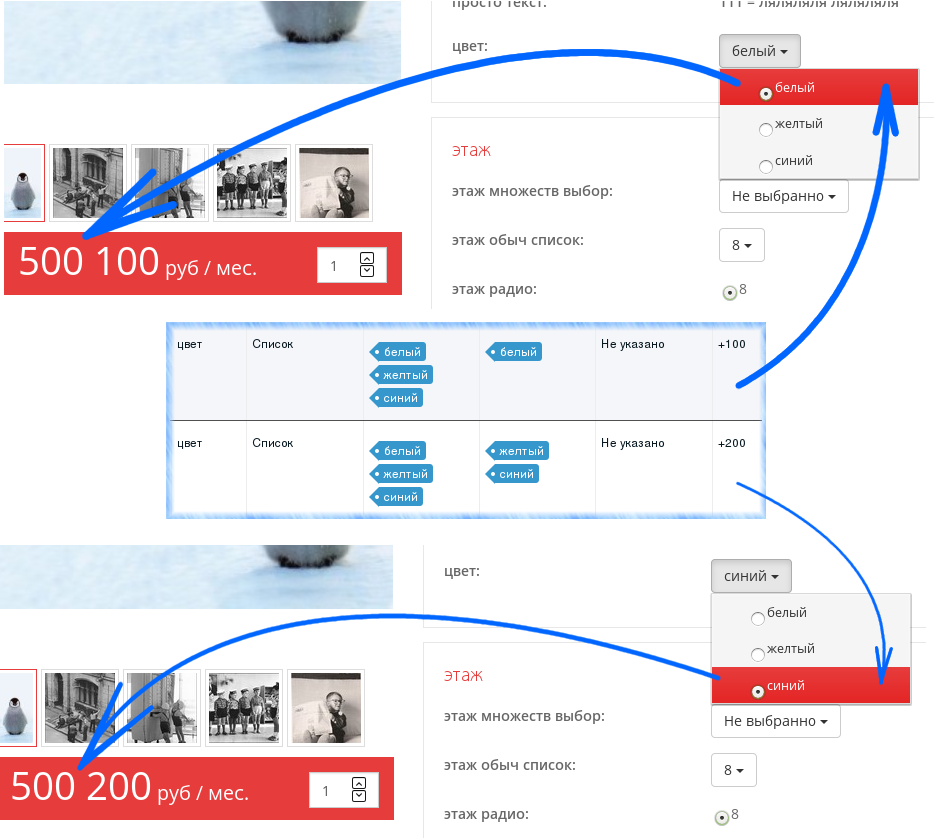
With display='edit' users can choose product option values. The same product with different options becomes multiple cart items (e.g. 2 red and 3 blue t-shirts = 2 items, 5 total). Each cart item has its own discount and price rules. The "SKU" field helps warehouse staff. SKU and other fields are stored in order history and sent to managers and the customer.
All table changes save immediately. To refresh cached properties (used by [[msExtraFields?&fastGenerate=0]]), click "Save".
Some fields are read-only (inherited from categories or global settings). Default shows the value from the product category. The field helps managers know which values are valid for each property type.
Editable fields
SKU — used to inform about the option SKU, for orders, or import/export;
Condition — condition for the property value;
Value — editing and display depend on type; input is validated;
Price — only when
[[!msExtraFields?&display=`edit`]]. Manages price by option value. Example: red t-shirts +100 vs base price. Allowed:100, +100, -20, 5%, +5%, -5%. Check that total discount/markup is logical. Multiple prices are combined; if result ≤ 0, base price is used;Tip — placeholder
[[+tip]]in the property chunk; supports other placeholders and snippets; only in row chunks;Quantity — integer; manager shows colors by value:
0 #FF0000 (red)
0 - 4 #EE3B3B (light red)
5 - 10 #228B22 (green)
11 - 20 #4169E1 (blue)
> 20 #483D8B (dark blue)
Quantity discount — see individual discounts;
Disabled — when set, the property is hidden or disabled for list types; ignored in price and discount calculation.
Property types (on product page)
Text
Plain text supports placeholders of the current property and document, and snippets. Placeholders: id, article, prop_id, cond, type, defaultval, group, disabled, count, tip, order_discount, price, measure.
Number
Numeric only; decimal point for fractions.
Checkbox
Checkbox in manager and frontend. With [[!msExtraFields?&display=`short`]] shows Yes / No.
Radio
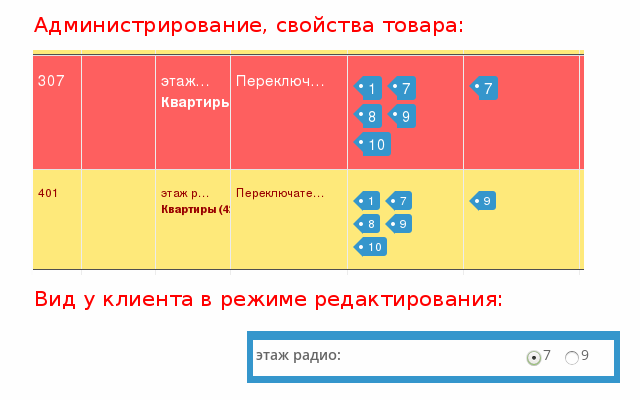
Rendered as <input type="radio"...>. On the product page with display='edit' the value is always selected; only one value. The first valid value is selected by default.
List
Same as Radio but rendered as <select><option>...</option></select>. Handled by Bootstrap Multiselect.
List (multiple)
Same as List but allows multiple values. Price and discount combine from selected values. Note: duplicate values in the manager do not overwrite — they append.

Range (values, range)
See property types - range above.
In manager:

On product page:

In product filter:
Quantity discounts
General
Per-product quantity discounts: specify quantity range, discount amount, and message. Discounts apply only when display='edit'.
Range formats: 100 (up to 100), 50-100, >100, <100. Price formats: 100, +100, -20, +5%, -5%. If discount exceeds product price it is ignored. Discount cannot be negative (then it is treated as range only). Multiple rules allowed; ranges must be unique. Price recalculates when cart quantity changes. Best-matching range wins (e.g. "1-3" has higher priority than "❤️").
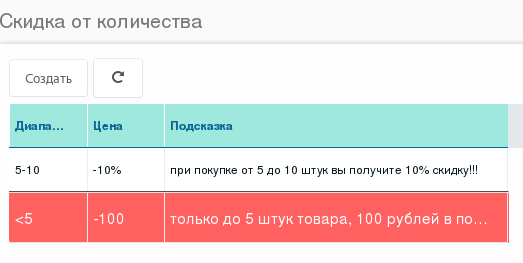
You can sort these values; order affects only the hint block display, not calculation.
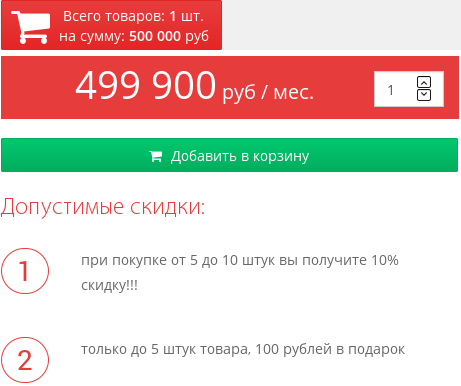
Hint and discount rows use the chunk from tplOrder_discountprice in plugin msExtraFields.
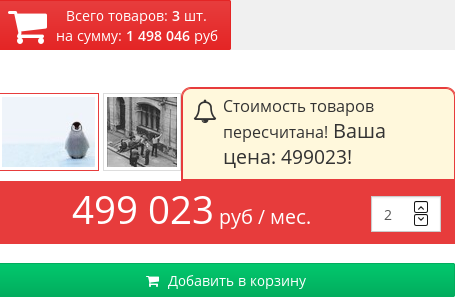
Price recalculates when quantity changes (before clicking "Add to cart"); the add button stays inactive until the server responds. Updated price appears in the block with class "e-price". If the user adds items one by one and the price changes, they get a message and the price updates.
Individual
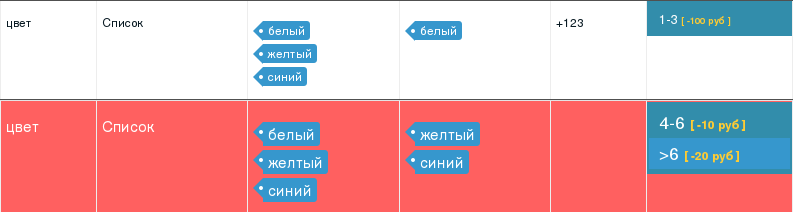
Each property can have its own discounts. Double-click the "Quantity discount" cell to open the same table. You can set discounts per property value (or value group). With a general discount, discounts are summed.
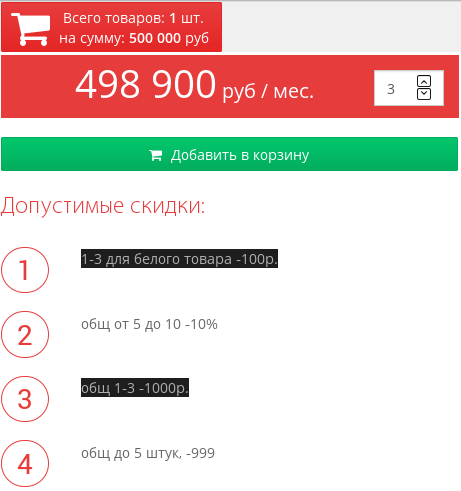
Property discounts appear in the main table. If a "price" value is set, it is applied before the discount.
Misc
When copying msProduct documents (e.g. from the resource tree), extra properties and discounts are duplicated.
When copying msCategory documents, properties copy only for the current document; child documents do not get them (tree traversal and inheritance behavior).
Hidden fields in tables track creation/update dates and user IDs. All actions are logged in the system journal.