


ms3ProductSets
Dynamic product recommendations for MiniShop3. Manual links, auto rules, manager templates
- MODX 3
- PHP 8.1
- miniShop3

The Product sets page manages set templates and bulk apply to categories. A template is a fixed product list plus a type. Per-product overrides use TVs. See TVs on the product card.
UI zones and template types: Product sets (interface).
namespace=ms3productsets, action=index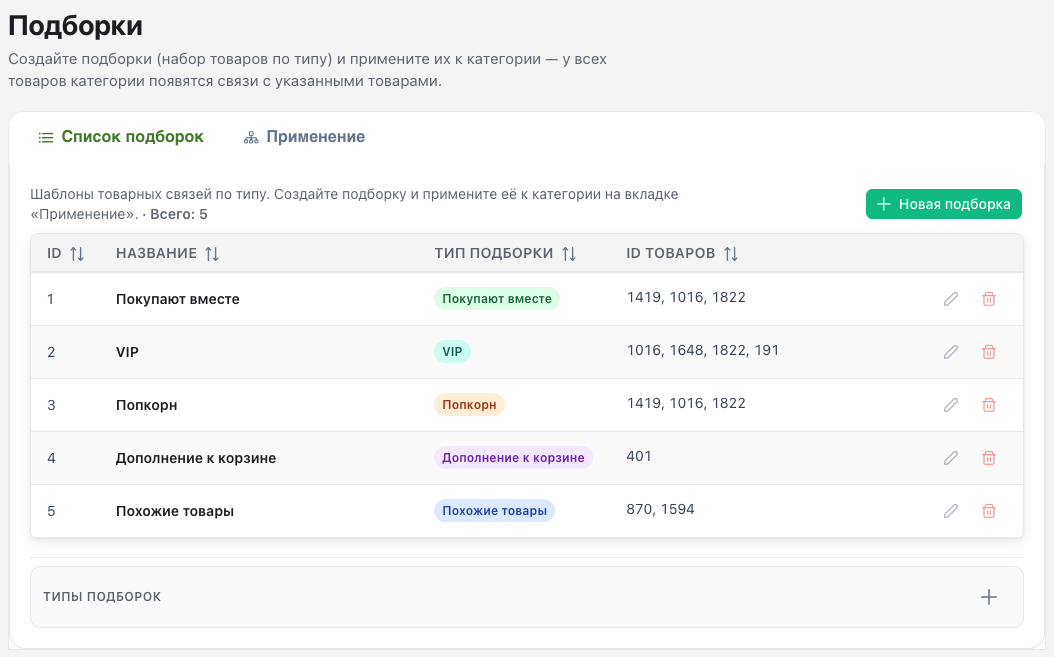
name, type, related_product_ids, description, sortorder).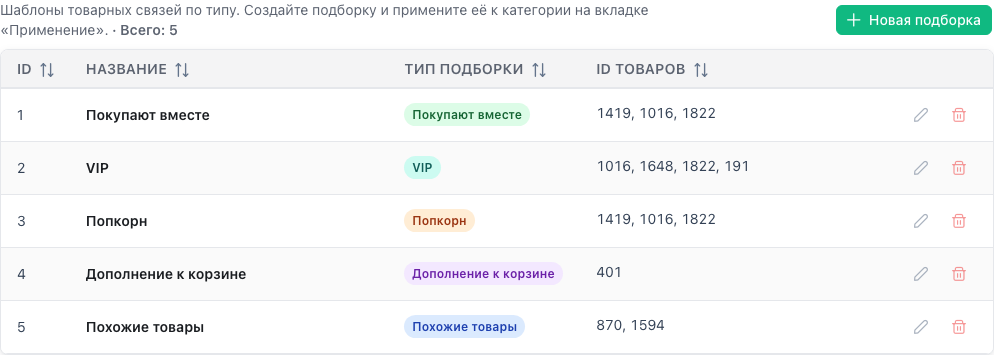
A template is a preset: a fixed type and product list. Apply copies it into ms3_product_sets for each product in the chosen category.
| Field | What to enter |
|---|---|
name | Clear name for managers. Stored as template_name on generated links. |
type | Admin types: buy_together, similar, popcorn, cart_suggestion, vip. Frontend logic for ms3ProductSets depends on matching type. auto and auto_sales are snippet-only, not template types. |
related_product_ids | Comma-separated product IDs (e.g. 12,34,56) or picker selection if available. Order matters for output unless the snippet uses different sorting. |
description | Internal note for the team. Not shown on the site. |
sortorder | Number for ordering templates in the admin list (lower first). Exact sort depends on the UI. |
save_template. Empty name or invalid related_product_ids returns an error.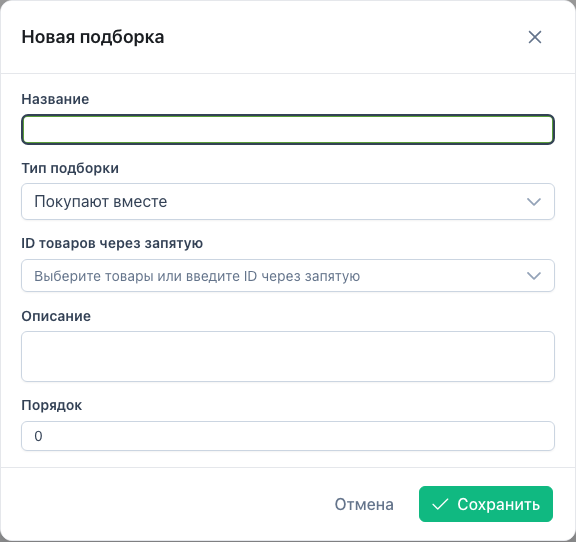
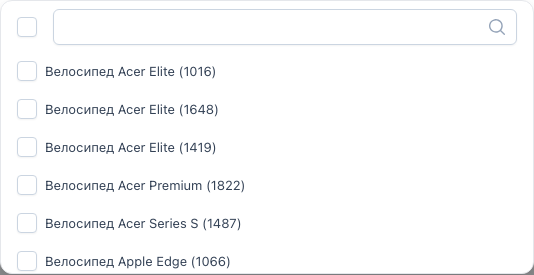
name, type, related_product_ids, description, sortorder.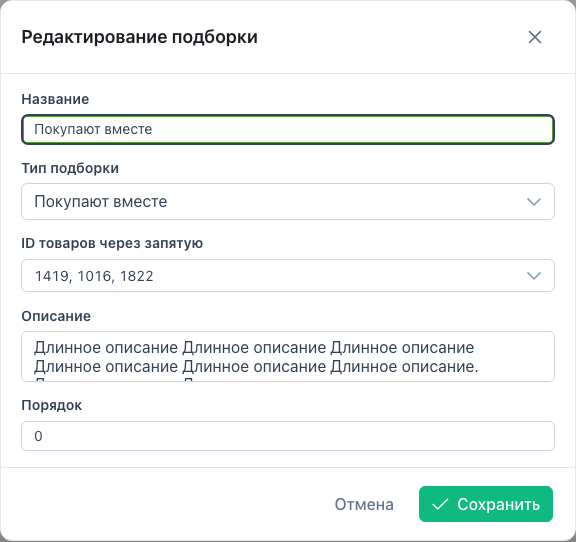
This updates the row in ms3_product_set_templates. A change of name or type is copied into already applied rows (template_name, type). The related_product_id list on those rows is not rewritten. To refresh IDs, run Apply again. Use Replace if you need to overwrite this template’s links.
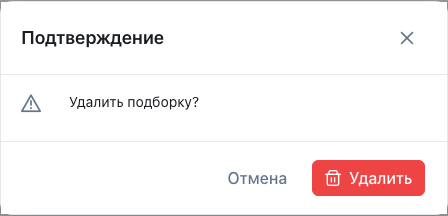
Deleting a template also deletes its rows in ms3_product_sets (template_name + type). To drop links for a category without deleting the template, use Unbind.
msProduct resources are included.replace=true). For products in that branch, only links of this type + template_name are removed, then new ones are inserted. Other templates and TV rows stay. Without replace, new links are added alongside existing ones.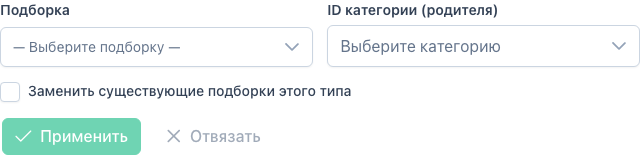
Result: rows in ms3_product_sets with template_name set to the template name.
type + template_name).Supported TVs:
ms3productsets_buy_togetherms3productsets_similarms3productsets_popcornms3productsets_cart_suggestionms3productsets_vipOn product save, TVs sync into ms3_product_sets.
ms3ProductSets using the same type as the template/TV.save_template, apply_template, unbind_template