


ms3ProductSets
Dynamic product recommendations for MiniShop3. Manual links, auto rules, manager templates
- MODX 3
- PHP 8.1
- miniShop3

Wire recommendation blocks (sets) on a MiniShop3 site.
Snippet names: ms3ProductSets, mspsLexiconScript.
Fenom examples require pdoTools 3.x.
| Requirement | Version |
|---|---|
| MODX Revolution | 3.0+ |
| PHP | 8.1+ |
| MiniShop3 | installed |
| pdoTools | 3.0.0+ |
| VueTools | installed (“Product sets” manager page) |
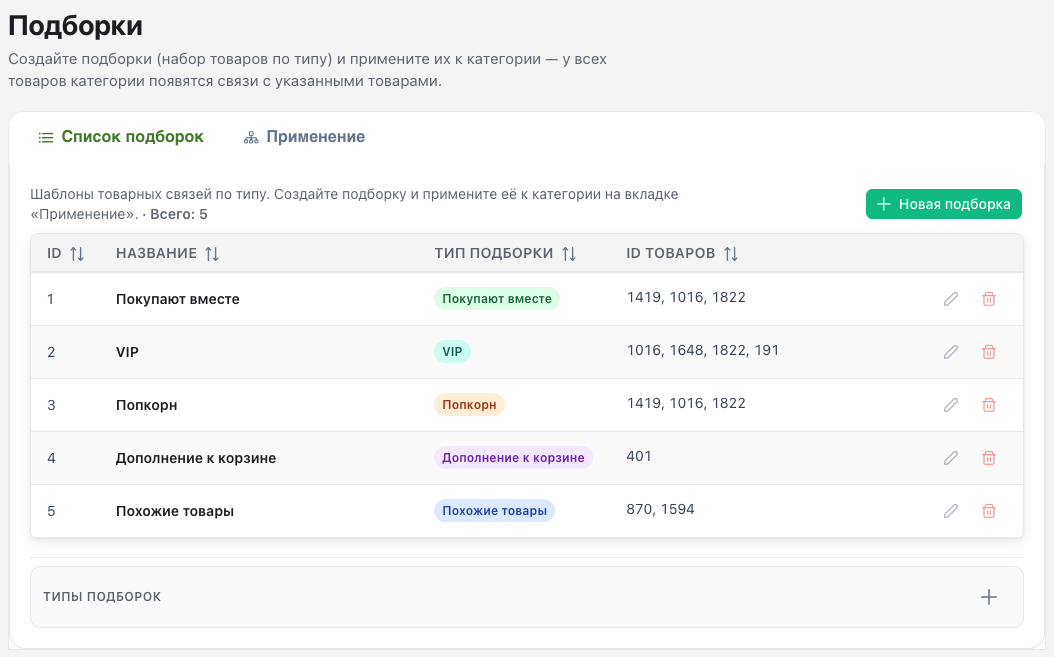
Package provider not found.Open Components → Product sets and create the first template. Walkthroughs: manager scenarios.
Package is available at modstore.pro.
Load lexicon, CSS and JS. Place ms3ProductSets in the product card template.
Load lexicon first, then CSS and JS, in the template (or shared head/footer).
{'mspsLexiconScript' | snippet}
<link rel="stylesheet" href="{'assets_url' | option}components/ms3productsets/css/productsets.css">
<script src="{'assets_url' | option}components/ms3productsets/js/productsets.js" defer></script>[[!mspsLexiconScript]]
<link rel="stylesheet" href="[[++assets_url]]components/ms3productsets/css/productsets.css">
<script src="[[++assets_url]]components/ms3productsets/js/productsets.js" defer></script>Call ms3ProductSets on the product page template (or in the product card chunk inside a listing).
type parameter type selects the scenario: which manual links to read from ms3_product_sets, and which auto logic to run when those links are missing. Shared rules: Set types, “Common rules (all types)”.
type | Purpose |
|---|---|
buy_together | “Frequently bought together”. Auto: co-purchase, then category. |
similar | Similar products from the same category. |
popcorn | Compact impulse add-ons. Extra fallback if the category path is empty. |
cart_suggestion | Cart / checkout suggestions. Often with category_id. |
auto_sales | Order-statistics set. Falls back to similar when data is thin. |
vip | Promo set from vip_set_*. Missing set_id uses vip_set_1. |
auto | Generic blocks (home, landings). Often category_id and/or resource_id. |
The example below uses buy_together.
Other call parameters:
resource_id: product ID the set is built for. On the product page, the current resource.max_items: max items in the block (range 1…100).tpl: chunk for one product row. Package default tplSetItem.If the set is empty, the snippet returns an empty string (hideIfEmpty=true). Wrap heading and markup in a conditional, or use a placeholder. See Site integration. Per-type details: Set types.
{'ms3ProductSets' | snippet : [
  'type' => 'buy_together',
  'resource_id' => $_modx->resource.id,
  'max_items' => 6,
  'tpl' => 'tplSetItem'
]}[[!ms3ProductSets?
&type=`buy_together`
&resource_id=`[[*id]]`
&max_items=`6`
&tpl=`tplSetItem`
]]hideIfEmpty=true).ms3productsets.vip_set_1 (e.g. 12,34,56).{'ms3ProductSets' | snippet : [
'type' => 'vip',
'set_id' => 1,
'tpl' => 'tplSetVIP'
]}[[!ms3ProductSets?
&type=`vip`
&set_id=`1`
&tpl=`tplSetVIP`
]]