Skip to content
ms3ProductSets
ms3ProductSets
Dynamic product recommendations for MiniShop3. Manual links, auto rules, manager templates
  • MODX 3
  • PHP 8.1
  • miniShop3
  1. Extras
  2. ms3ProductSets
  3. Manager scenarios

Manager scenarios ​

Step-by-step actions in Components → Product sets.
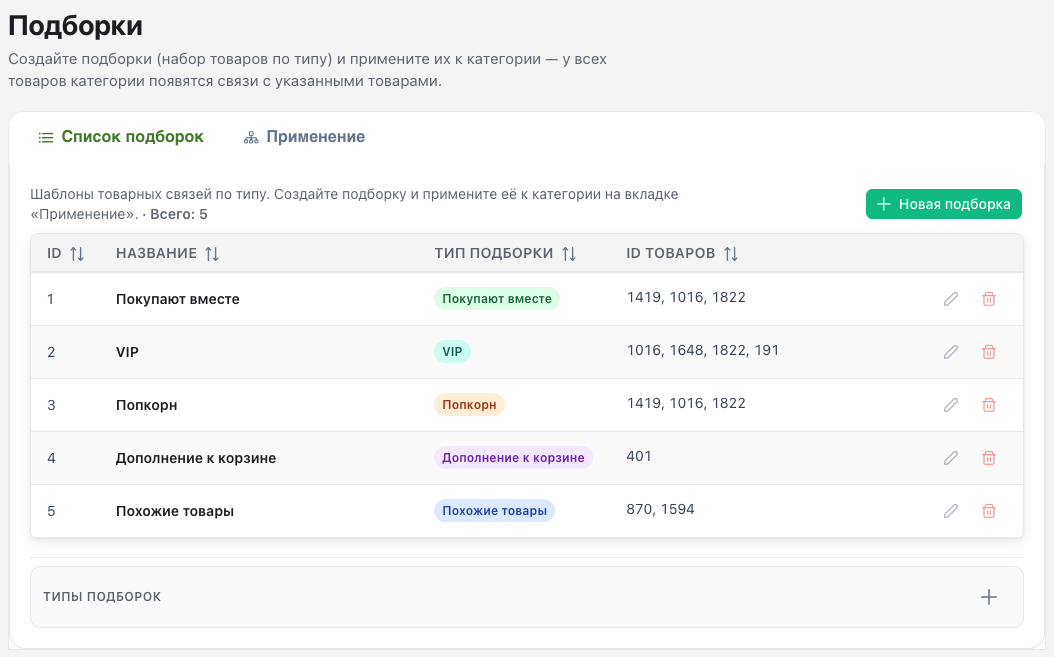
Map ​

Product sets page overview


Flow A: First template ​

  1. Open Components → Product sets (tab Set list).
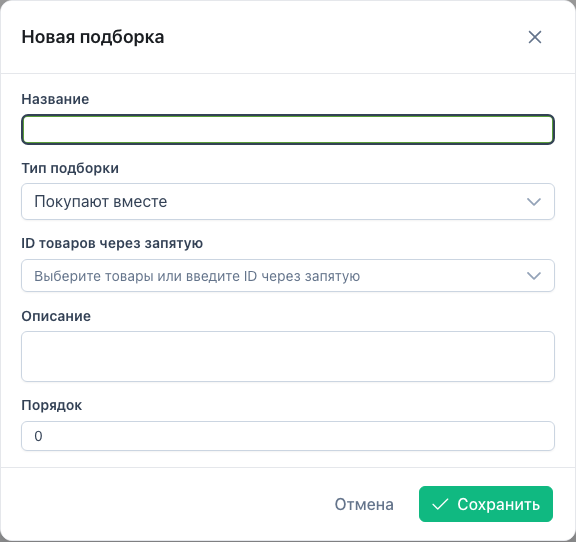
  2. Click New set.
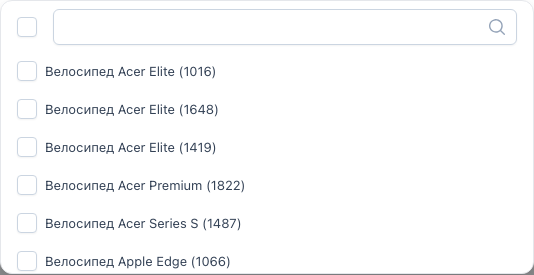
  3. Fill in Name, Type, and pick products in Product IDs.
  4. Click Save.

New set form

Product picker

Details: Manager guide.


Flow B: Edit a template ​

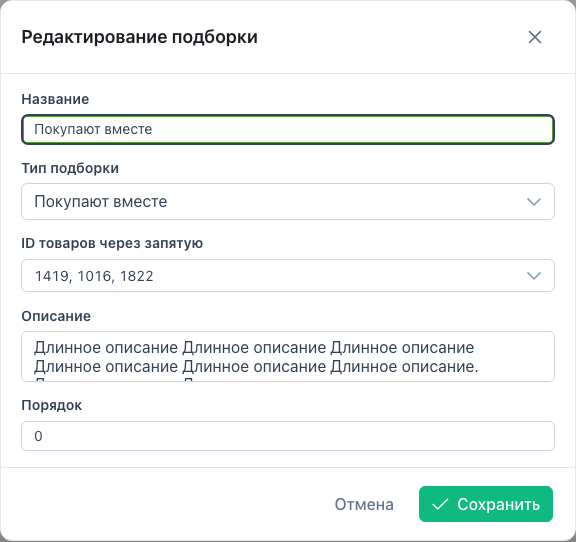
  1. In the Set list table, click Edit on a row.
  2. Update the name, type, or product list.
  3. Save.

Edit template

Renaming a template or changing its type updates template_name and type on rows already applied. Product IDs are left as they are. To replace products, run Apply again with Replace existing sets of this template.
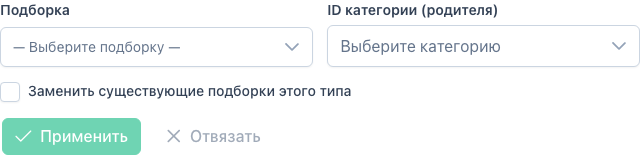

Flow C: Apply to a category ​

  1. Open the Apply tab.
  2. Select a template.
  3. Set Category ID (parent) in the tree.
  4. Optionally enable Replace existing sets of this template.
  5. Click Apply.

Apply to a category

The toast shows how many links were created.


Flow D: Unbind a template ​

  1. Select the same template and category.
  2. Click Unbind.

Only rows with matching type and template_name are removed. TVs and other templates stay.
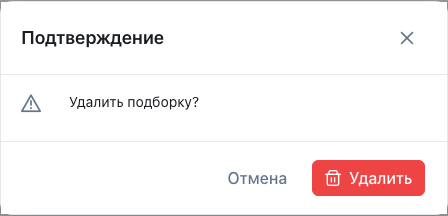

Flow E: Delete a template ​

  1. In the table, click Delete.
  2. Confirm in the dialog.

Delete confirmation

The template disappears from the list. Links with the same template_name and type are removed from ms3_product_sets.


Flow F: TVs on the product card ​

  1. Open an msProduct resource in the manager.
  2. Fill the ms3ProductSets TVs (ms3productsets_buy_together, similar, popcorn, cart_suggestion, vip).
  3. Save the resource.

Plugin ms3ProductSets SyncTV (OnDocFormSave) writes the values into ms3_product_sets.


Flow G: Storefront output ​

  1. Load mspsLexiconScript, CSS, and JS. See integration.
  2. Call ms3ProductSets with the needed type on the product card, in the cart, or on the home page.
  3. For AJAX, use window.ms3ProductSets.render().

Technical diagrams: Flows, API.


Flow H: Settings and auto mode ​

  1. Settings → System settings, namespace ms3productsets.
  2. Set max_items, cache_lifetime, auto_recommendation, vip_set_1.
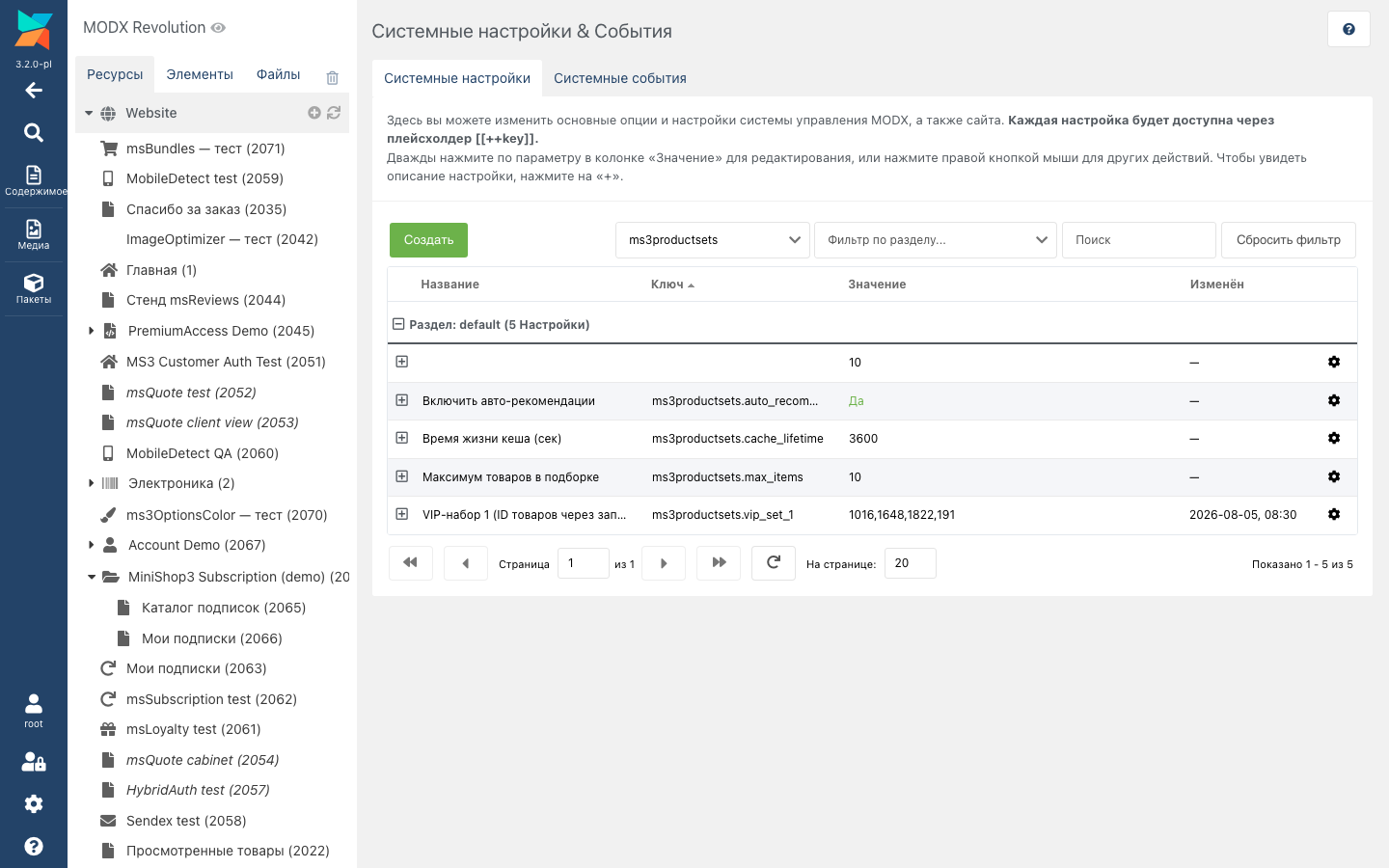
Settings

With auto_recommendation=0, the storefront keeps only manual links and VIP sets from settings.