


FileMan
FileMan — component for MODX Revolution 3 to attach files to resources via the manager.

After installing the component, a new Files tab appears on the resource edit page, with a table of attached files and controls at the top.
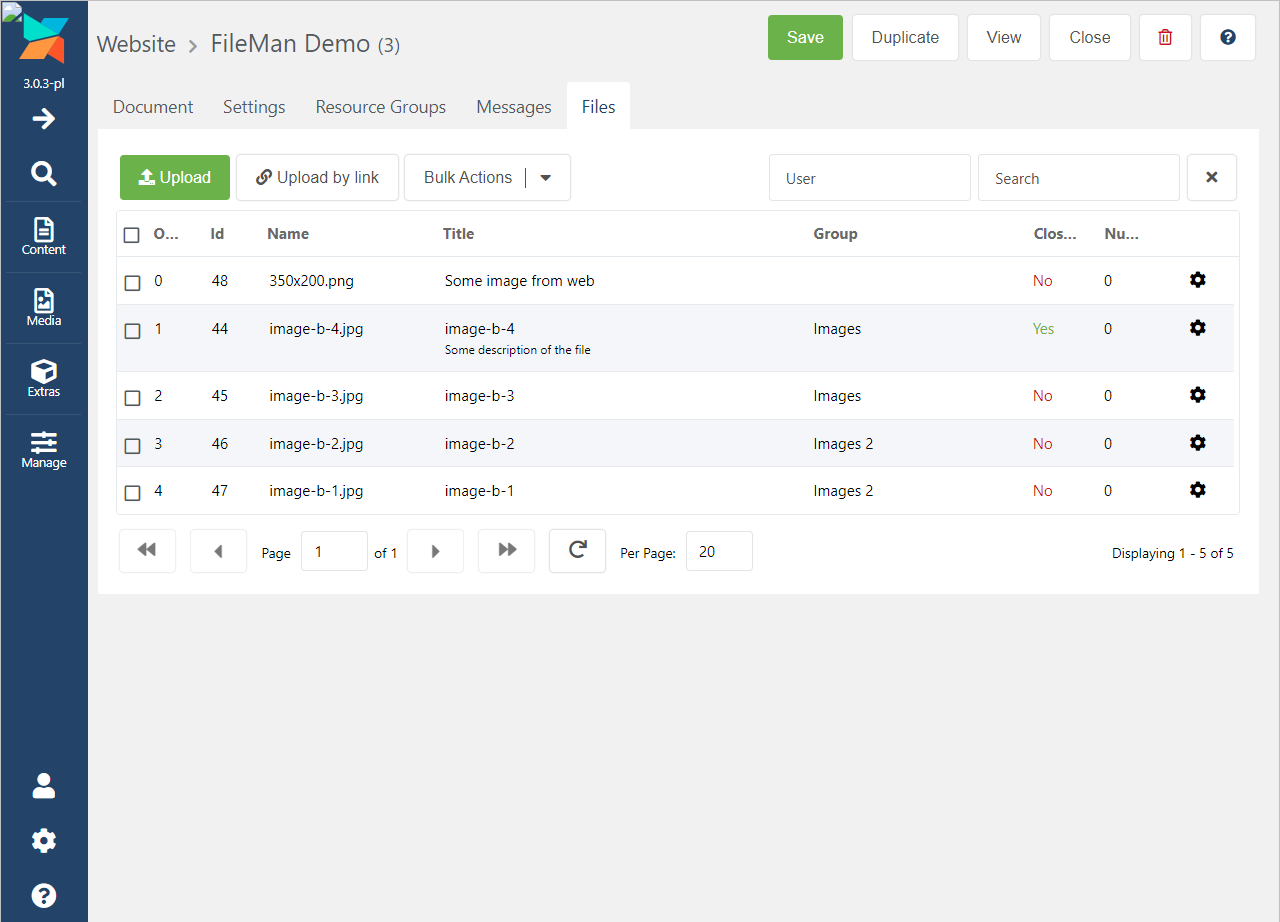
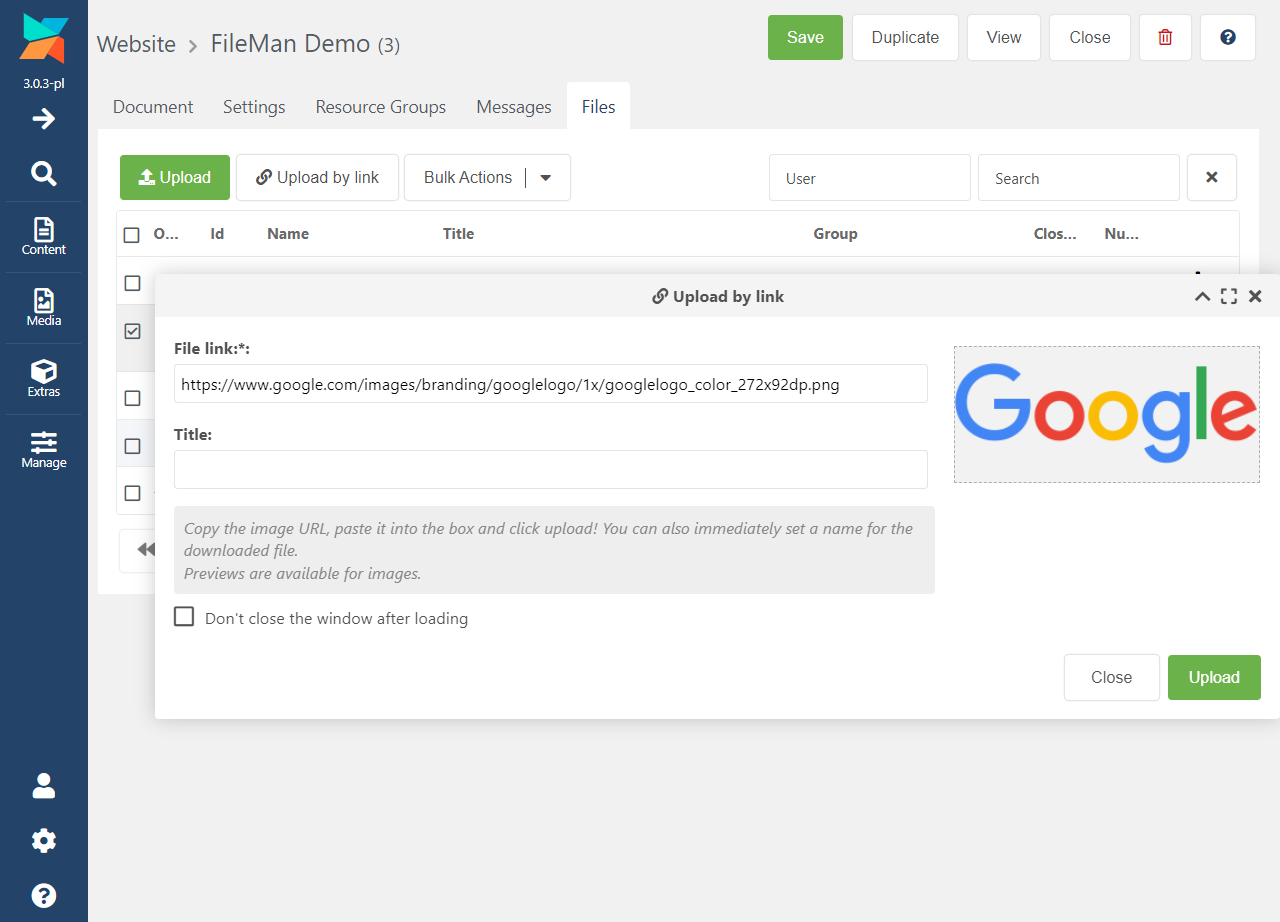
The component provides two ways to attach files:
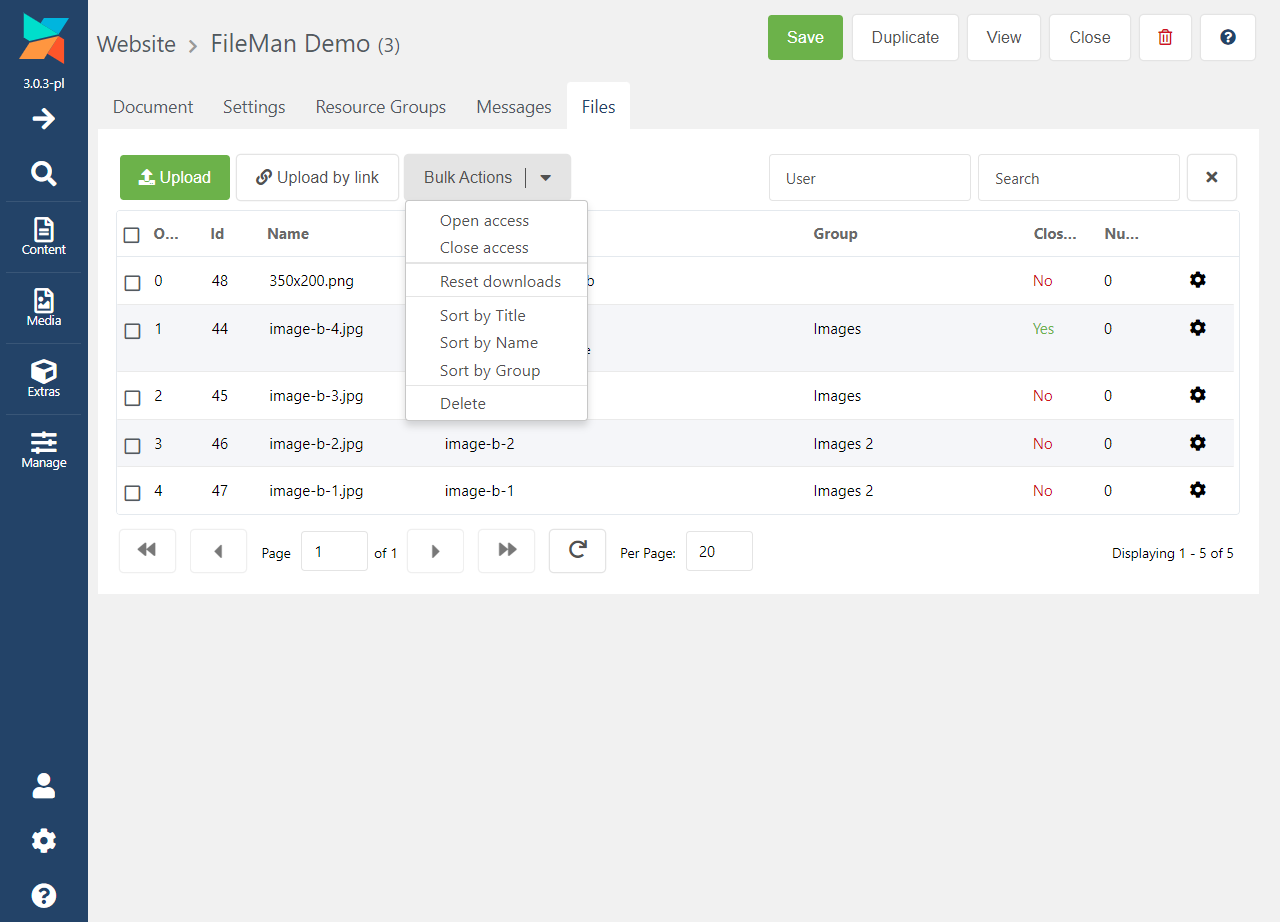
Bulk actions are available for files:
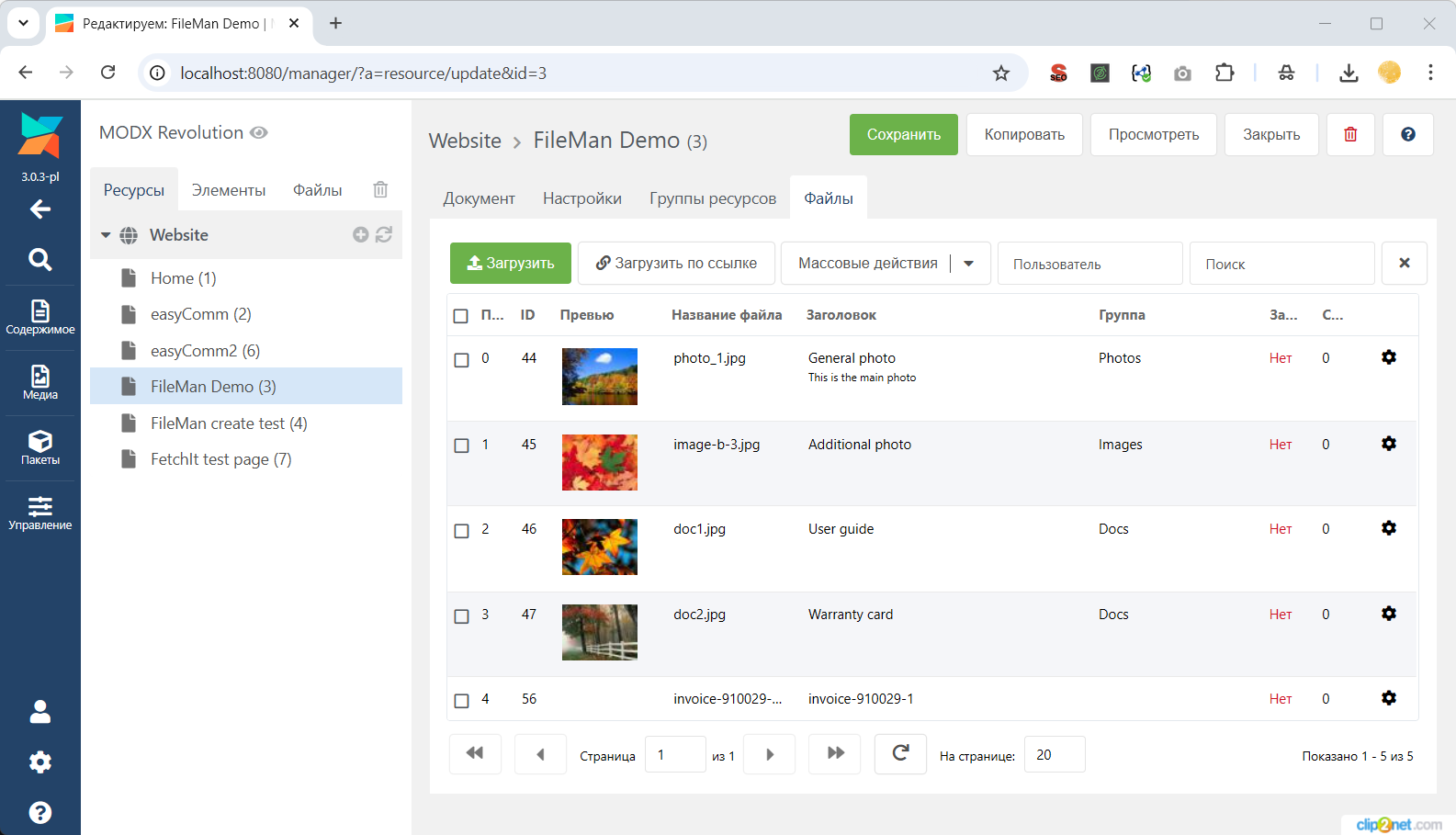
For images you can enable thumbnails (add thumb to the fileman_grid_fields setting):
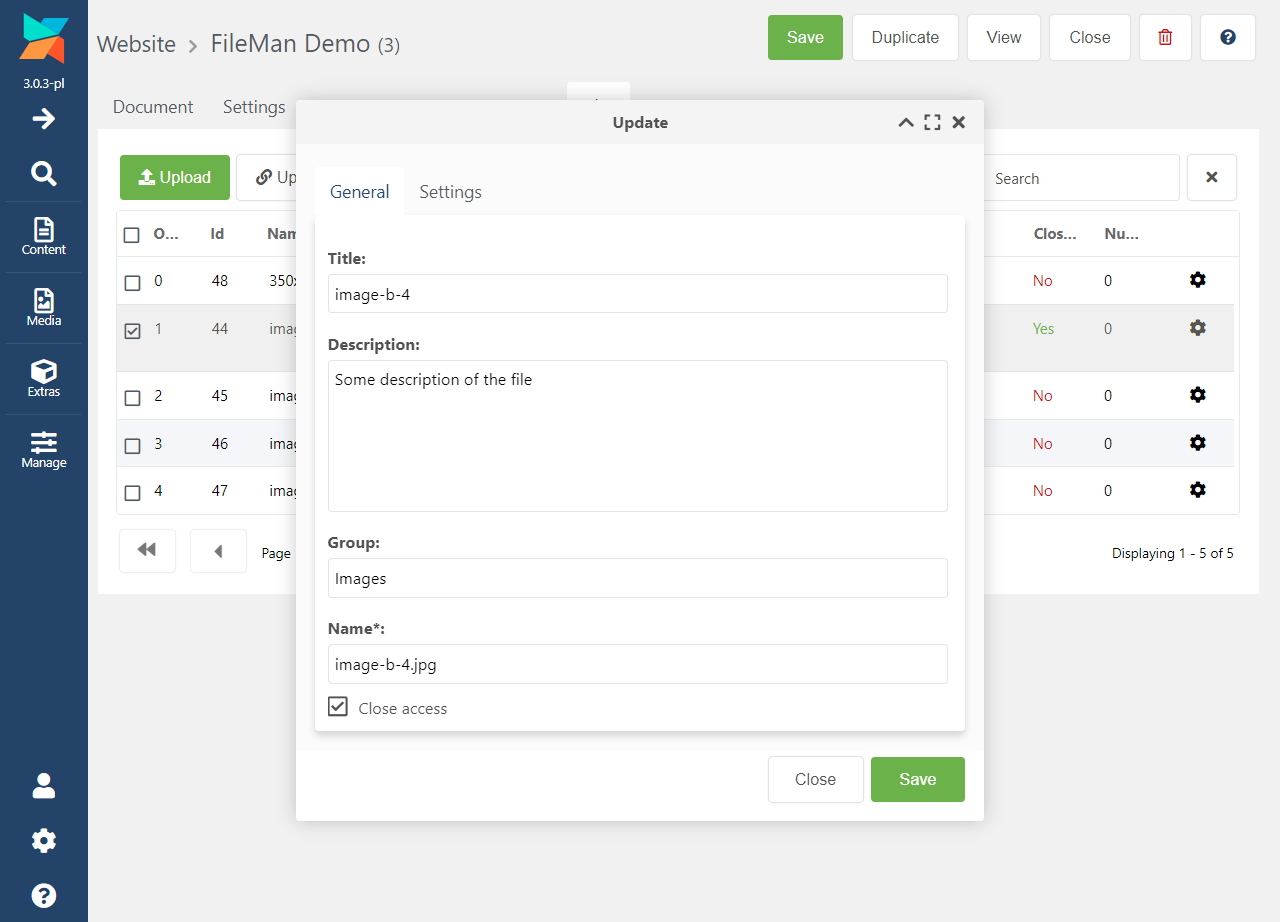
After a file is uploaded, you can edit its metadata.
For each record you can set (database field name in parentheses):
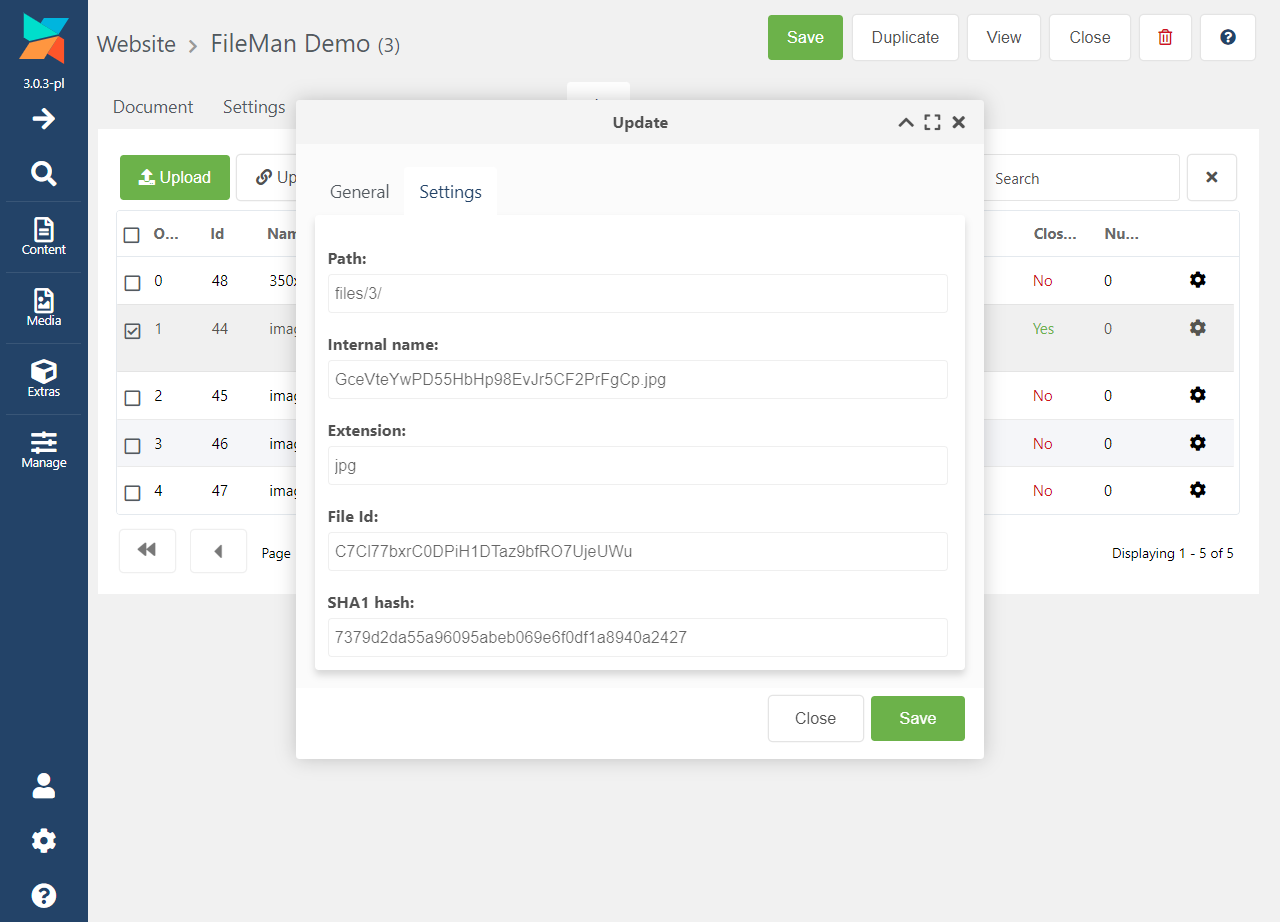
Some fields are stored but not editable: path, size, extension, internal_name, hash. You can use them in your snippets.
Besides managing files on the resource page, there is a separate section under Packages / FileMan that lists all attached files site-wide.
The same actions are available there except uploading and sorting (those are resource-specific).