



mSocial
The extension provides a base for posting to social networks. The main package includes Twitter only.
How to set up mSocial?
- Install the extension.
- Register and sign in to Twitter.
- App manager is here.
- Register an app in Twitter.
- Click Create New App and fill in the form.
- After creating the app, go to Keys and Access Tokens and click Create my access token. Copy: Consumer Key, Consumer Secret, Access Token, Access Token Secret.
Внимание
Access Level must be "Read and write".
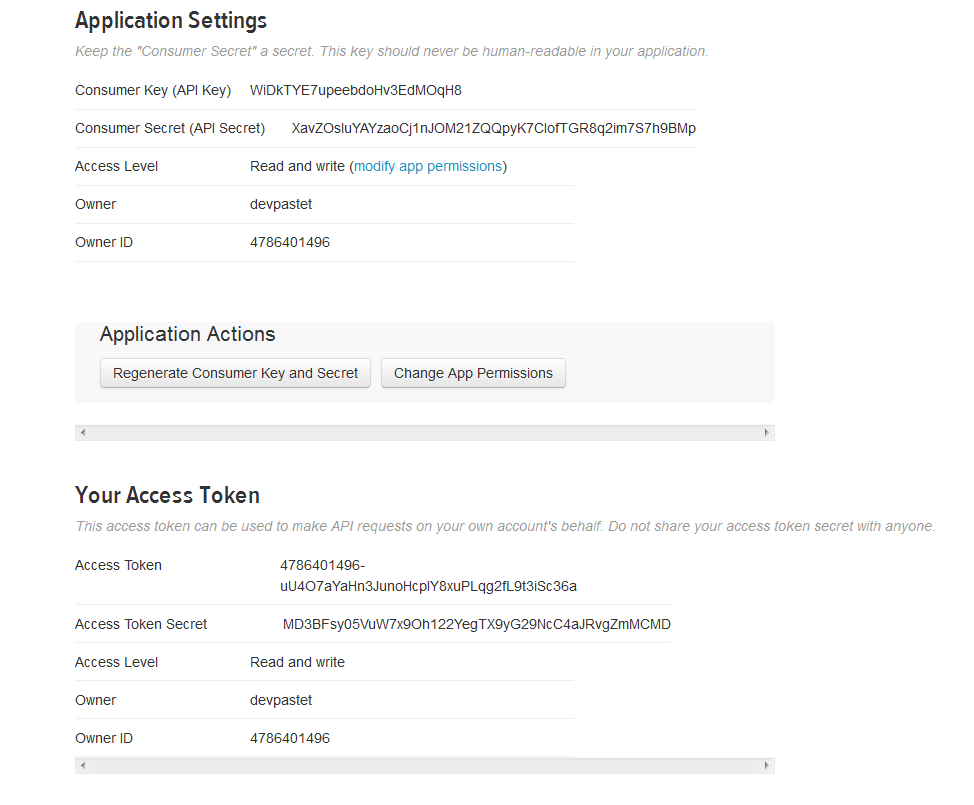
- Open your site. Go to System settings / mSocial.
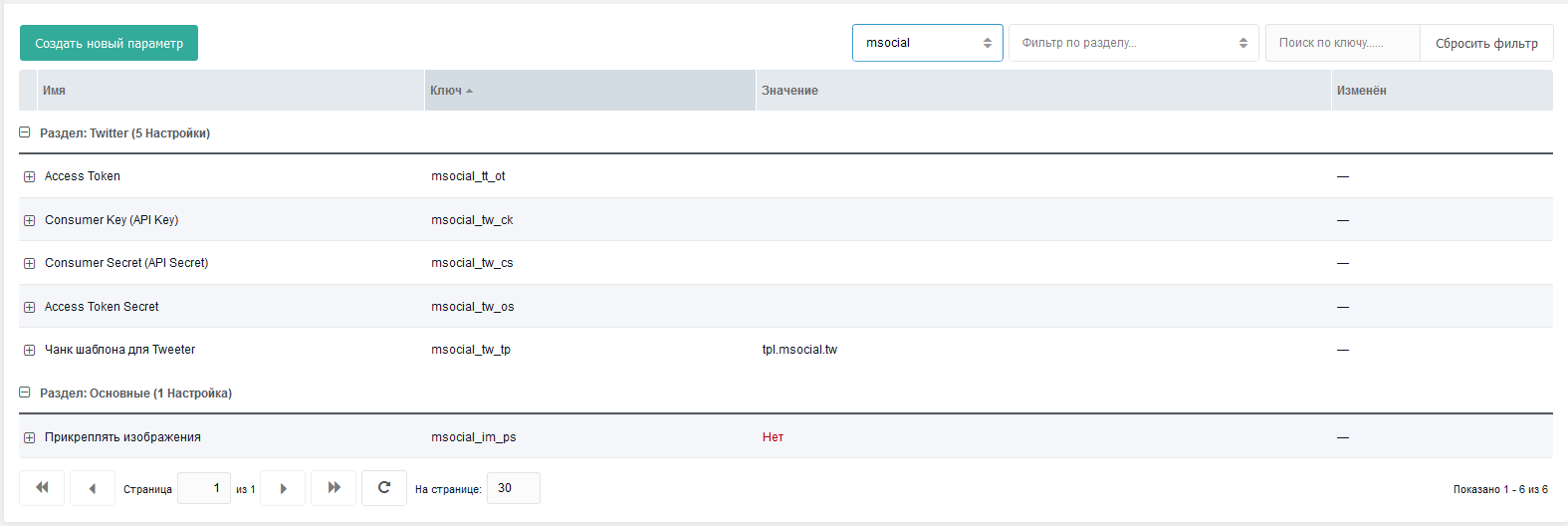
Open chunk tpl.msocial.tw (or the one used for posting) and set the posting parameters. Example:
[[+pagetitle]]-[[+content]]Enable TV parameter twPost for templates whose documents should be posted. Posting happens on resource save when twPost is set to Yes.
System settings
| Name | Default | Description |
|---|---|---|
| msocial_tt_ot | Access Token for Twitter | |
| msocial_tw_ck | Consumer Key (API Key) for Twitter | |
| msocial_tw_cs | Consumer Secret (API Secret) for Twitter | |
| msocial_tw_os | Access Token Secret for Twitter | |
| msocial_tw_tp | tpl.msocial.tw | Chunk template for Twitter posts |
| msocial_im_ps | 0 | Attach images to social posts by parsing the post (if the message contains images they are attached when this is Yes). |
Component contents
Plugins
- mSocial — performs posting to social networks.
TVs
- twPost — TV to control Twitter posting.
Chunks
- tpl.msocial.tw — template for Twitter posts.
Информация
You can use all document fields and TV parameters in the chunk.
Twitter image attachment
For images to upload correctly they must appear in the message body as:
html
<img src="path to image"/>For example insert images in the content field with TinyMCE. Image path should look like files/mSocial.jpg.
Twitter supports: PNG, JPEG, WEBP, GIF.
See Twitter media requirements. Discussion: first release.