



Import & export
Exchange data with Excel/CSV without typing values in the operation dialog. You need msbulkeditor_import_export. Without it the tab is hidden.
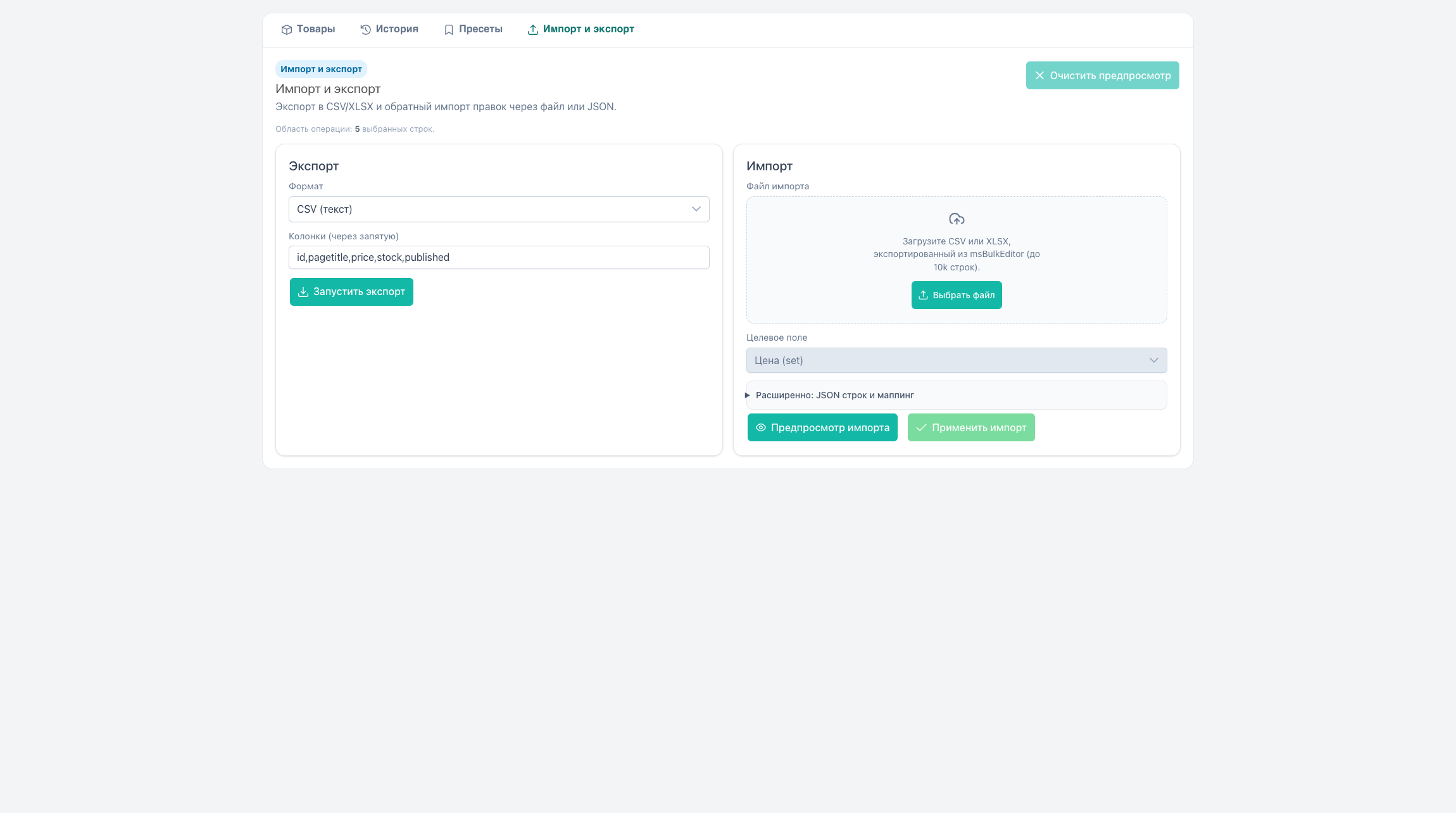
Export vs import
| Export | Import (UI) | |
|---|---|---|
| Columns | Any from catalog: id, MS3 fields, tv:*, option:* | Price, stock, article only |
| Excel round-trip | Export → edit → upload | price, stock/count, article |
| TV / options | Yes in file | Not in UI. Use a bulk operation |
Exporting TV/options is useful for reports. You cannot mass-update TV/options from the import tab.
Export uses the selection on Products: checked rows or expert mode. Import changes only products whose id is read from the file. Without an ID column the request ends with msbulkeditor_import_mapping_invalid. The current filter does not apply to import.
Export
Steps
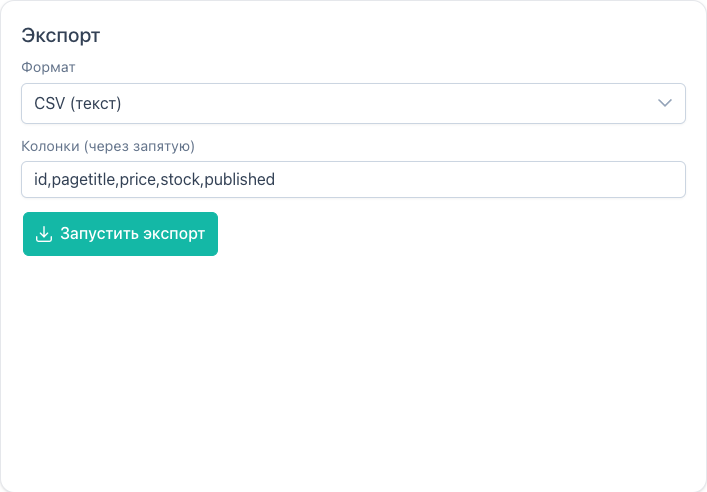
- On Products, set filters and selection (rows or expert mode).
- Import & export tab → Export block.
- Format: CSV or XLSX.
- Columns comma-separated (default
id,pagetitle,price,stock,published). - Run export. The browser downloads the file.
Columns
| Key | Note |
|---|---|
id | Required for round-trip |
pagetitle | Title |
price | Price |
stock or count | Stock (both keys resolve to the same field) |
published | 0/1 |
article | SKU |
tv:name / msbe:tv:name | TV value from fields.tvs |
option:key / msbe:option:key | Option value from fields.options. Multi-value comma-separated |
TVs and options use keys from columns or short prefixes tv: / option:.
XLSX
Requires OpenSpout in the component vendor (composer install in core/components/msbulkeditor). Otherwise message msbulkeditor_export_xlsx_unavailable.
Plugins
Integrators can add virtual columns via msbeOnExportColumns and msbeOnExportBuildRow. Example: MODX events.
Import (round-trip)
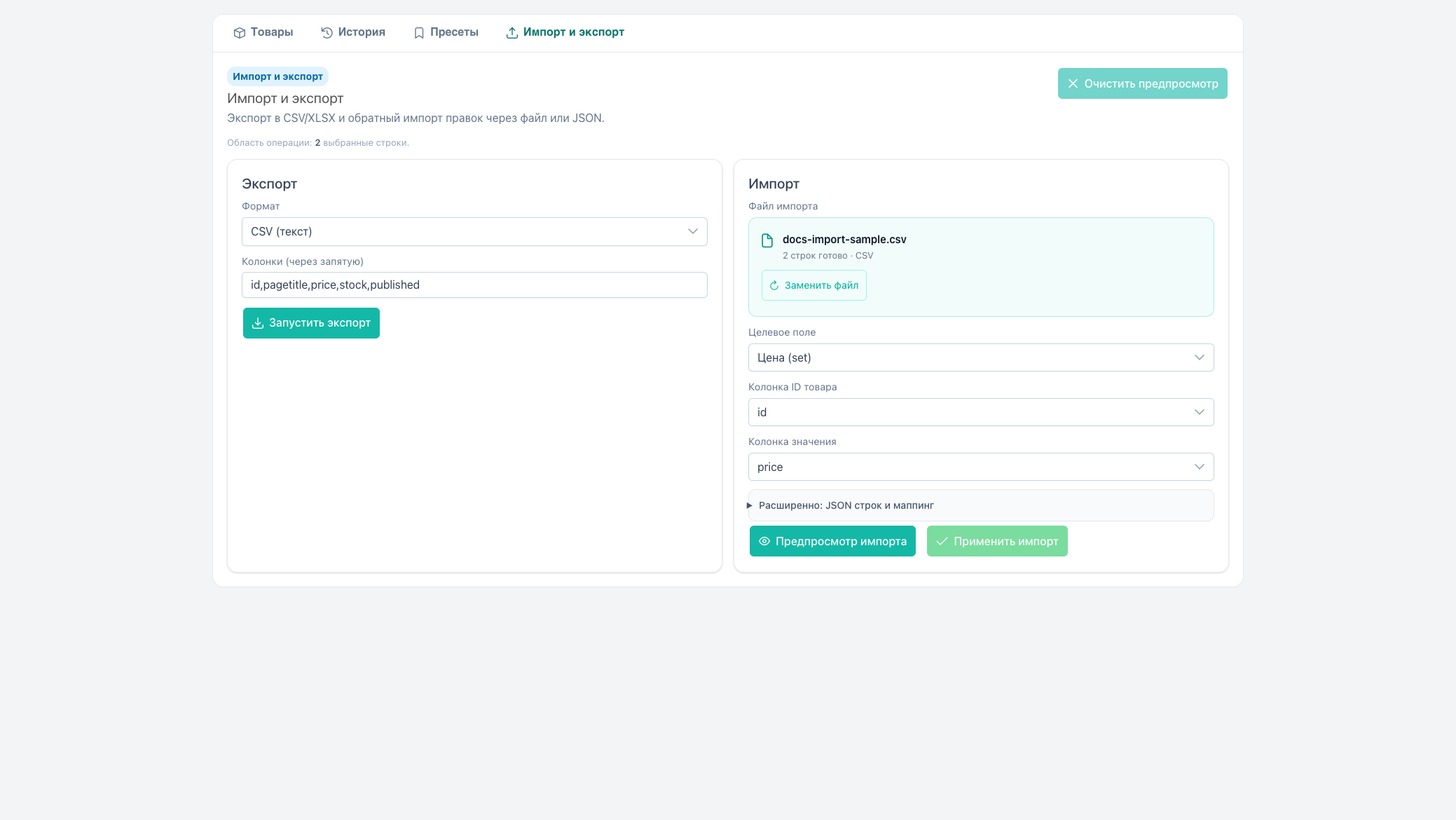
- Export CSV/XLSX.
- Edit
price,stock/count, orarticlein Excel. - Choose file → upload (
import/parse). After parse, Replace file is available. - Set target field and ID / value column mapping.
- Preview import → Apply import.
Without mapping, Preview stays disabled (msbulkeditor_import_mapping_required_hint). Without a successful preview, Apply stays disabled (msbulkeditor_import_apply_disabled_hint).
Target field → API
| UI | fieldType | Parameters |
|---|---|---|
| Price | price | mode: set, field: price |
| Stock | stock | mode: set, field: count |
| Article | text_set | field: article |
Mapping keys: product_id and value. For stock, file headers may be count, stock, quantity, or qty.
Limits
| Parameter | Default |
|---|---|
| Rows in file | 10,000 (msbulkeditor_import_max_rows) |
| File size | 10 MB |
| Formats | .csv, .xlsx |
A warning appears when the file is truncated by the limit.
JSON import
Block “Advanced: row JSON and mapping” uses the same target fields (price / stock / article) with no file upload:
json
[
  {"id": 22, "price": 199},
  {"id": 23, "price": 249}
]
Mapping:
json
{"product_id": "id", "value": "price"}For TVs and options use a bulk operation, not this block.
After import
- Summary: Success / Skipped / Errors.
- Clear preview resets import preview and apply result. If already empty, toast “nothing to clear”.
Import uses the same preview/apply pipeline as bulk operations.
See also
- Product & prices
- events:
export/run,import/parse,import/run