



User flows
Flows A–J with screenshots: filter, operate, import, roll back. Tab overview: Interface.
Application map
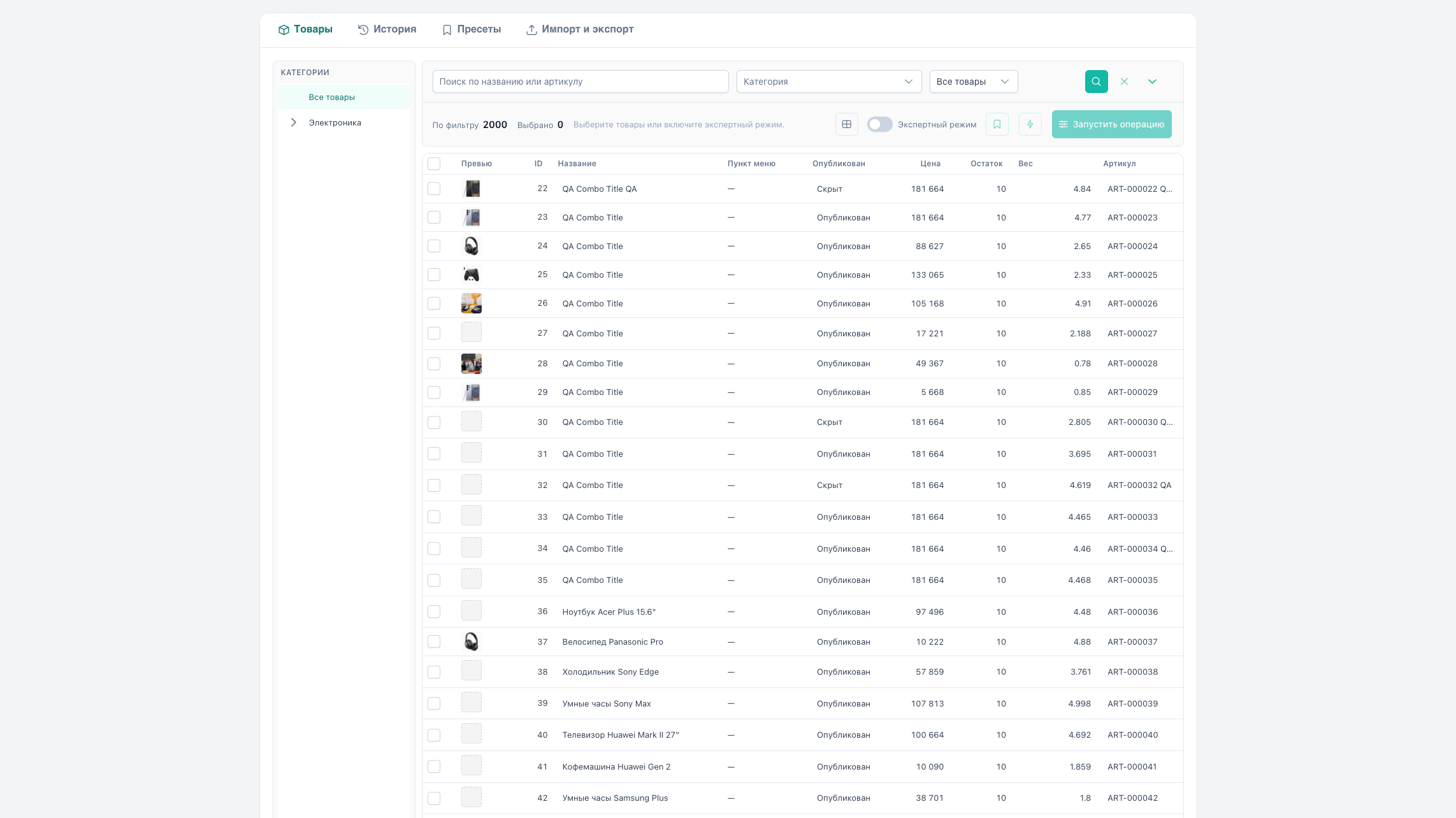
| Tab | Route | Permission | Main actions |
|---|---|---|---|
| Products | #/products | msbulkeditor_view | Filter, selection, operations, preview, apply, inline |
| History | #/history | msbulkeditor_view | Log, rollback, item detail |
| Presets | #/presets | msbulkeditor_presets | CRUD JSON operations |
| Import & export | #/import-export | msbulkeditor_import_export | CSV/XLSX export, import round-trip |
Tabs without permission are hidden. A direct URL without permission redirects to Products.

Selection scope
Every bulk operation, export, or preset apply needs a selection scope.
| Mode | How to enable | What is included |
|---|---|---|
| Selected rows | Row checkboxes (or header checkbox for current page) | selectedIds only |
| All matching filter | Expert mode toggle + active filters | All IDs matching filterSpec (limit msbulkeditor_expert_limit, default 5000) |
KPI Matching filter and Selected show selection size. The label next to expert mode explains the apply scope.

Toolbar lock: without selected rows and without expert mode, Run operation, Quick actions, and Presets menu are disabled.
In expert mode the ⋯ column offers Select only this row (crosshair). That sets selectedIds = [id] without turning expert off. Details: products grid.
Flow A — Bulk operation (full cycle)
Use for price, stock, TV, options, and other types from Run operation.
Steps
- Products → set filters and/or category tree.
- Select rows or enable expert mode and check “Matching filter: N”.
- Run operation → pick type in Operation type (see type table).
- Fill the form (fields depend on type).
- Preview. The diff table appears below the grid.
- Uncheck rows if needed (preview).
- Apply. Progress shows “X of Y”.
- History. Verify. On error use Rollback.
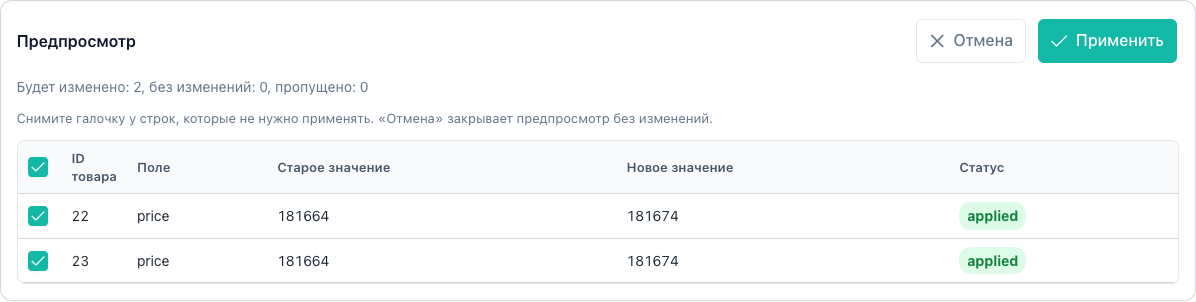
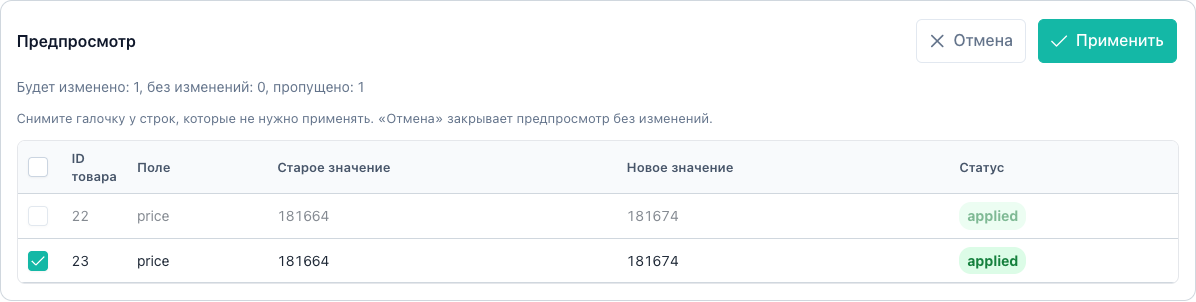

Details: preview.
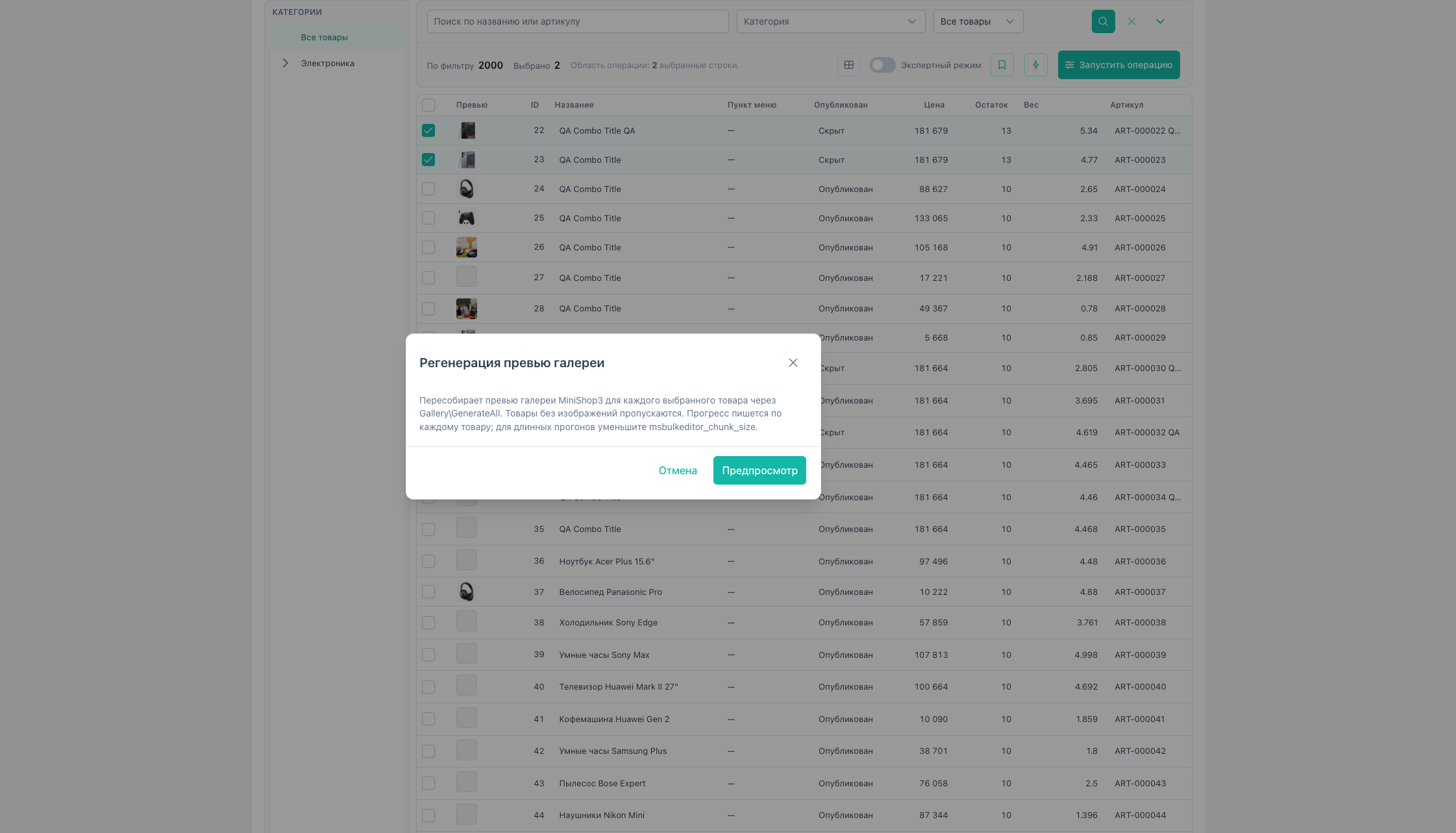
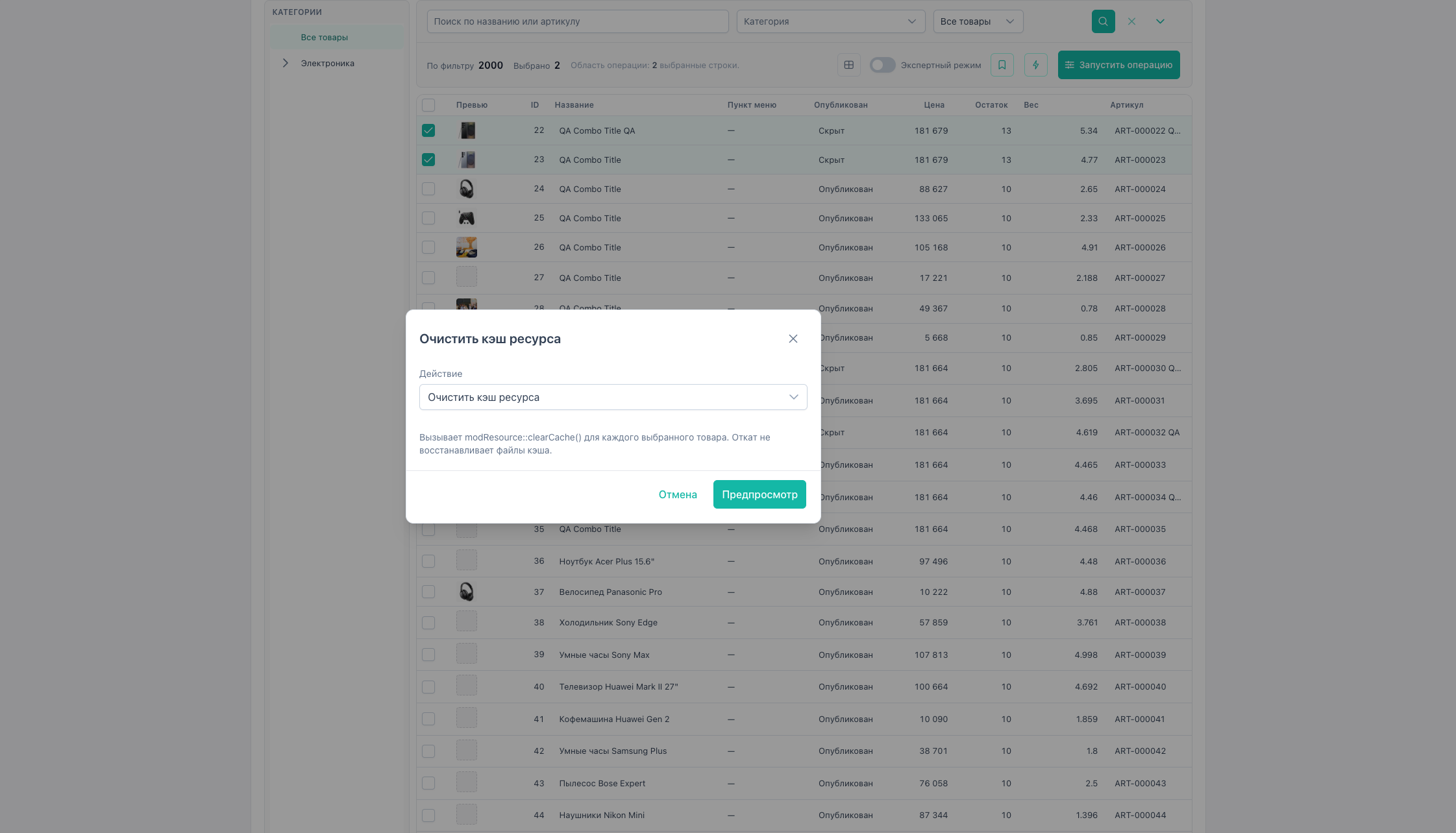
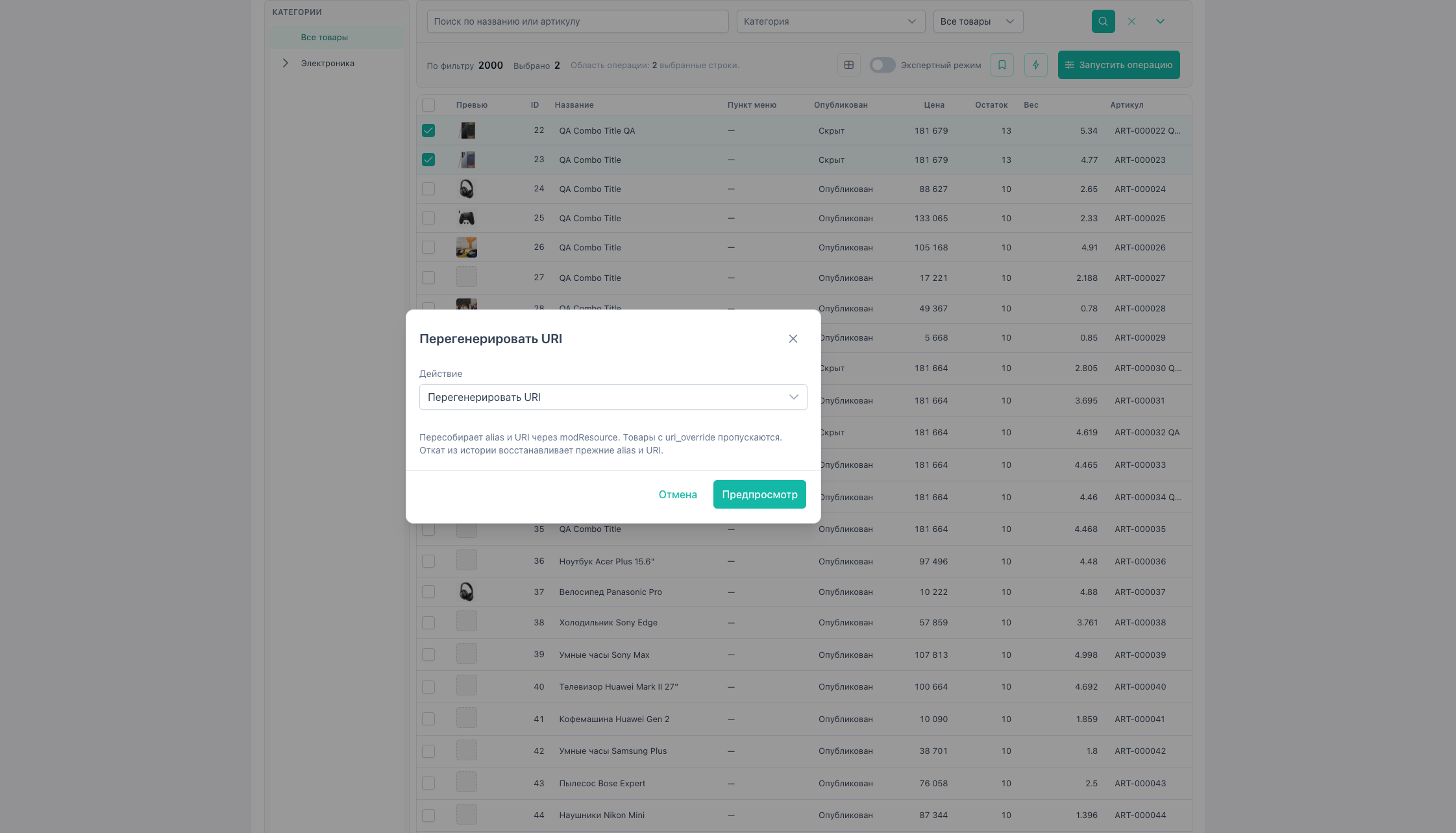
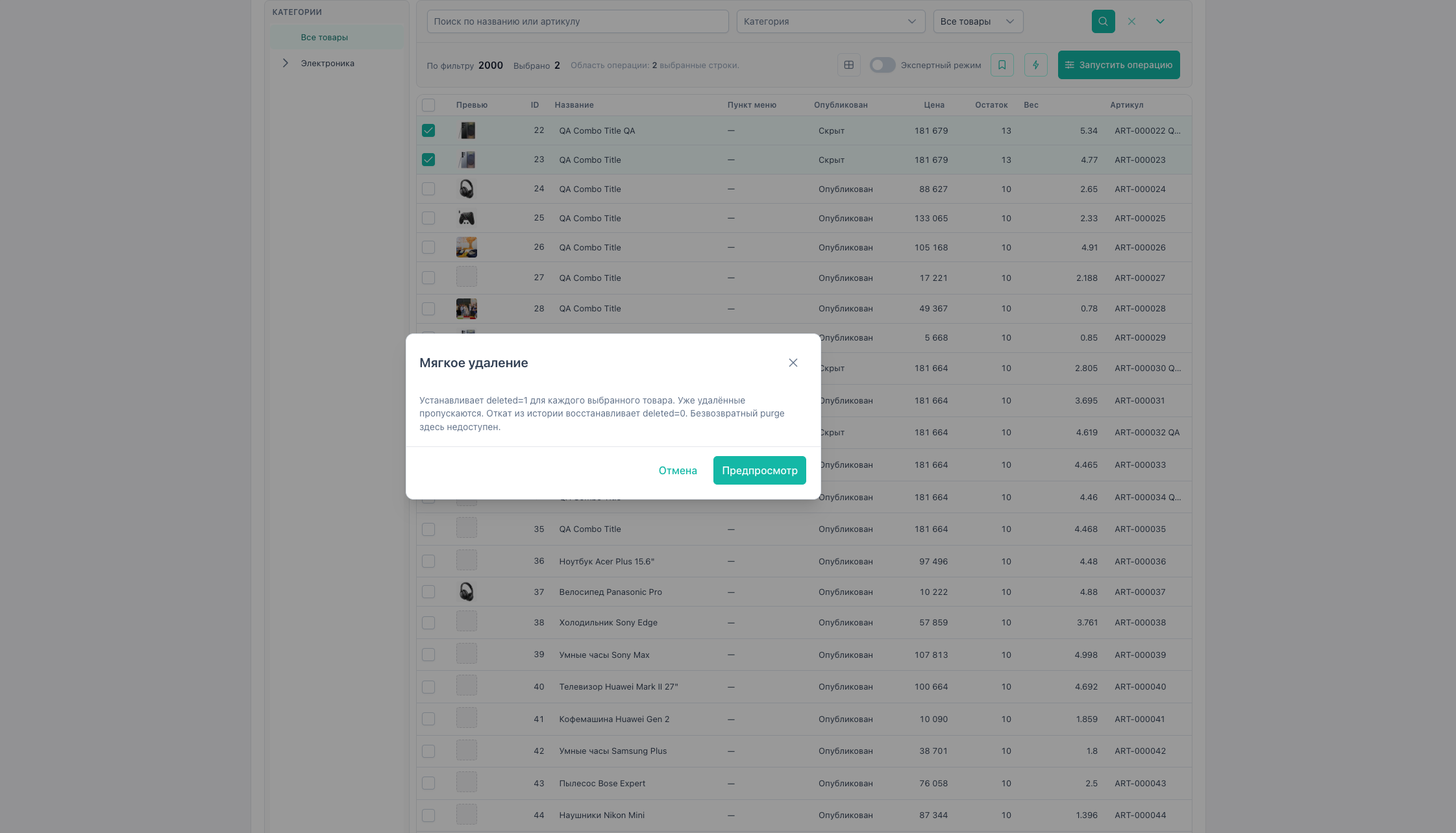
Flow B — Quick actions
Shortcut for frequent operations without picking type in the Select.
- Selection (rows or expert).
- Quick actions (lightning icon).
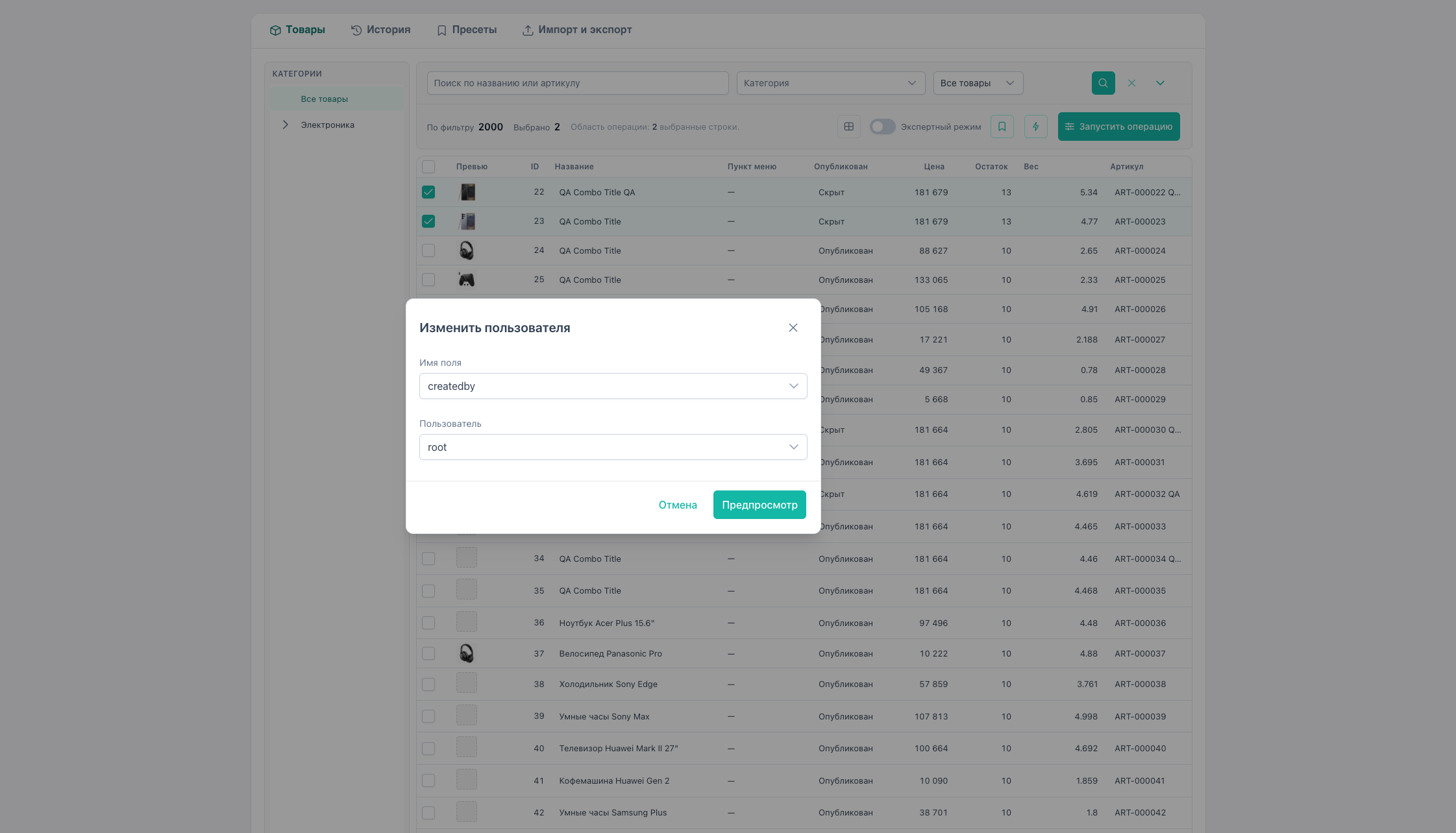
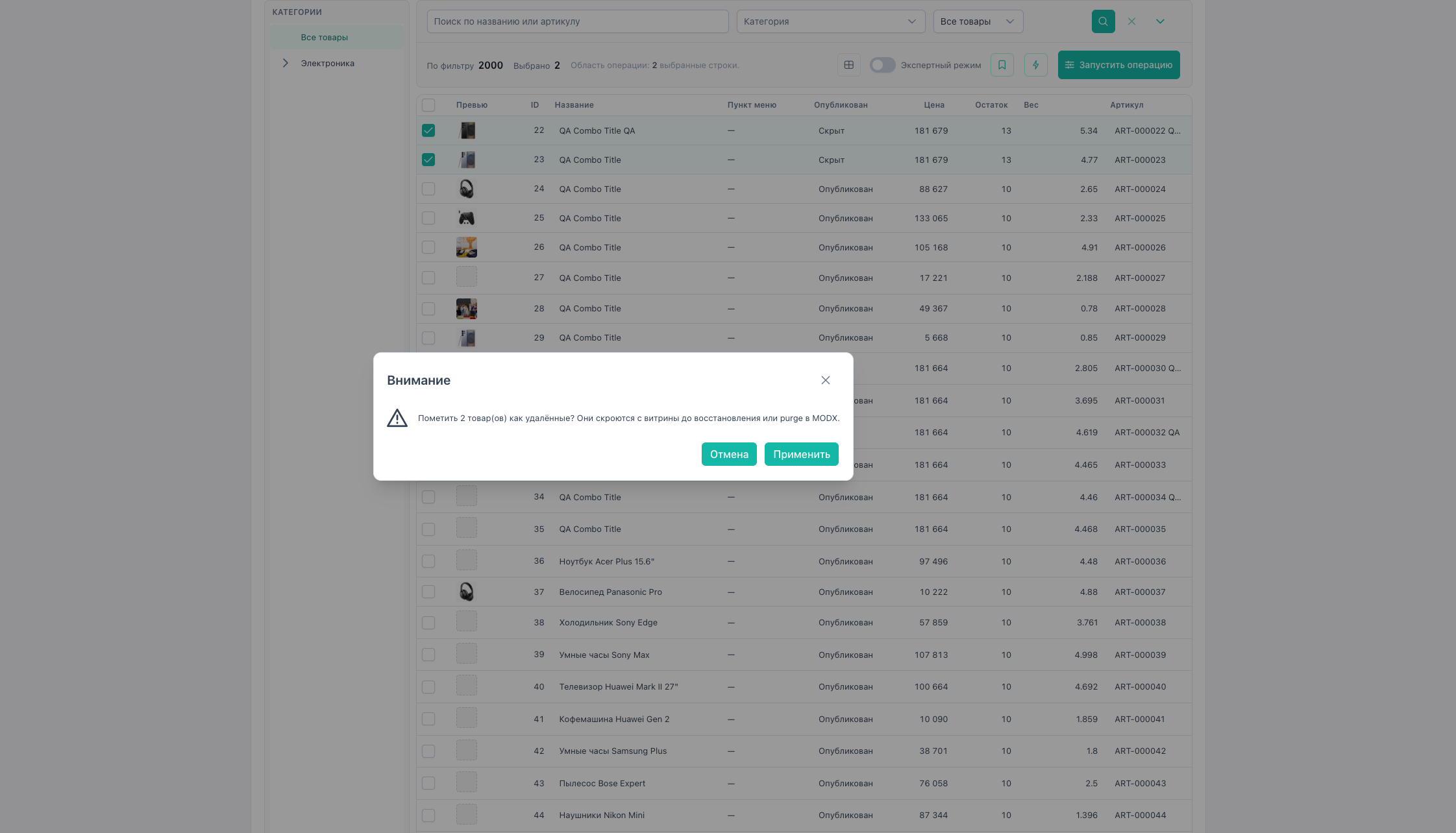
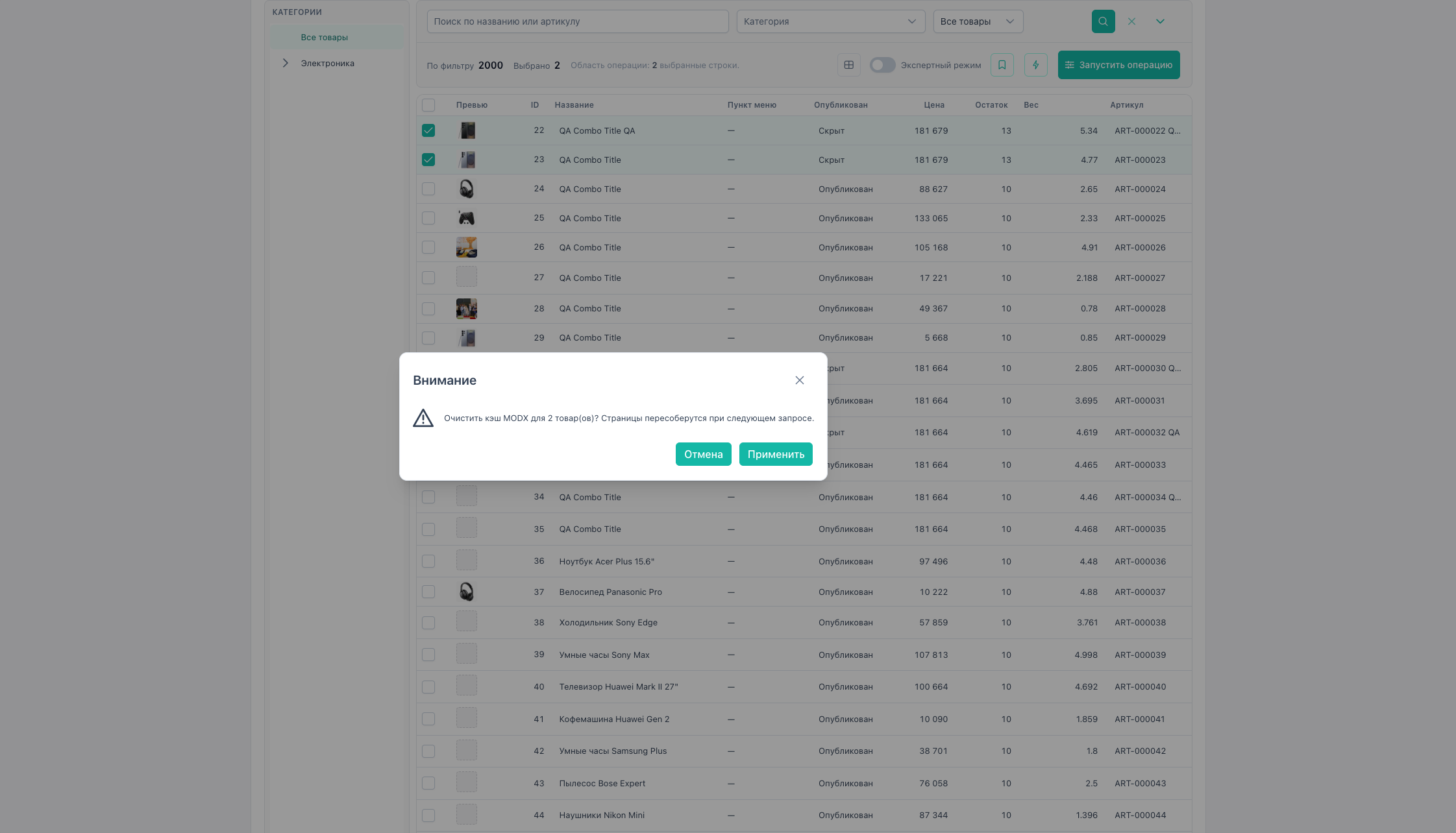
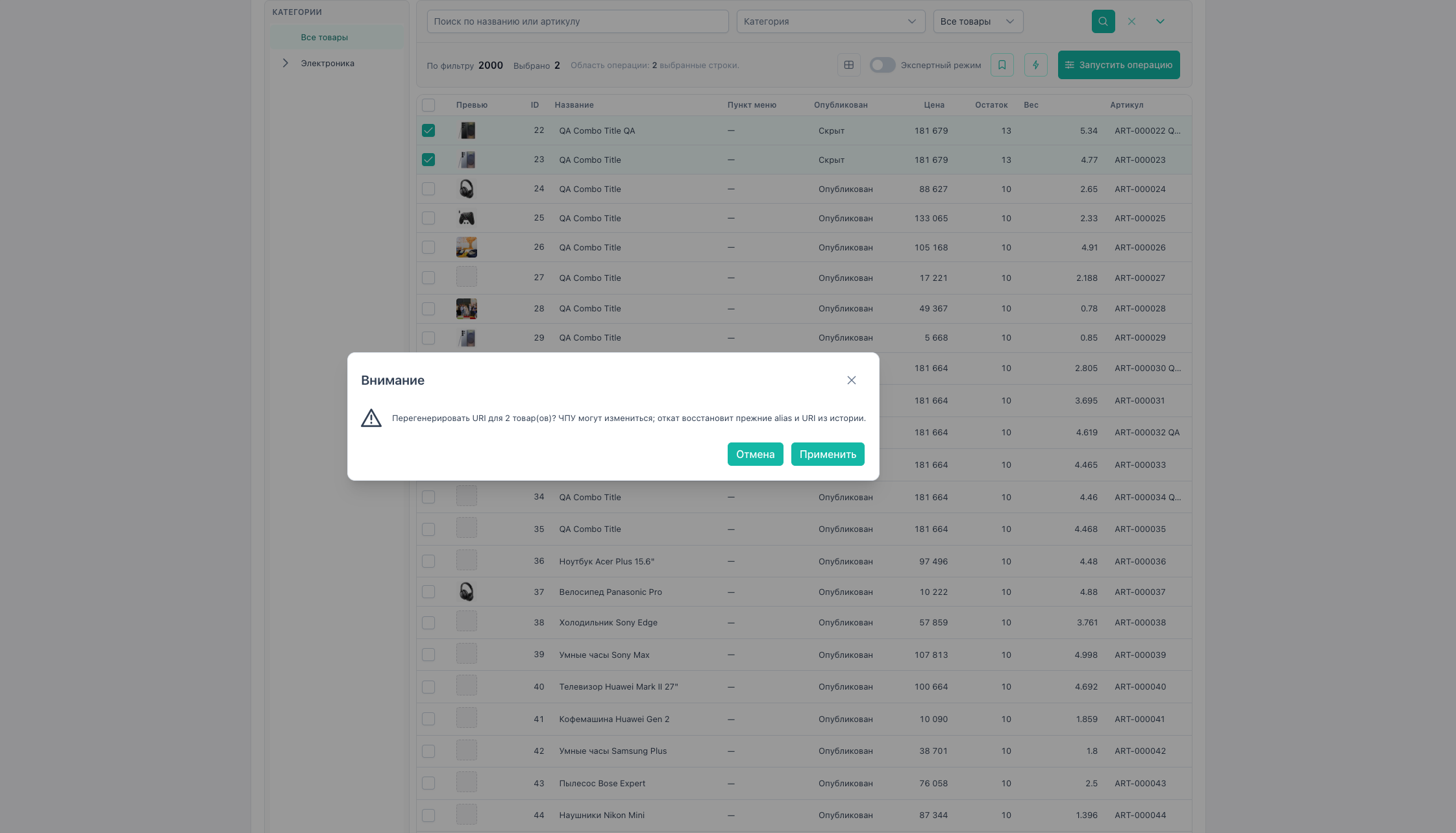
- Menu item → dialog with locked operation type.
- Parameters → Preview → Apply.
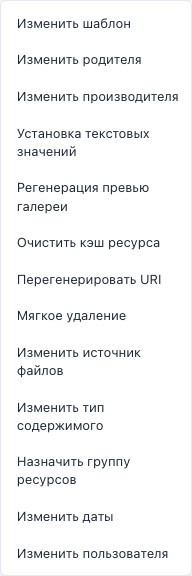
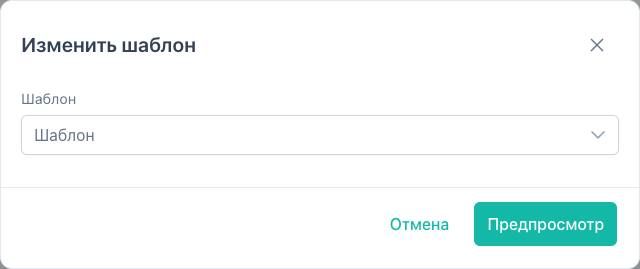
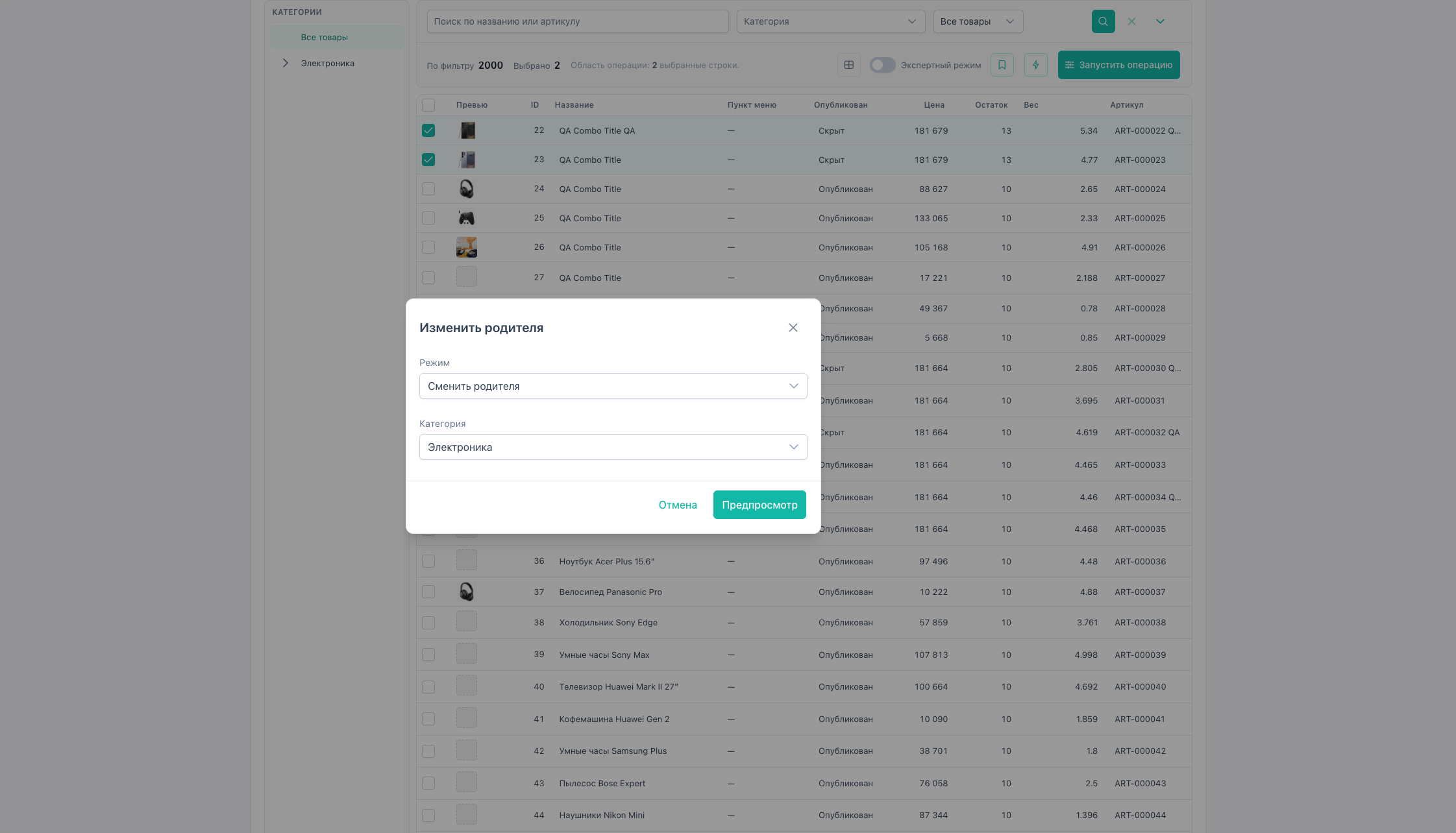
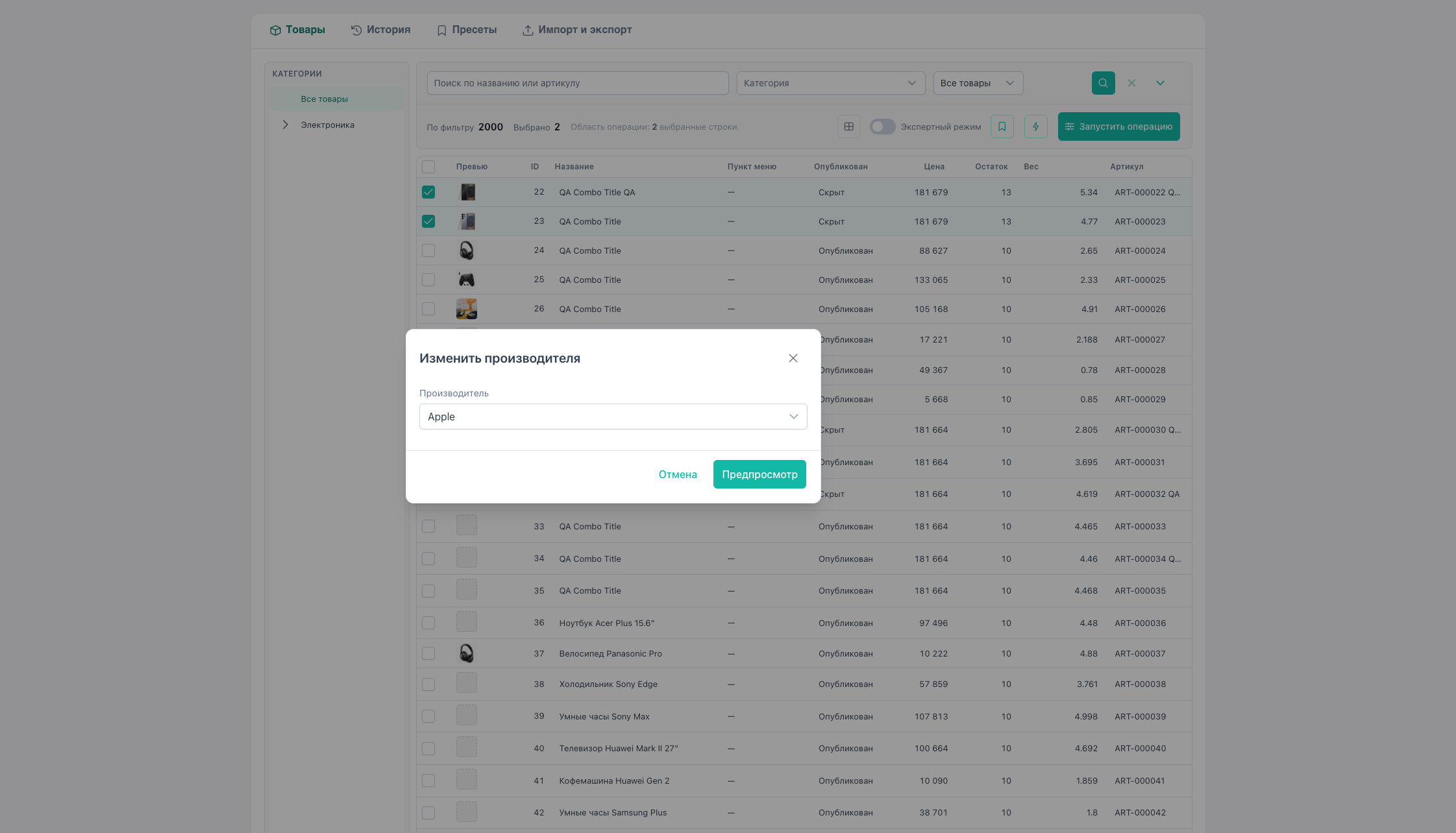
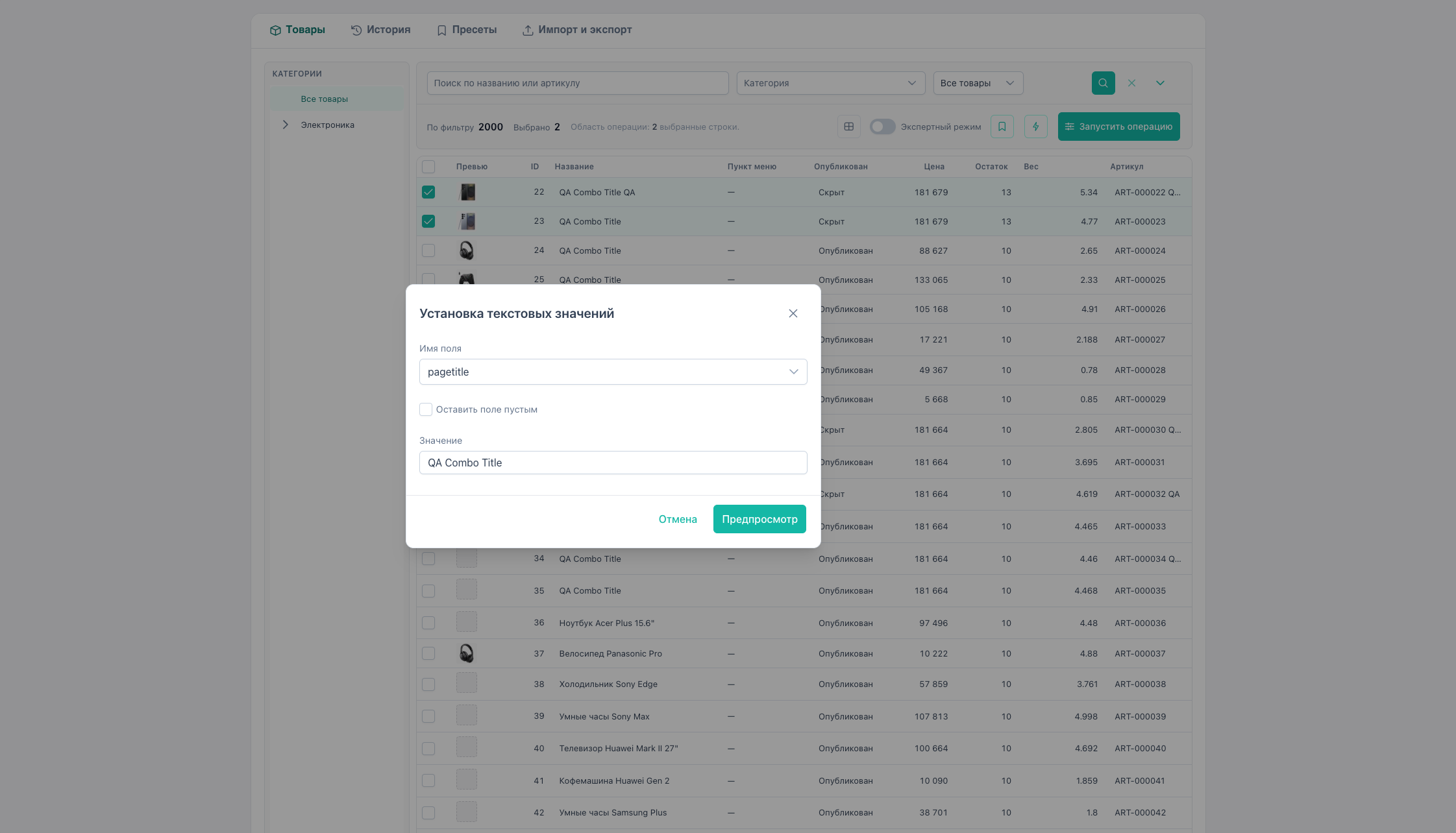
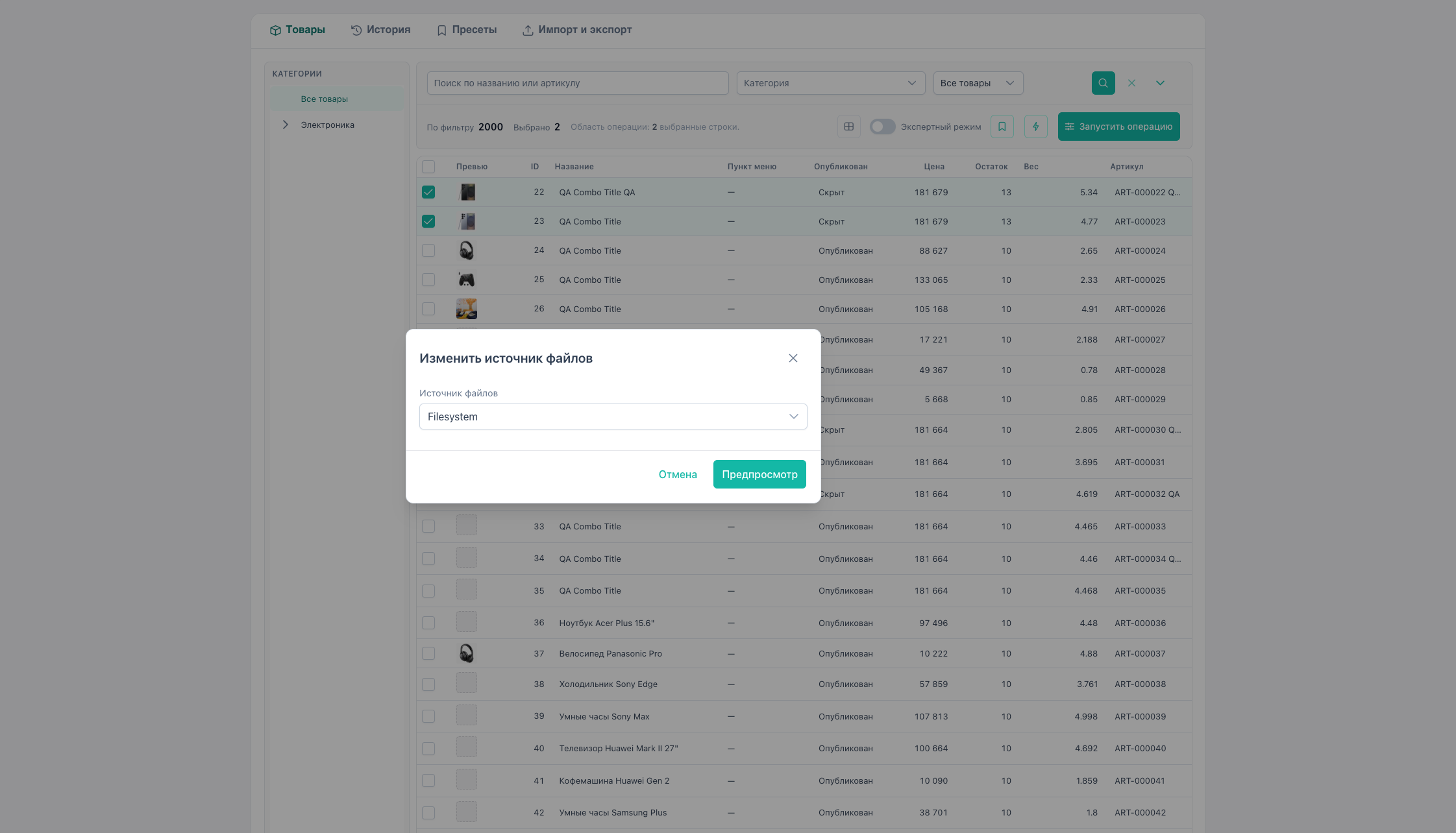
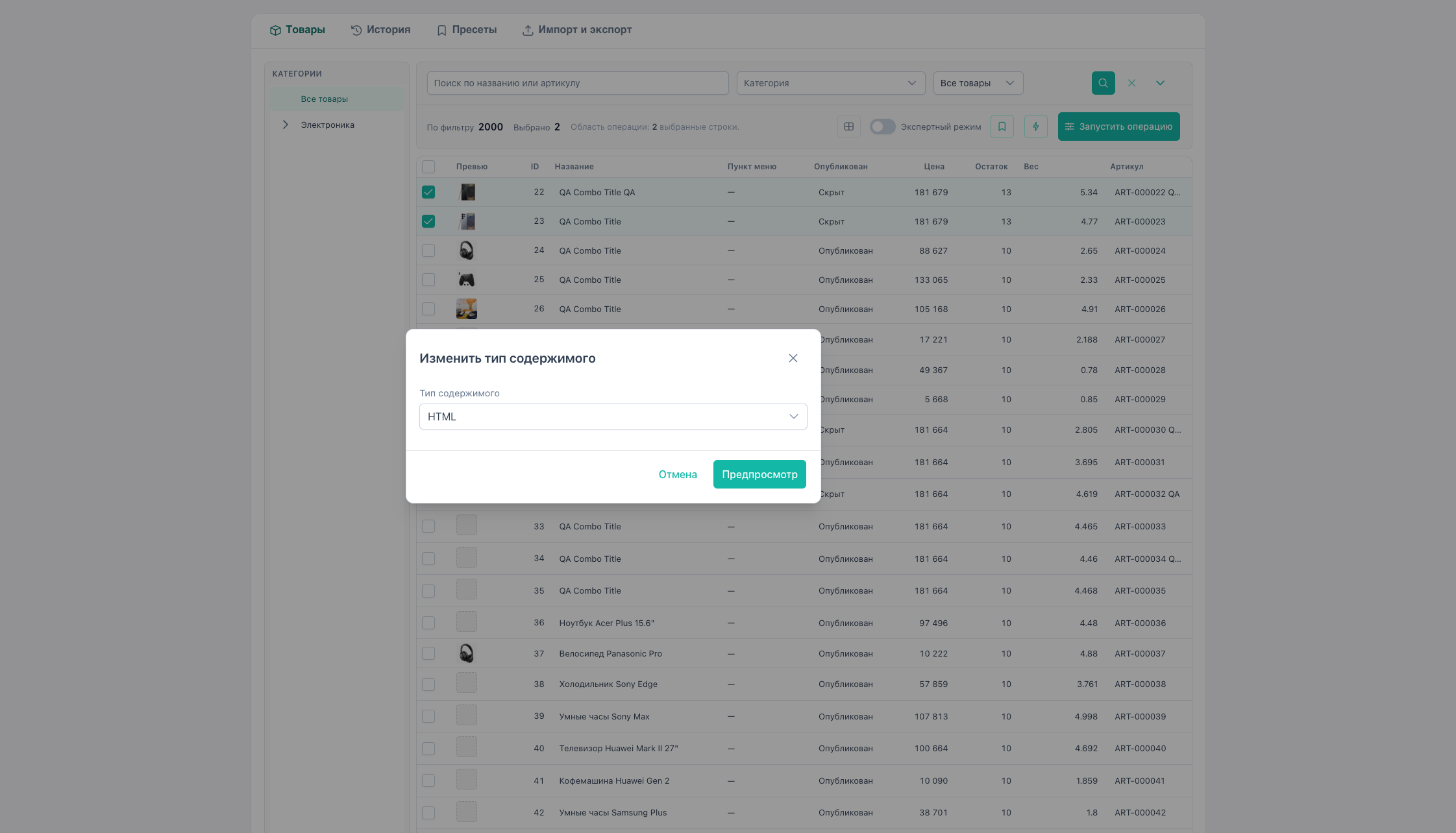
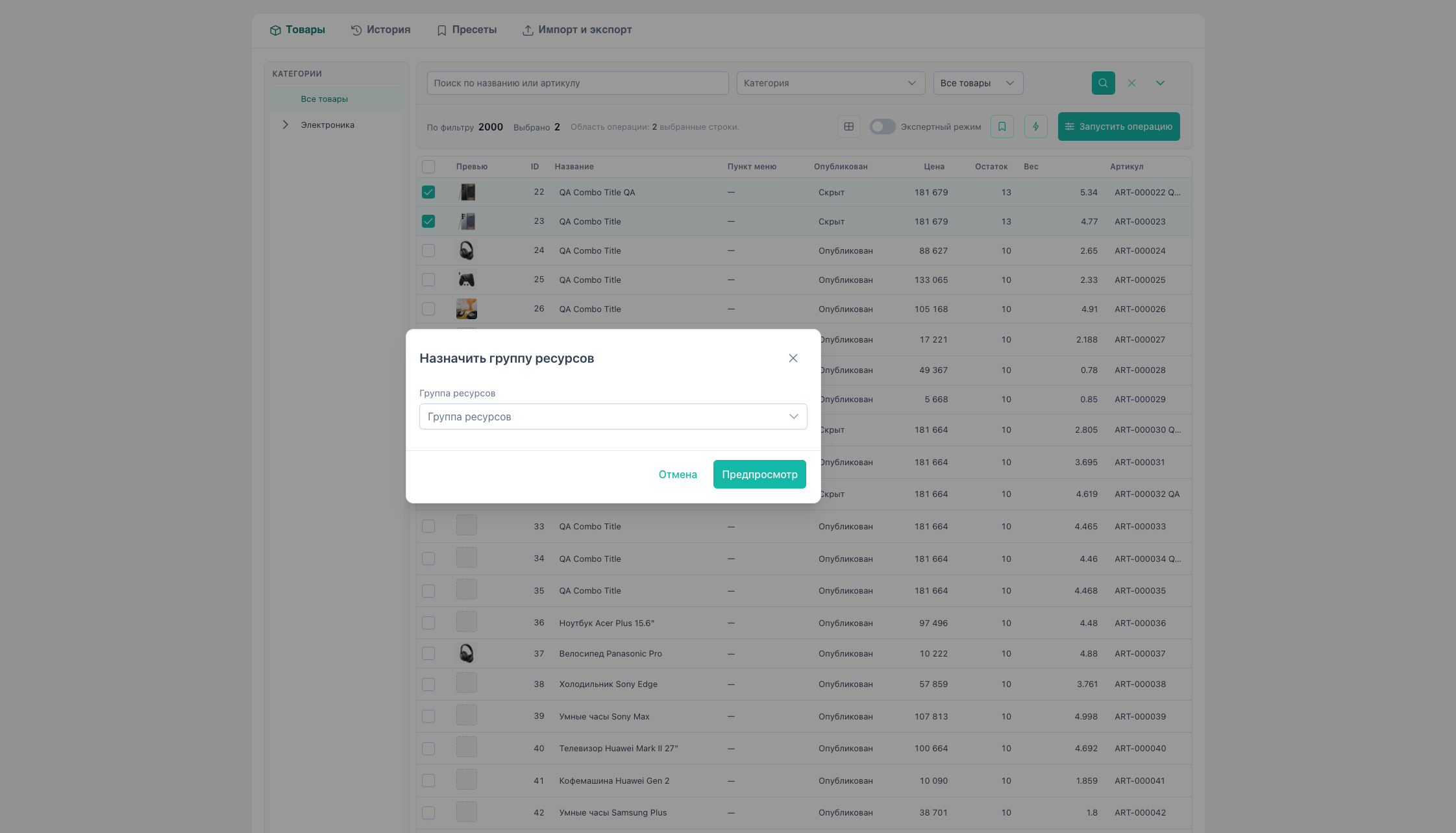
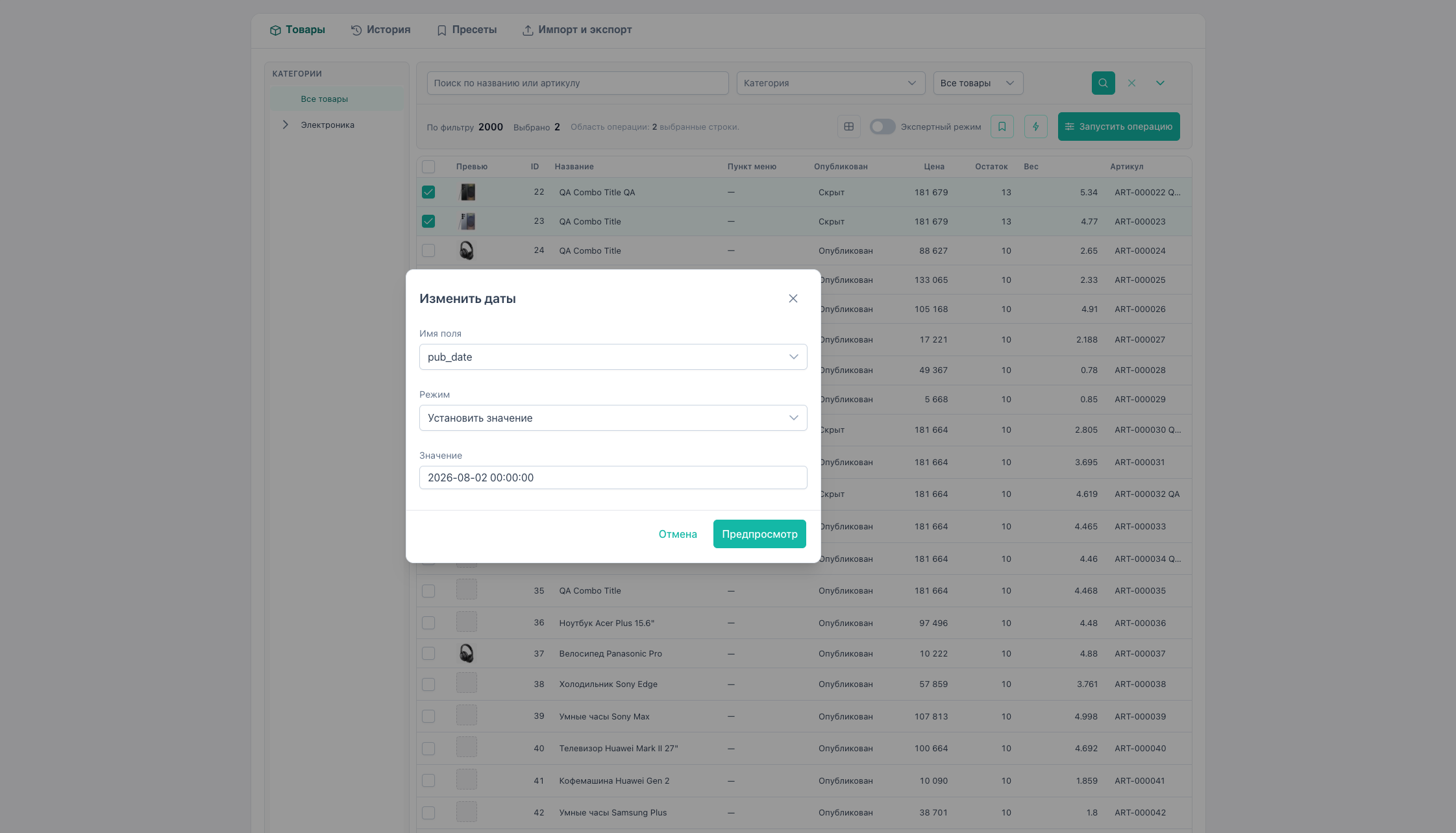
| Menu item | fieldType |
|---|---|
| Change template | template |
| Change parent | category (change_parent) |
| Change vendor | vendor |
| Set text | text_set |
| Regenerate gallery previews | gallery_regenerate |
| Clear resource cache | resource_utility (clear_cache) |
| Regenerate URI | resource_utility (regenerate_uri) |
| Soft delete | soft_delete |
| Change file source | source |
| Change content type | content_type |
| Assign resource group | resource_group |
| Change dates | dates |
| Change user | user |
Details: quick actions.
Flow C — Preset
- On Products, build an operation and verify preview or write JSON manually.
- Presets → name + JSON → Save.
- Rename: load preset → new name → Save (old name is removed).
- To run again:
- Presets → Apply on the row, or
- Products → Presets toolbar menu → click name.
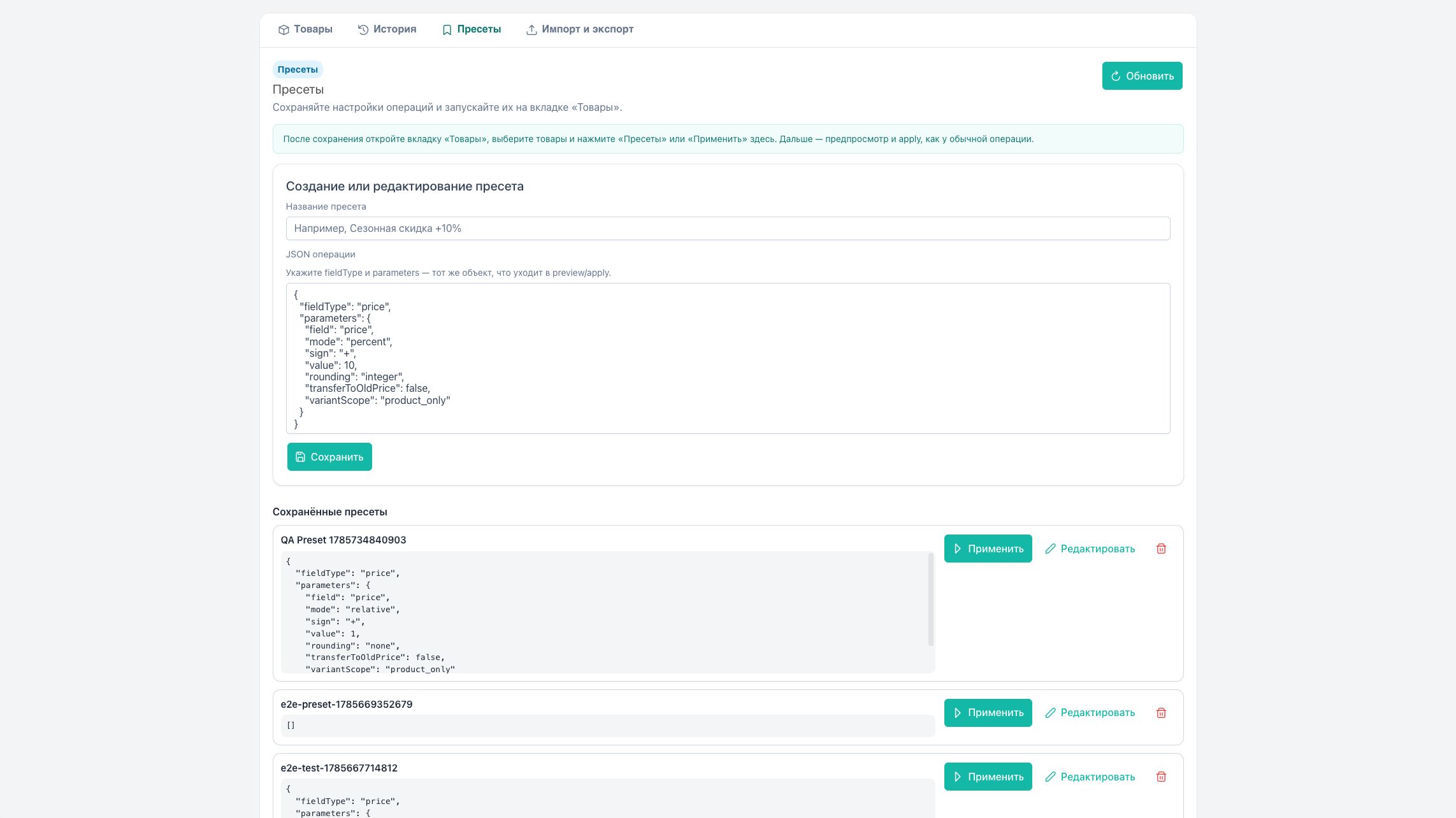
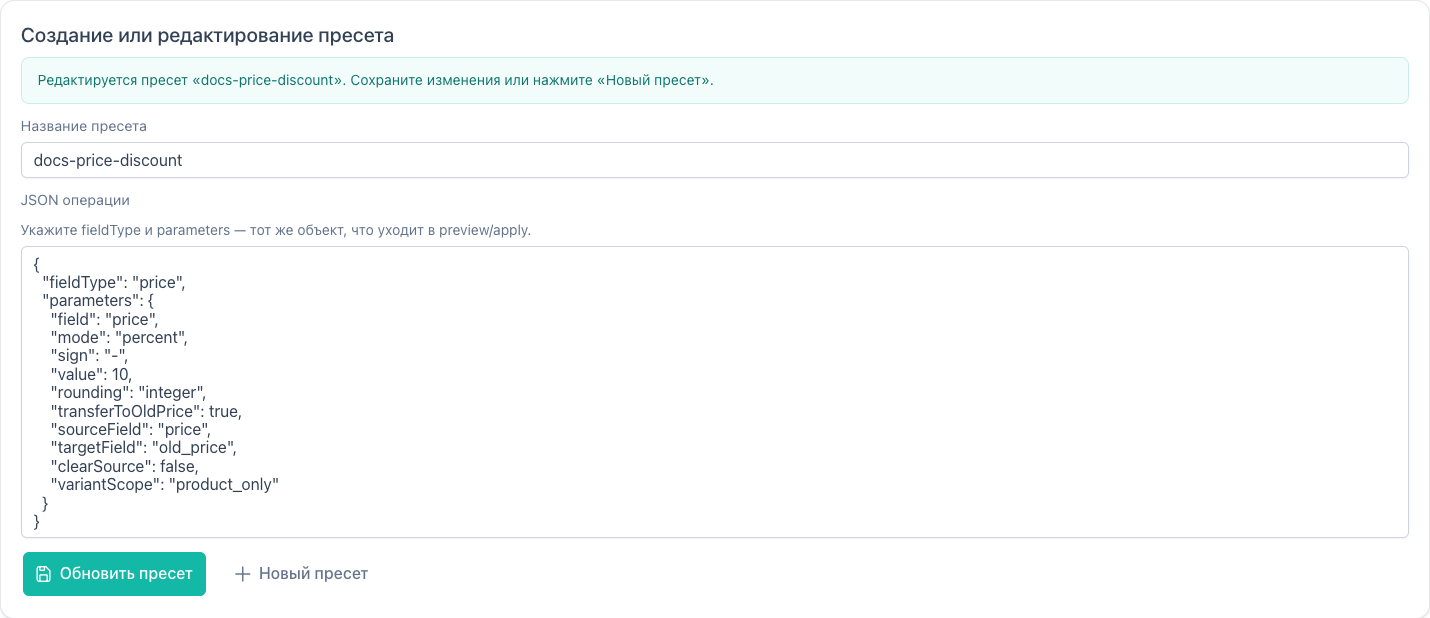
Details: presets.
Flow D — Inline edit (single cell)
No bulk operation dialog.
- Click cell (
pagetitle,price,stock,published,article,weight, text TV, scalar option). - Image TV: double-click → MODX media browser.
- Enter / blur / toggle → save via preview/apply pipeline for one ID.
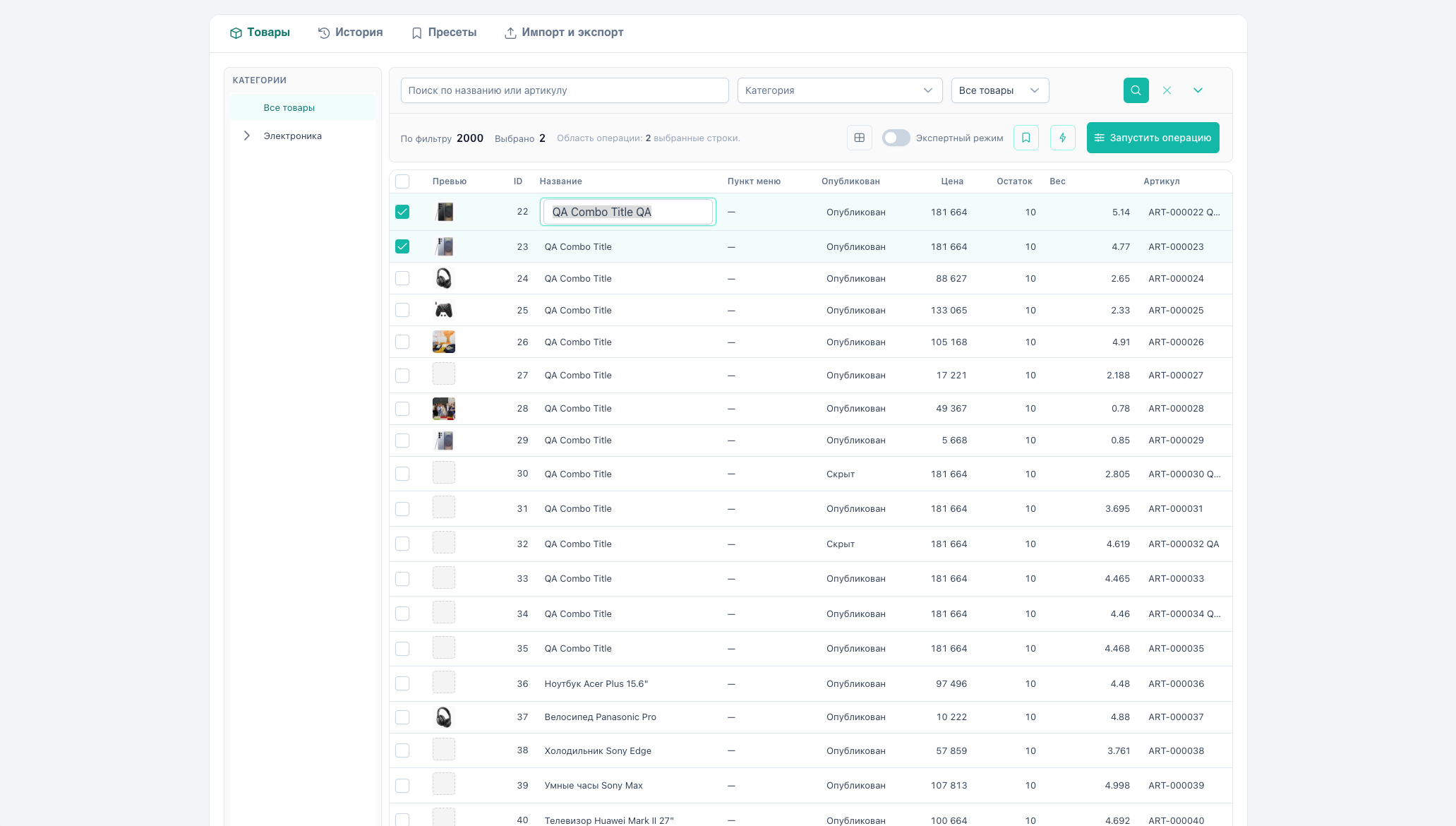
Details: inline editing.
Flow E — Column settings
- Products → Table settings (columns icon).
- Move columns between Available and Visible. Reorder with arrows or drag.
- Set width in the dialog or by dragging the column header border.
- Save writes the set to
ui/state(per MODX user). - Restore loads the browser localStorage snapshot, not factory defaults.
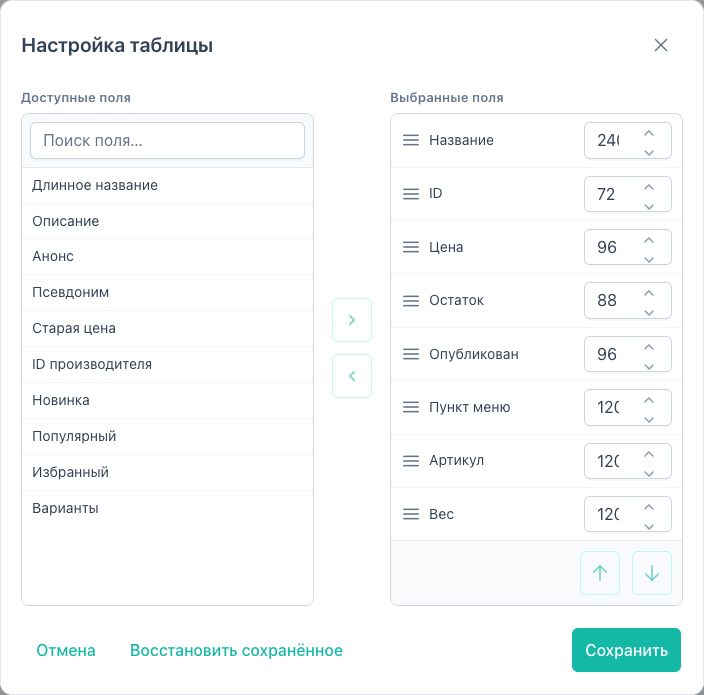
Details: columns.
Flow F — Catalog filtering
- Search, category, published → Apply filters.
- More filters: template, vendor, additional category, image, MS3 labels, deleted, duplicate URI.
- Category tree syncs with Category filter.
- Reset restores defaults.


Details: products grid.
Flow G — Export
- On Products, filter and select rows or enable expert mode.
- Import & export → Export block.
- CSV/XLSX, column list → Run export (file download).
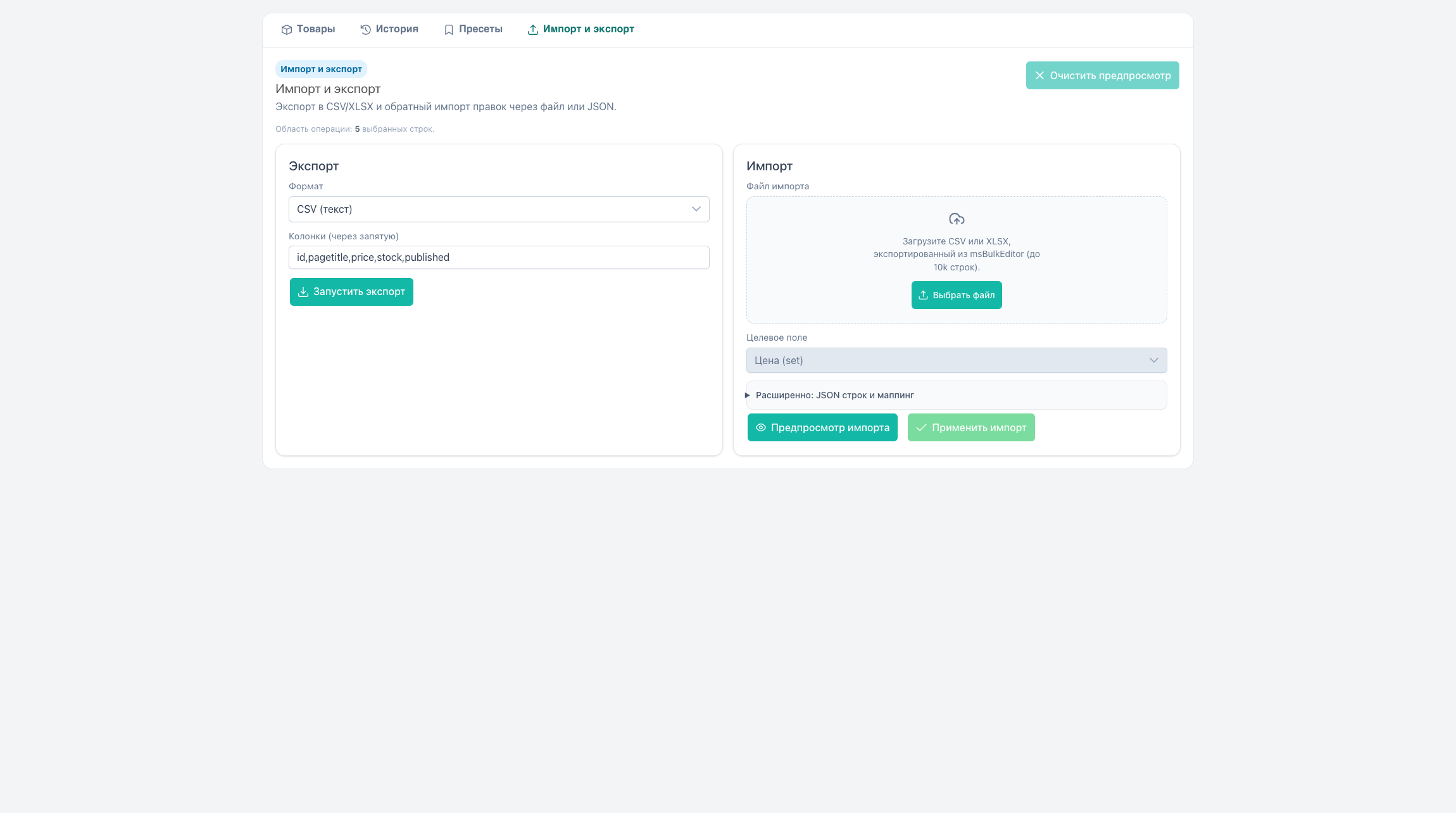
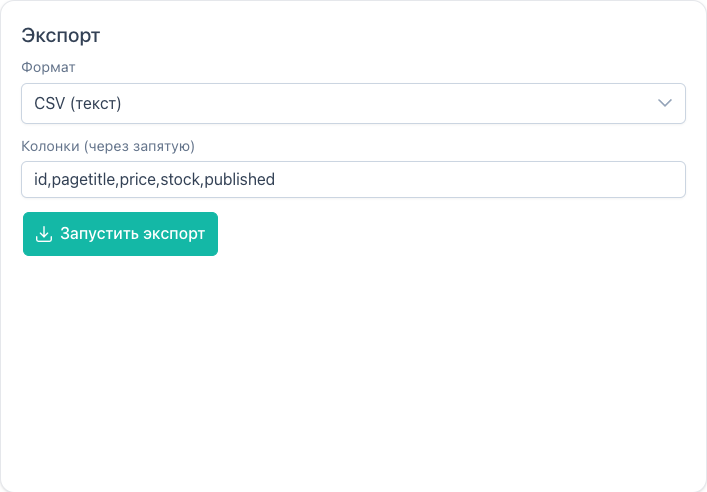
Details: import and export.
Flow H — Import (round-trip)
- Export → edit in Excel (
price,count, etc.). - Import & export → Choose file → parse (then Replace file if needed).
- Column mapping → Import preview → Apply import.
- Optionally Clear preview.
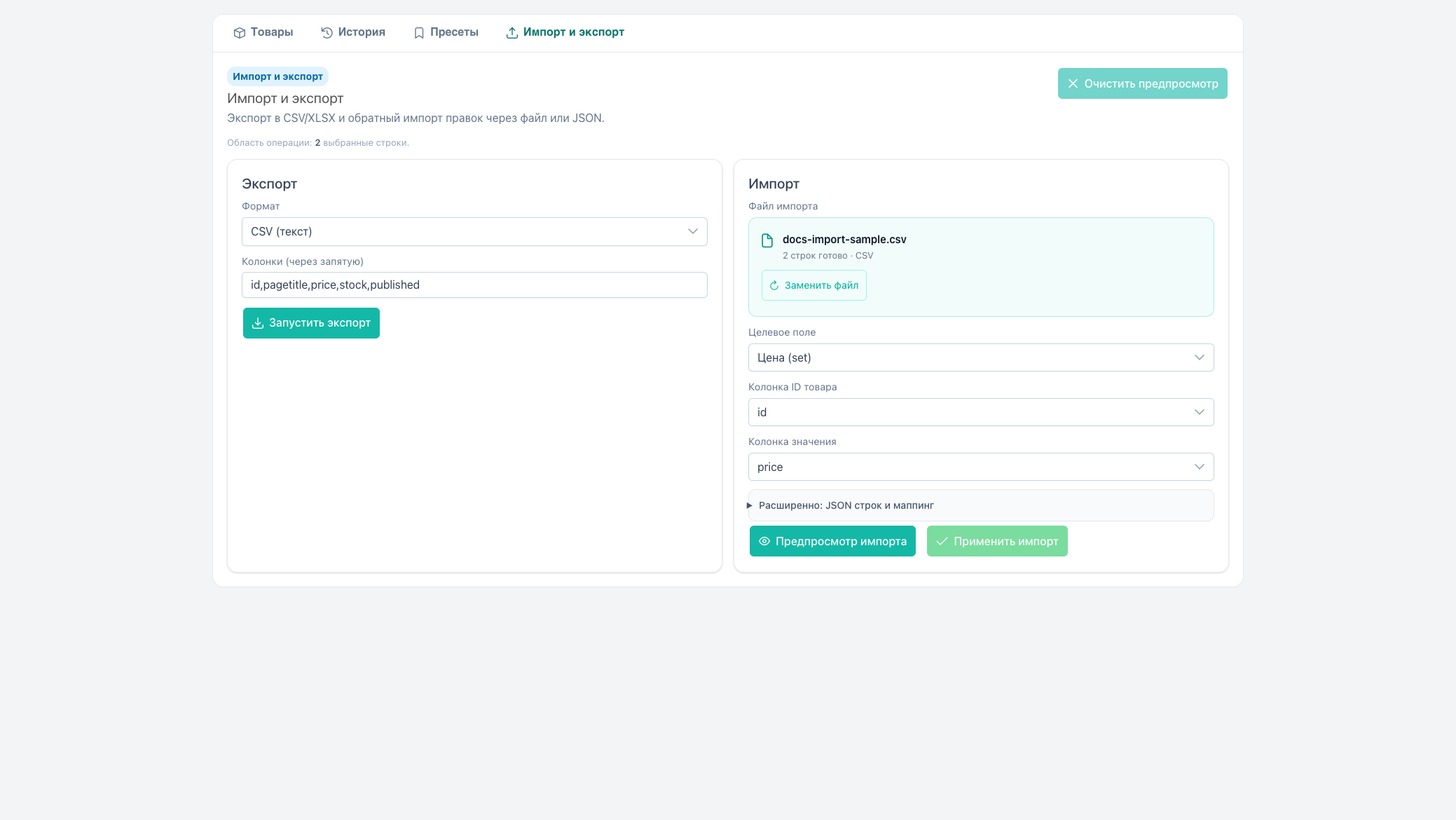
Alternative: JSON + mapping in the Advanced block. See import and export.
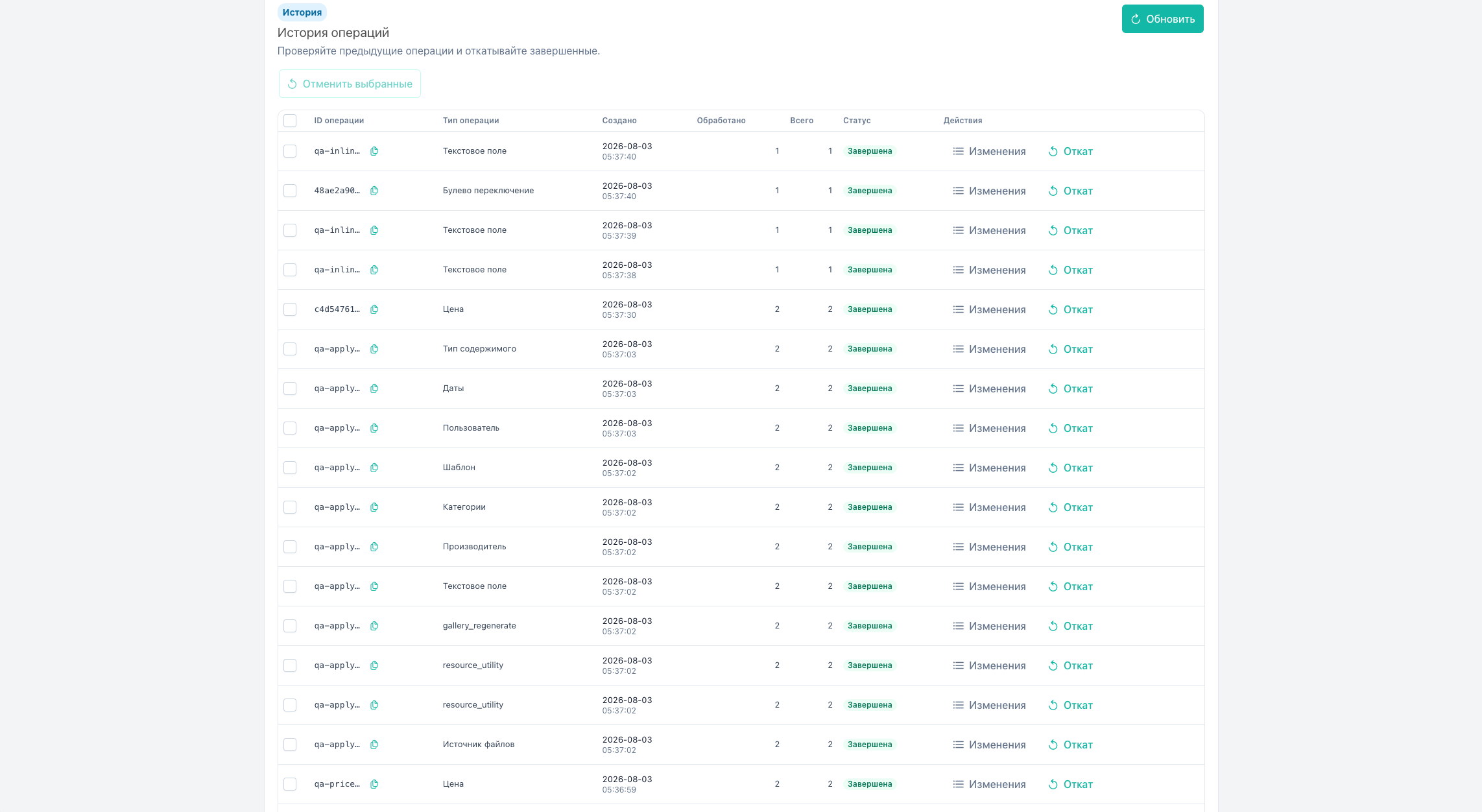
Flow I — History and rollback
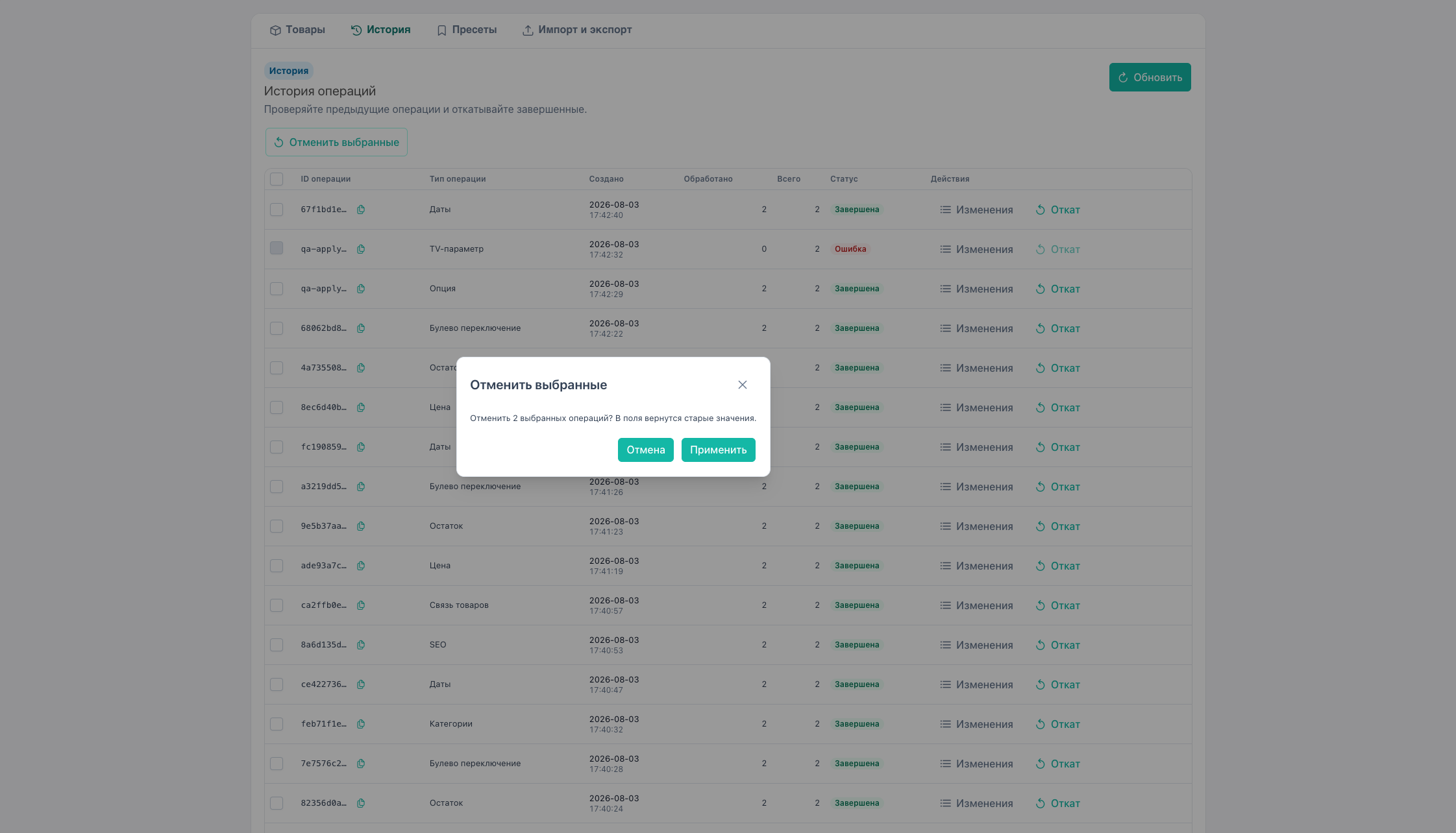
Full rollback
- History → row with Completed status.
- Rollback → confirm → restore
oldvalues frommsbe_operation_items.

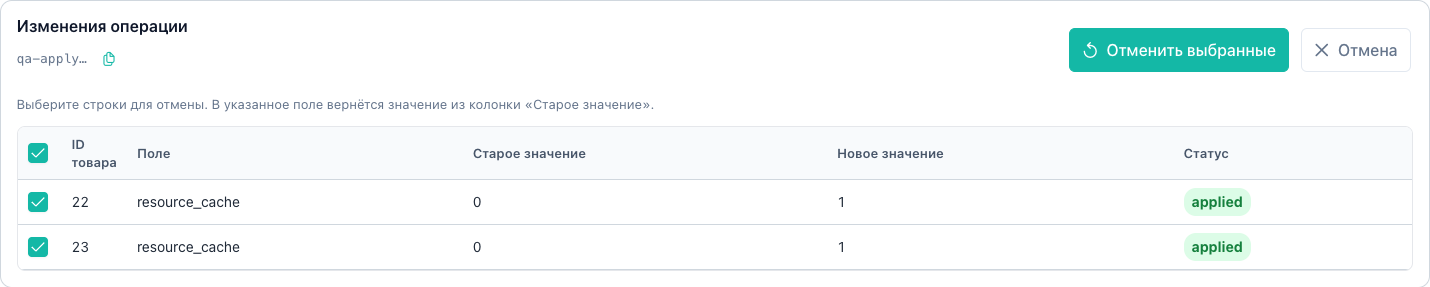
Partial rollback
- Changes on the operation row.
- Select items with status
applied. - Rollback selected.
- Click the ID in the panel to copy it (toast).
Bulk rollback
Select multiple completed operations → checkboxes → Rollback selected.
Details: history. Requires msbulkeditor_rollback.
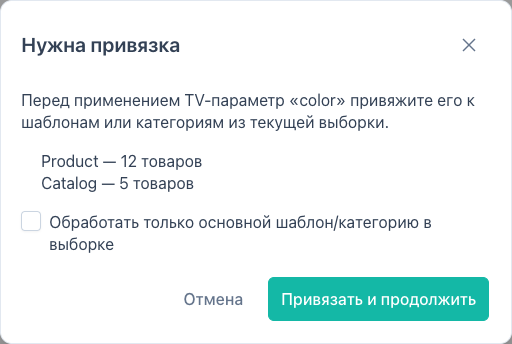
Flow J — TV / option binding wizard
Before preview on TV or Option operations:
- Fill TV name or option key → Preview.
- If bindings are missing, the wizard dialog opens.
- Review templates/categories without links.
- For mixed templates, optionally enable “primary scope only”.
- Apply and continue →
bindings/apply→ preview. - Cancel stops the operation.
Details: binding wizard.
fieldType reference
Types in Run operation (Operation type Select):
| UI (EN) | fieldType | Document |
|---|---|---|
| Price | price | product and prices |
| Stock | stock | product and prices |
| Boolean toggle | boolean_toggle | resource fields |
| Categories | category | product and prices |
| Option | option | options |
| TV parameter | tv | TVs |
| Vendor | vendor | product and prices |
| Template | template | quick actions |
| File source | source | quick actions |
| Content type | content_type | quick actions |
| User | user | quick actions |
| Text field | text_set | product and prices |
| Text replace | text_replace | resource fields |
| SEO | seo | resource fields |
| Product link | link | resource fields |
| Dates | dates | resource fields |
| Resource group | resource_group | resource fields |
| Variant (ms3Variants) | variant | product and prices |
| Gallery thumbnails | gallery_regenerate | quick actions |
| Cache / URI | resource_utility | quick actions |
| Soft delete | soft_delete | product and prices |
Gallery regenerate, cache clear, URI regenerate, and soft delete are in this type list. Quick actions starts them without picking a type.
Dialog screenshots
| Type | Screenshot |
|---|---|
| Price | 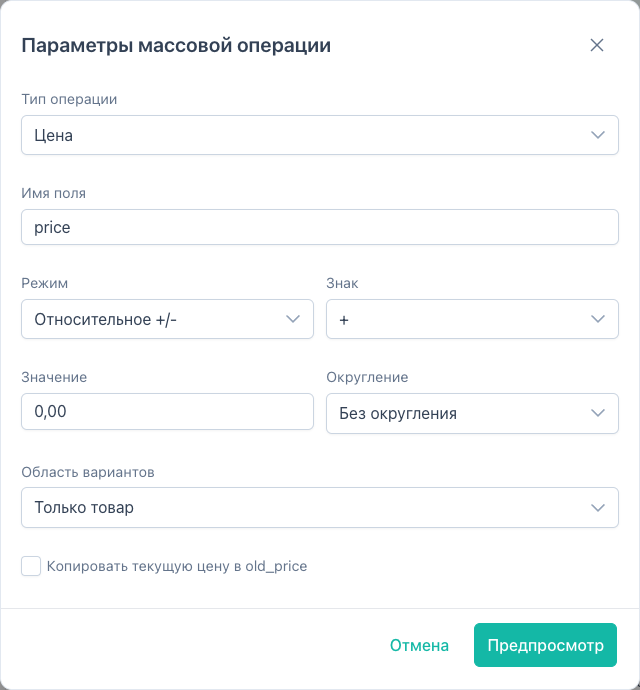 |
| Price (transfer) | 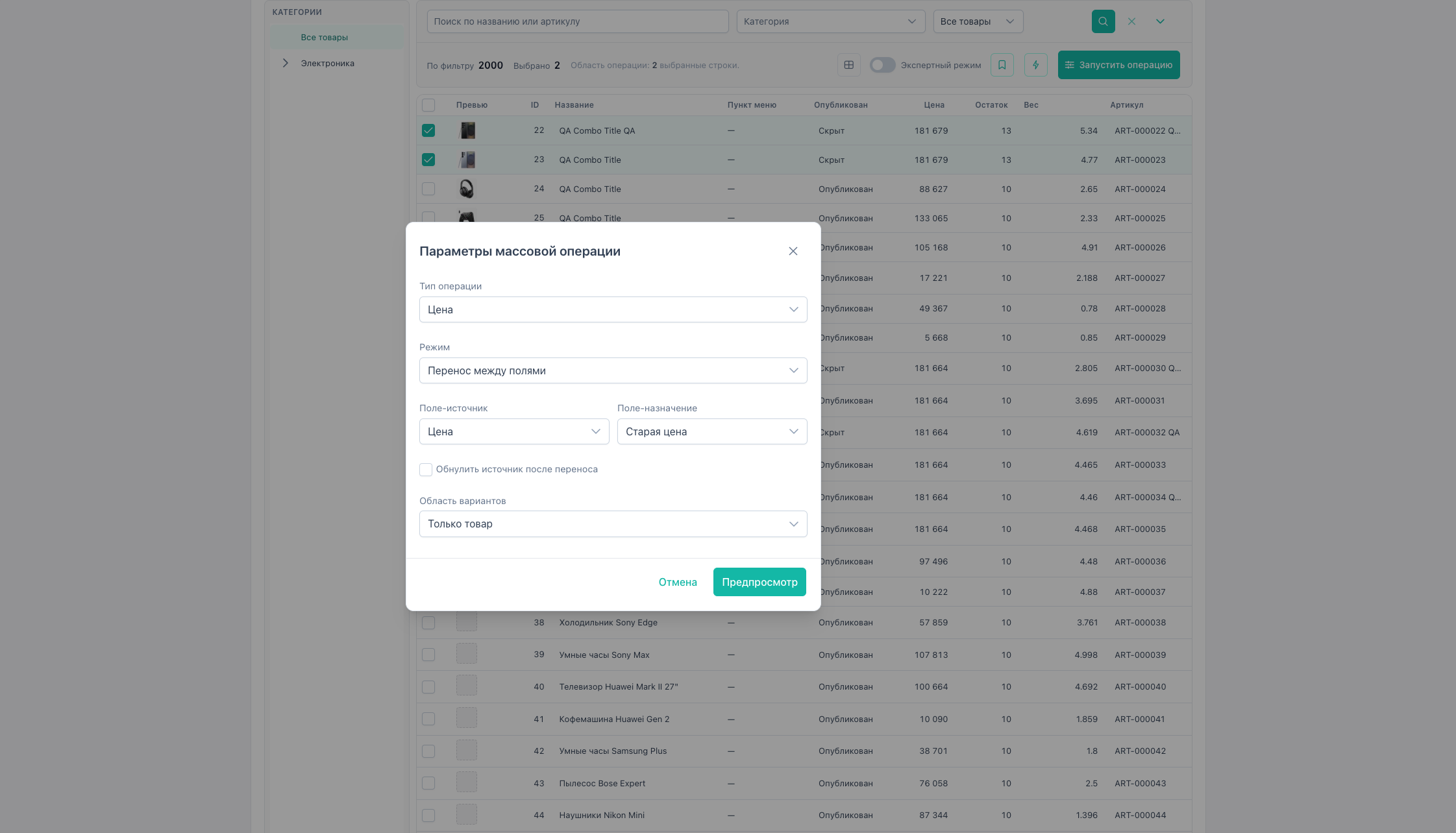 |
| Stock | 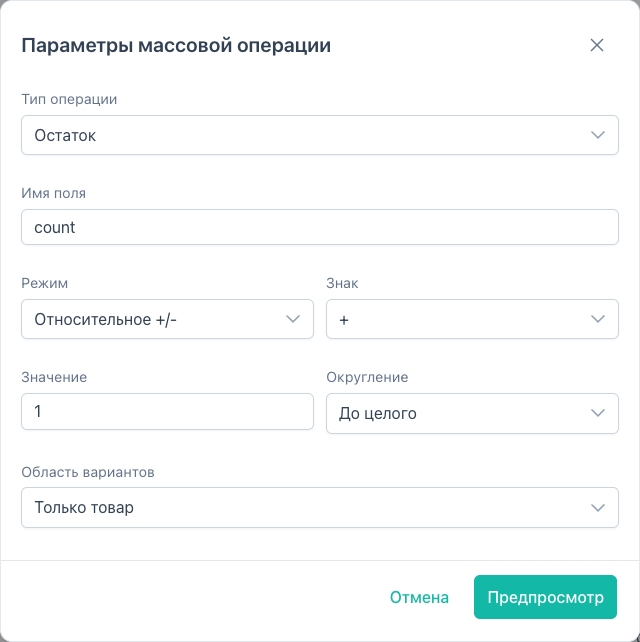 |
| Boolean | 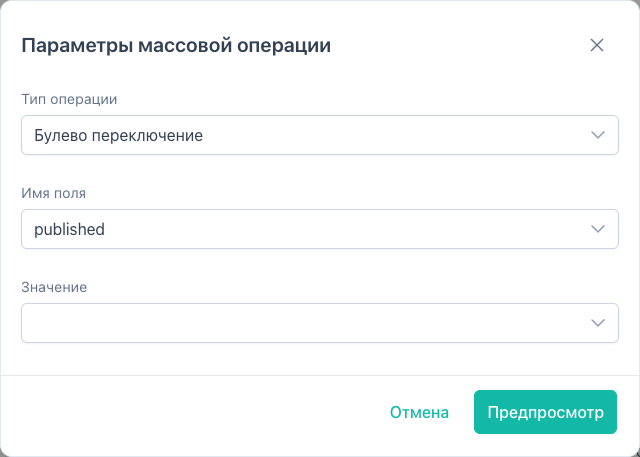 |
| Categories | 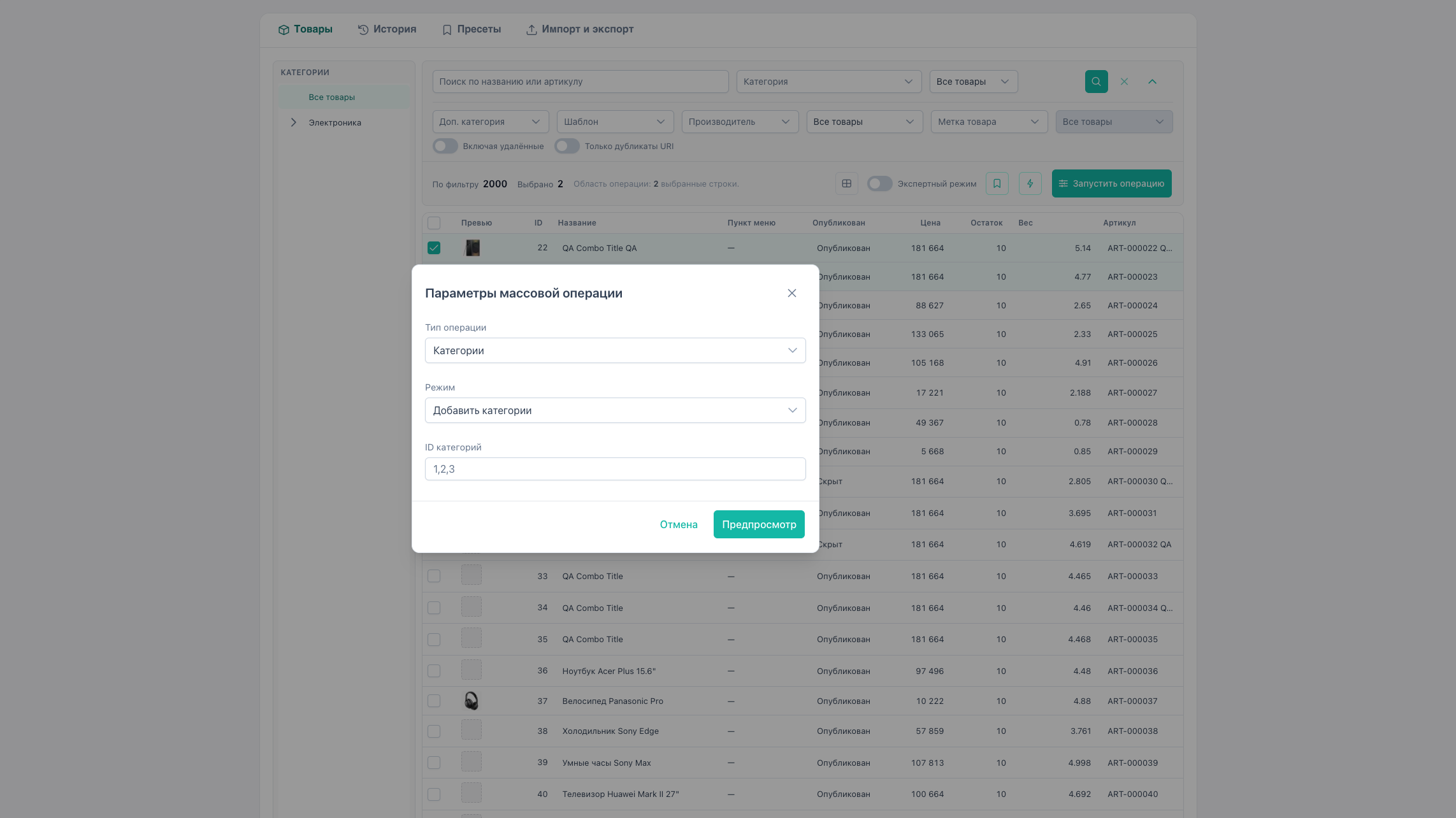 |
| Categories (remove_all) | 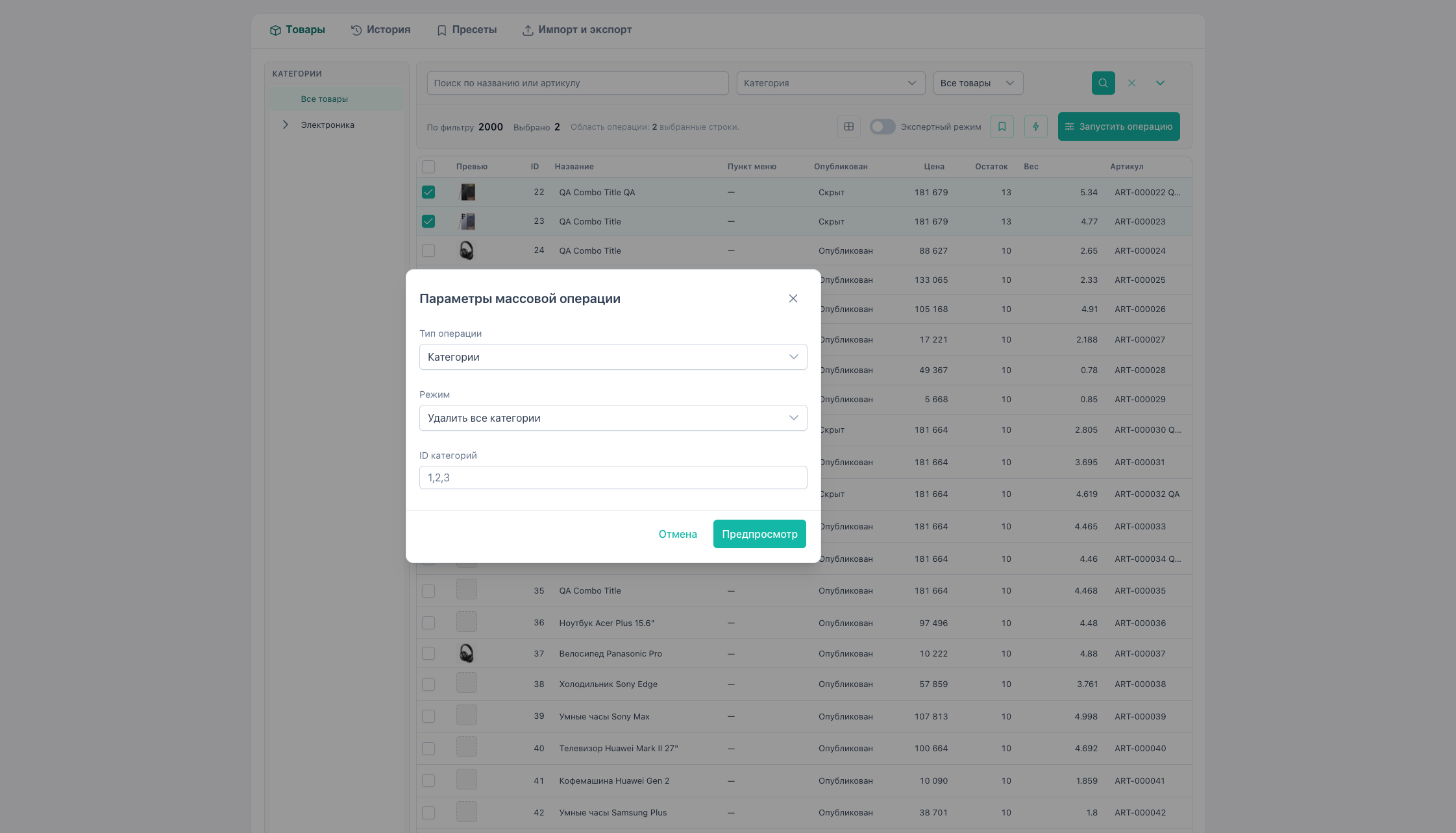 |
| Option | 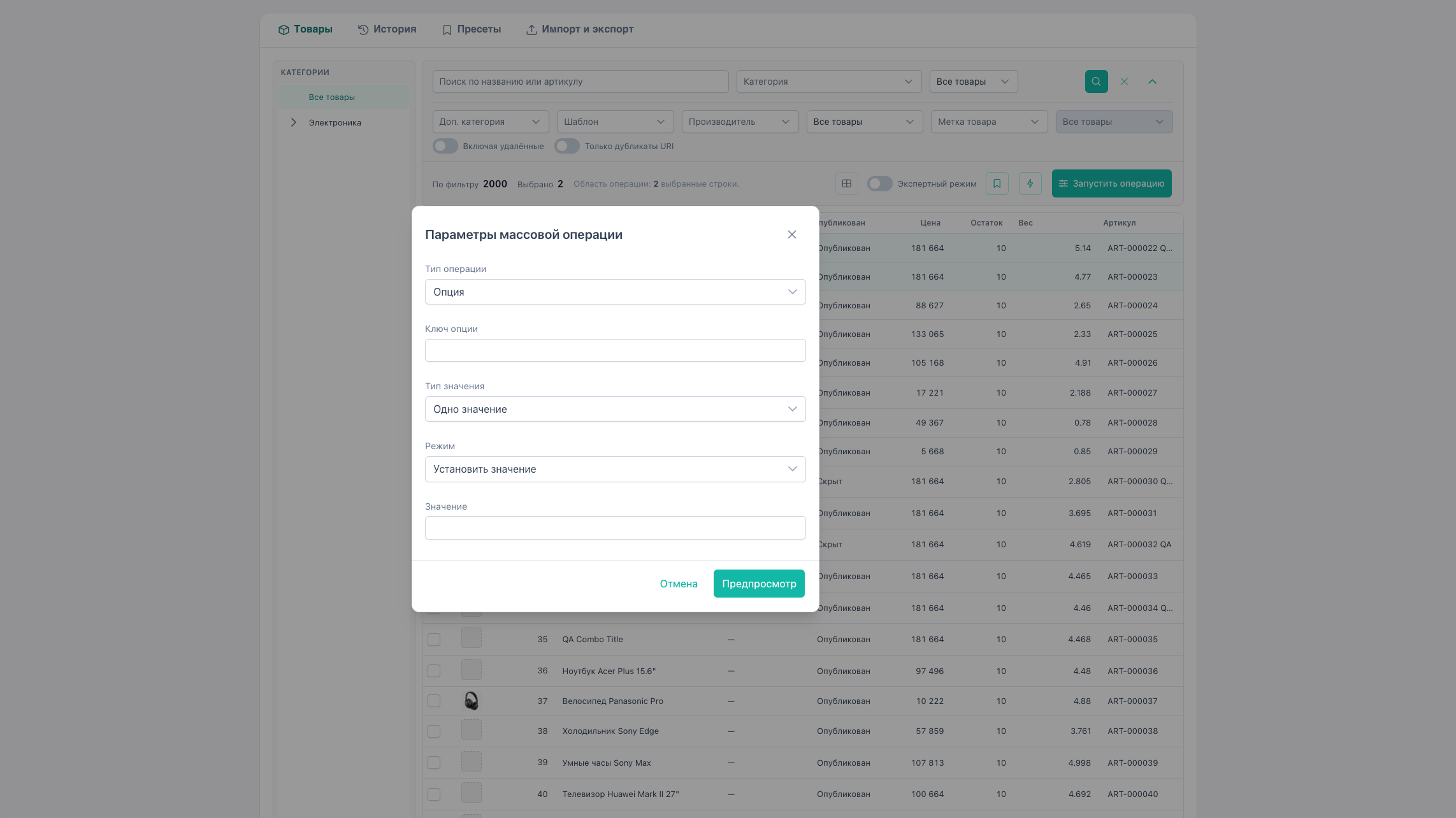 |
| Option (tags) | 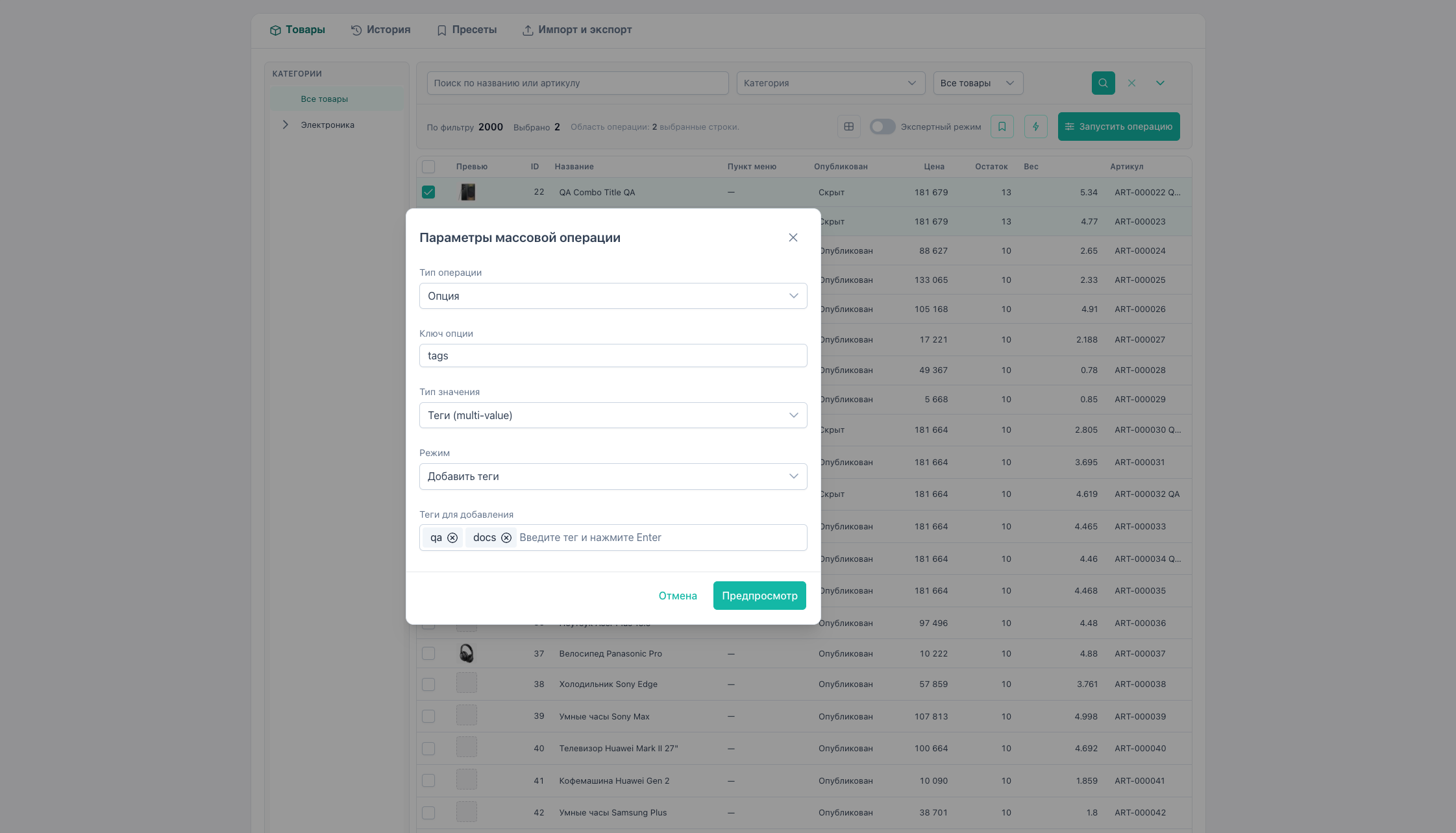 |
| TV | 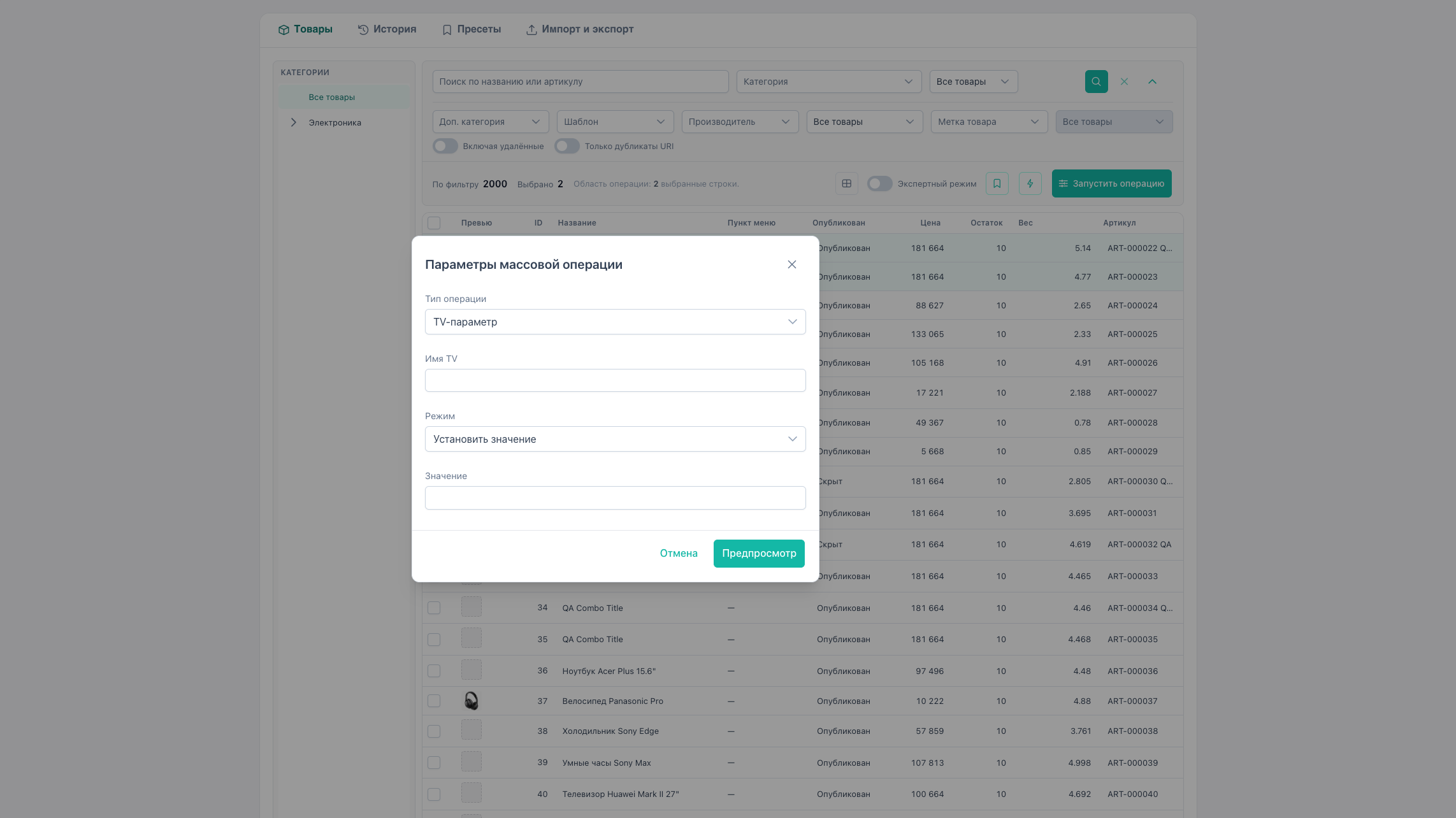 |
| Vendor | 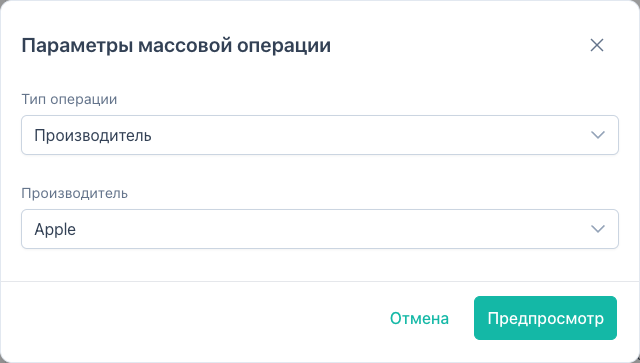 |
| Template | 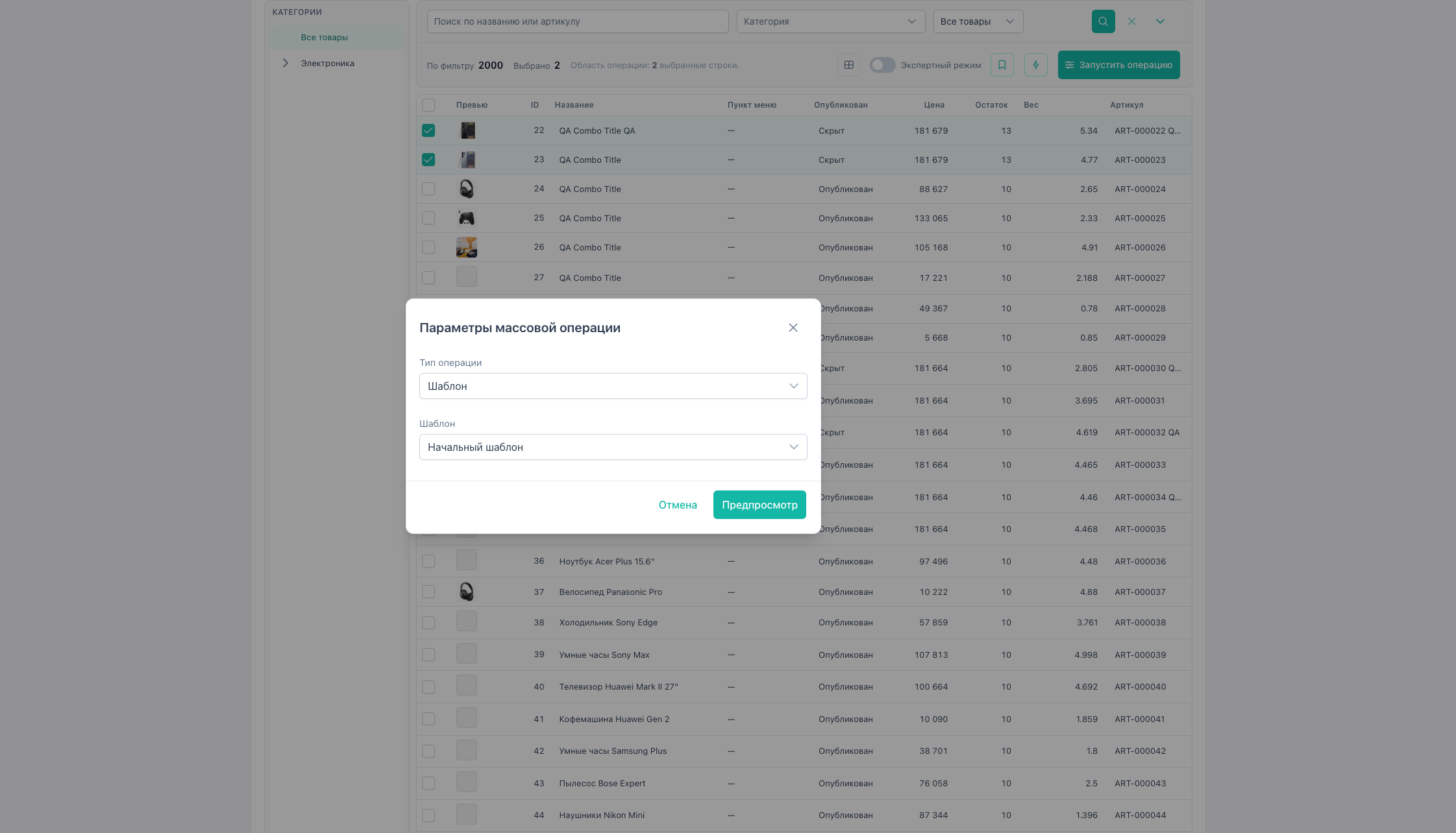 |
| File source | 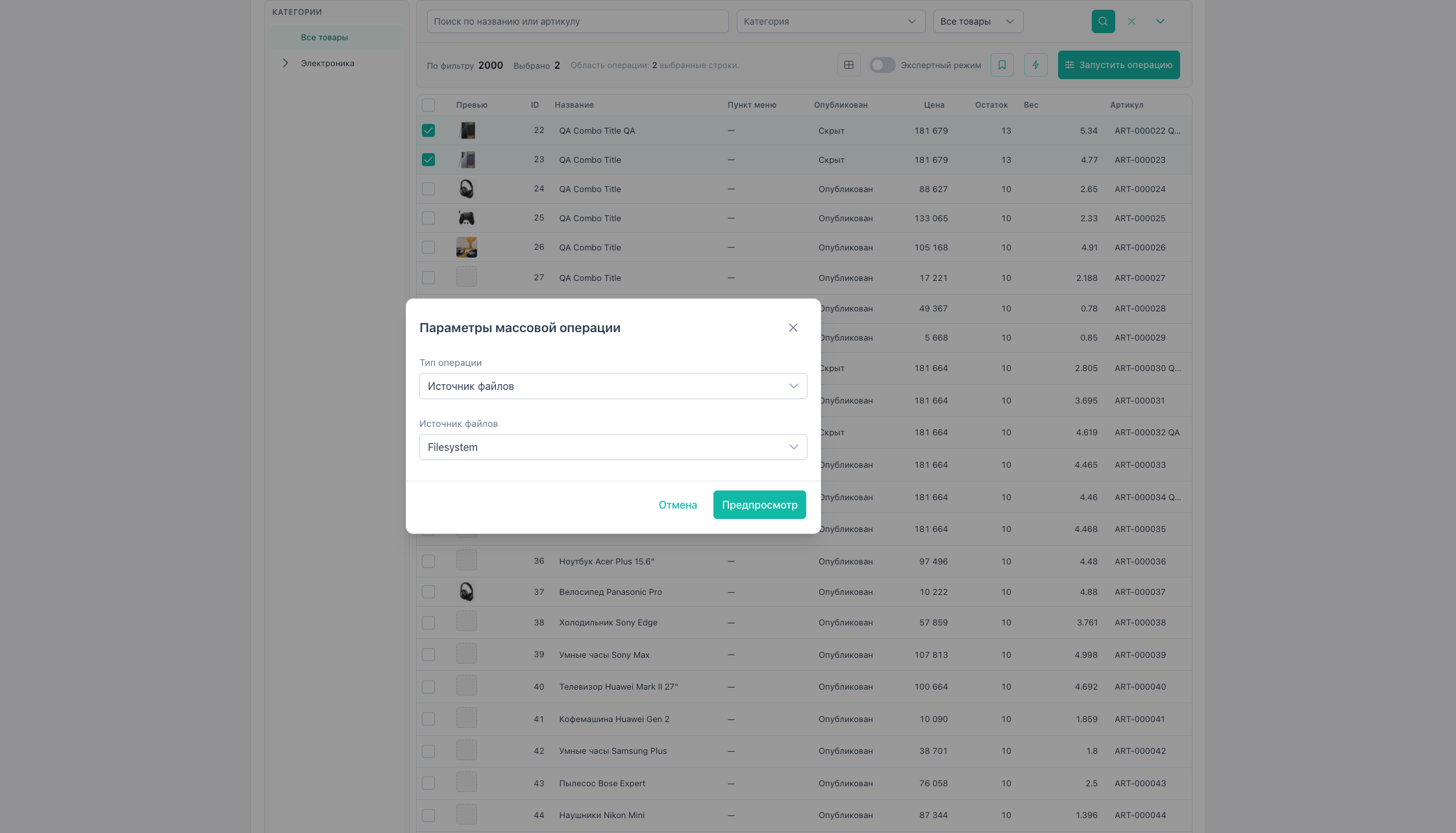 |
| Content type | 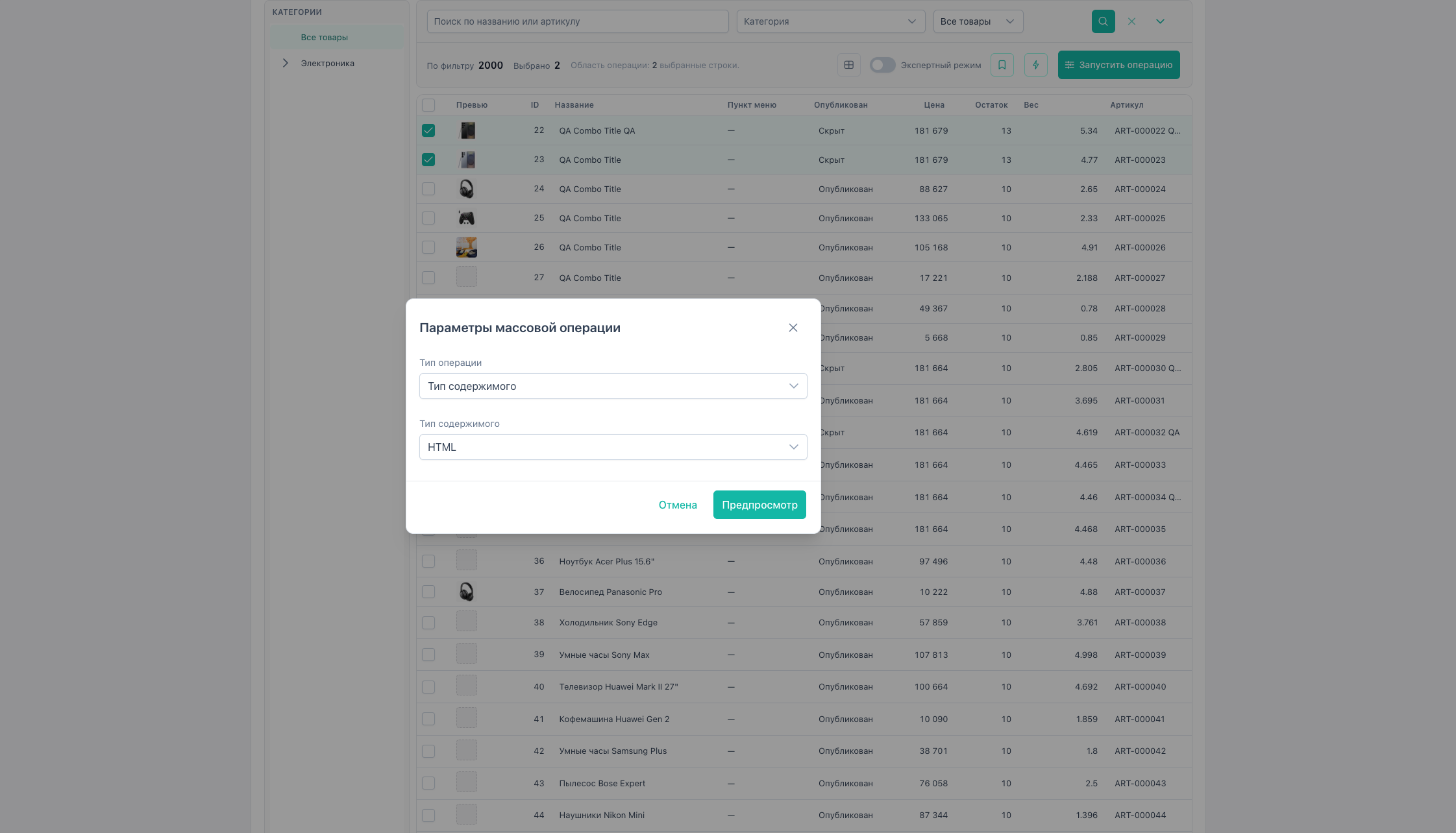 |
| User | 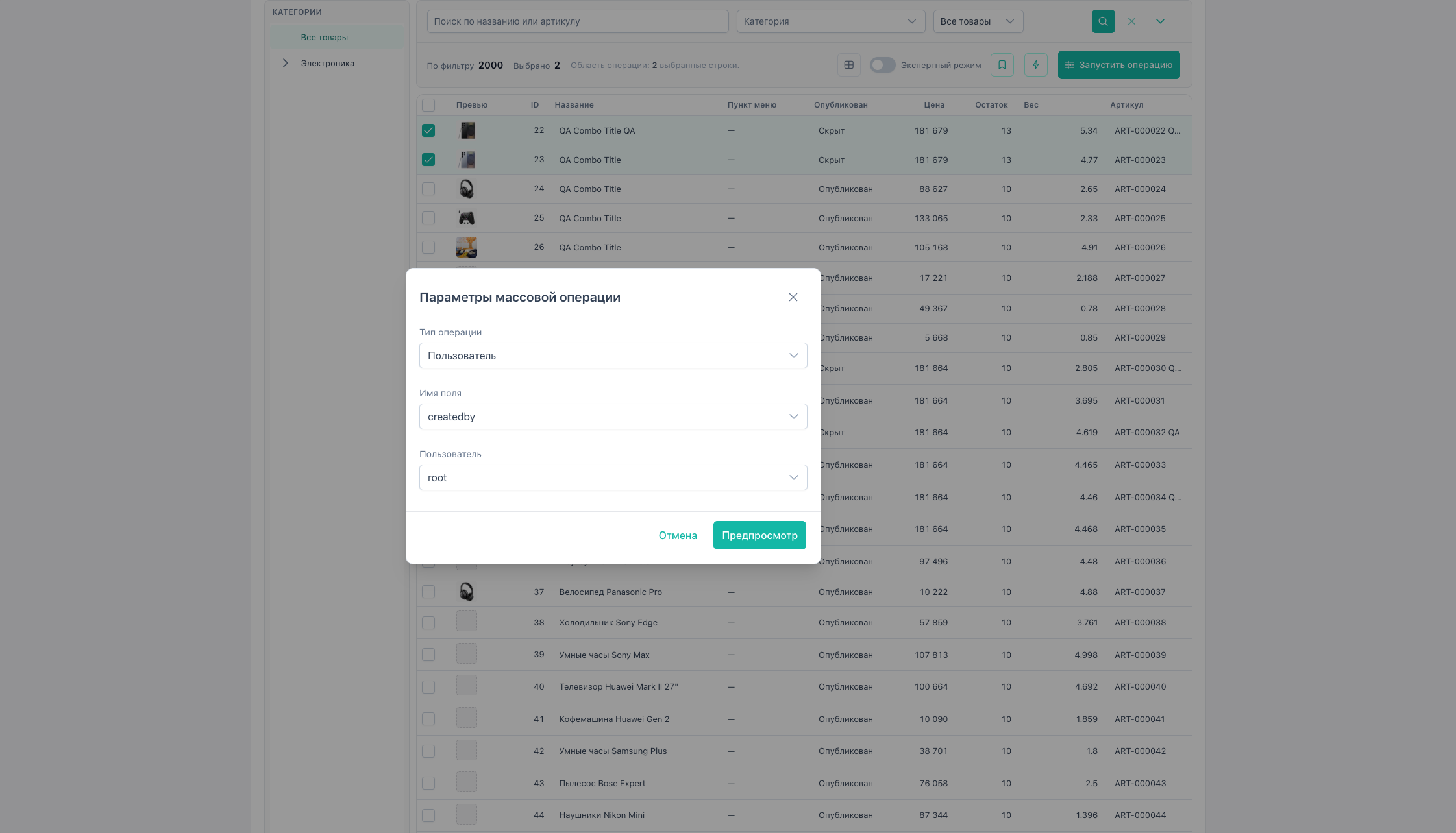 |
| Resource group | 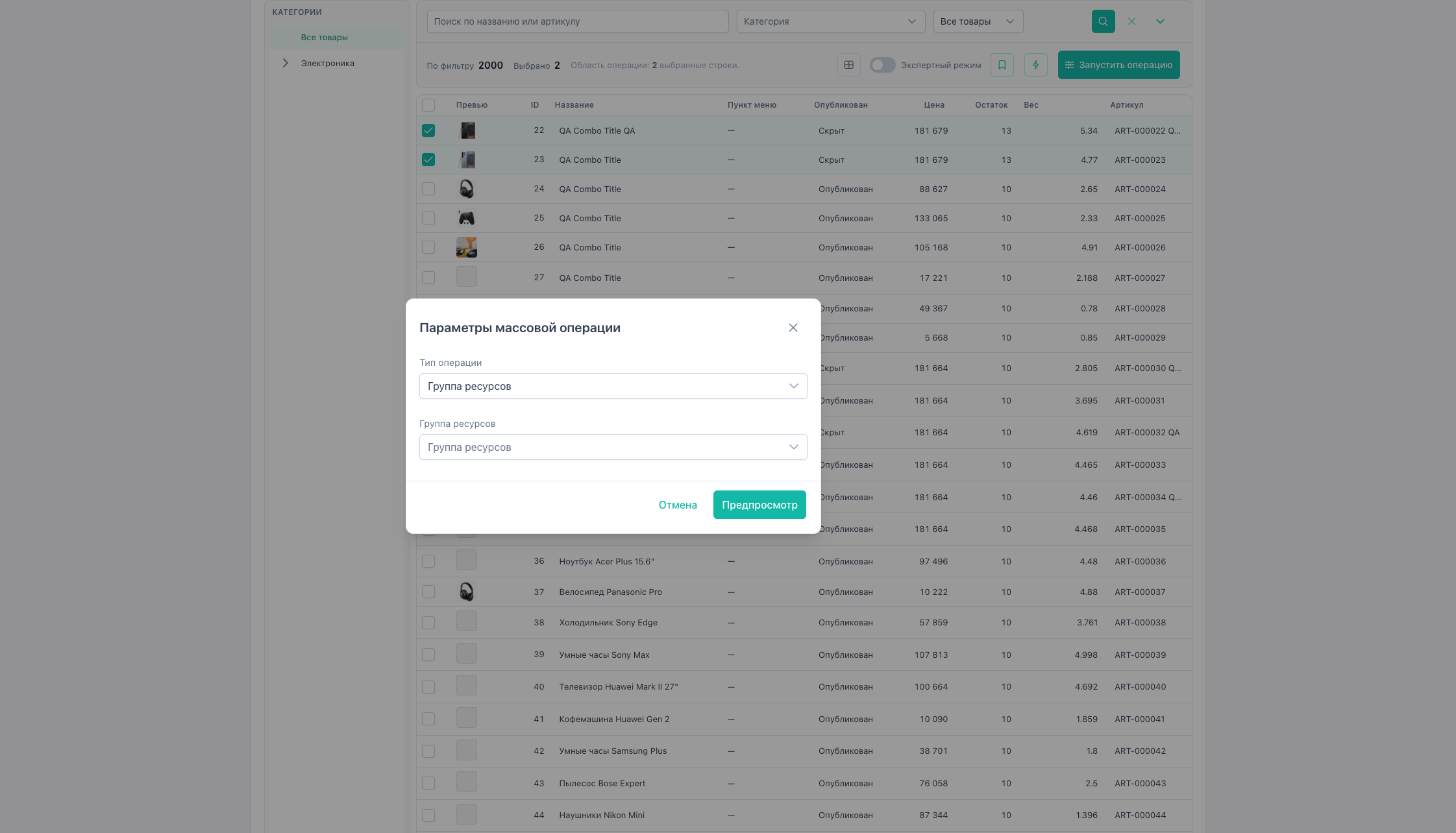 |
| Text field | 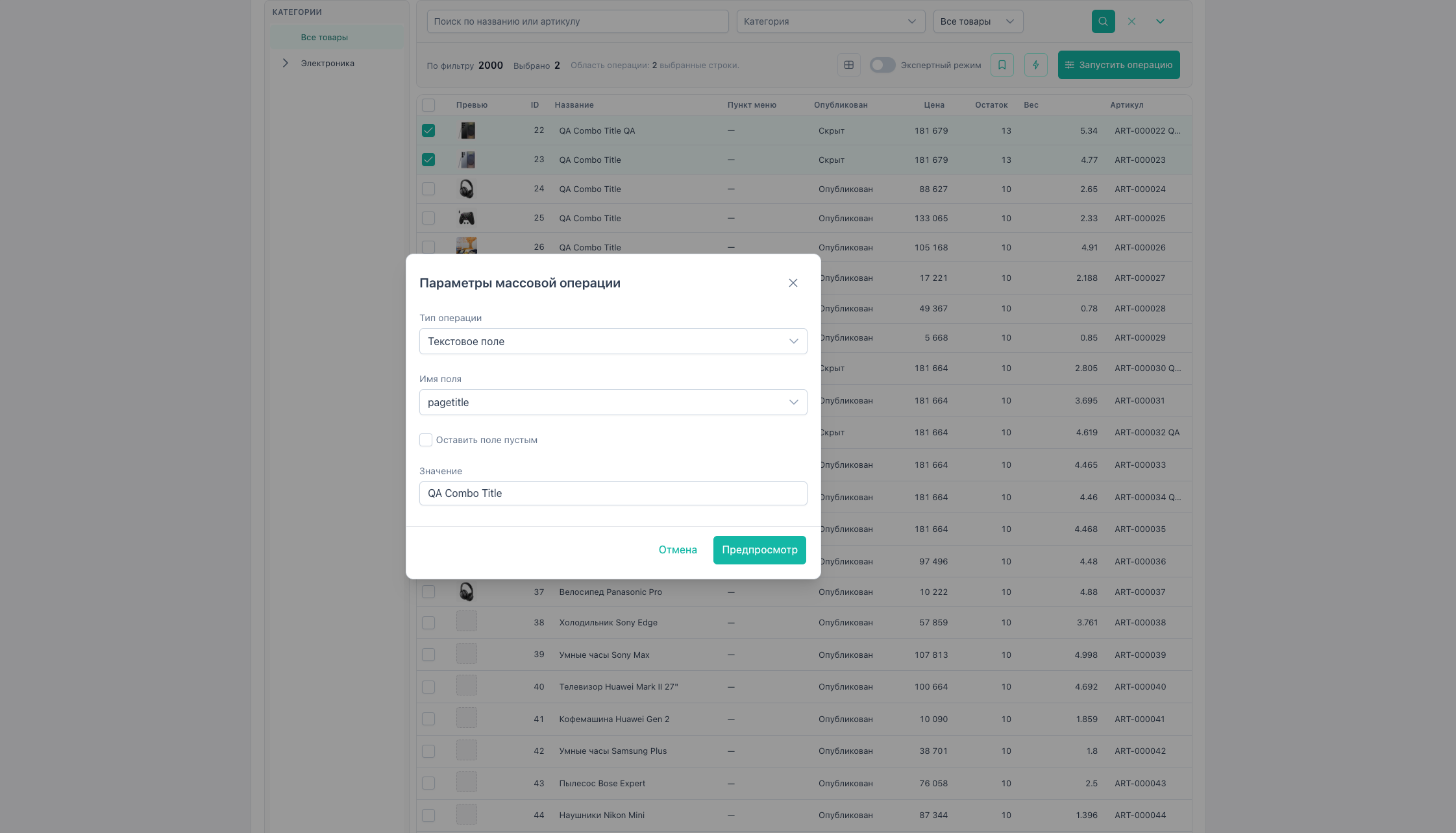 |
| Dates | 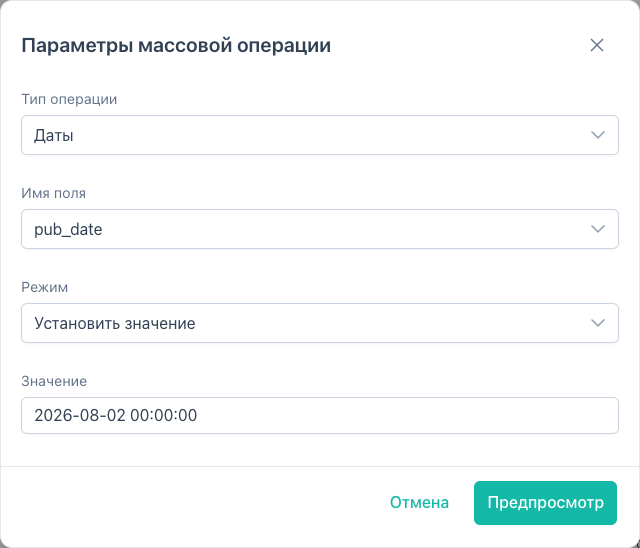 |
| Text replace | 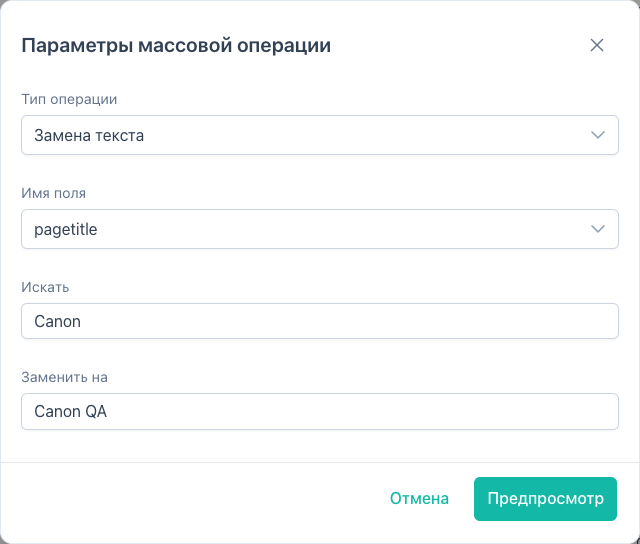 |
| SEO | 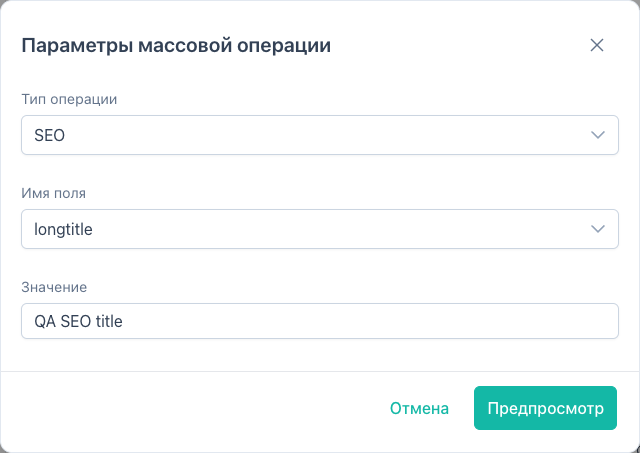 |
| Product links | 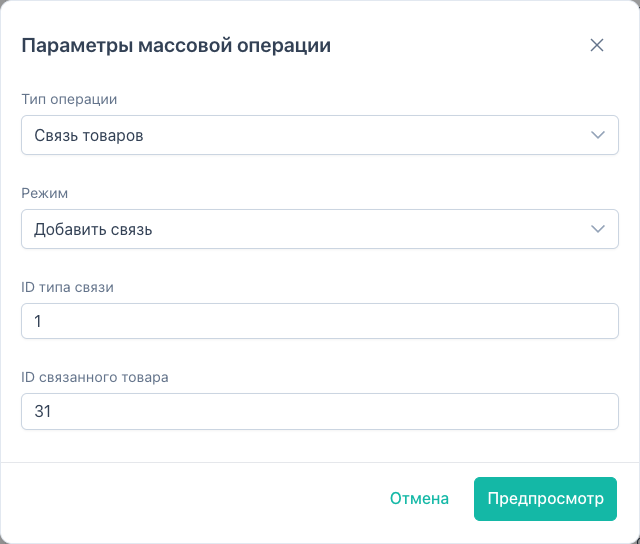 |
| Variant | 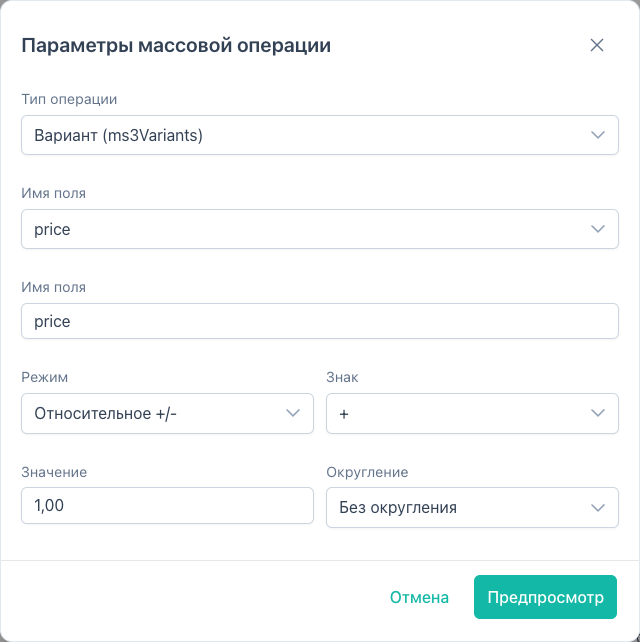 |
| TV preview | 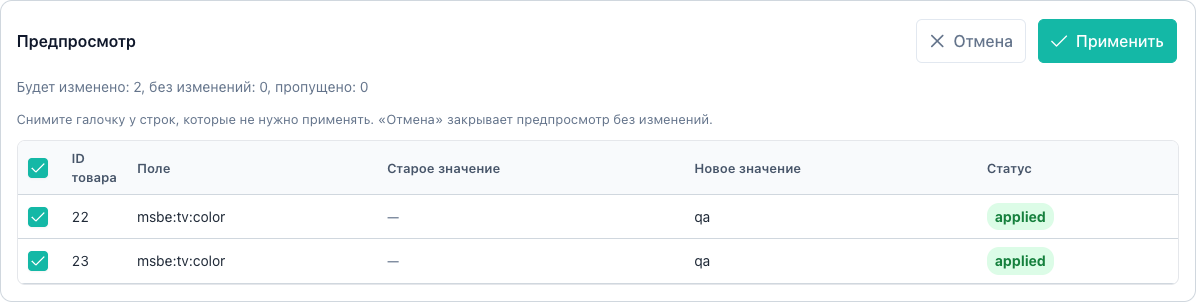 |
| Option preview | 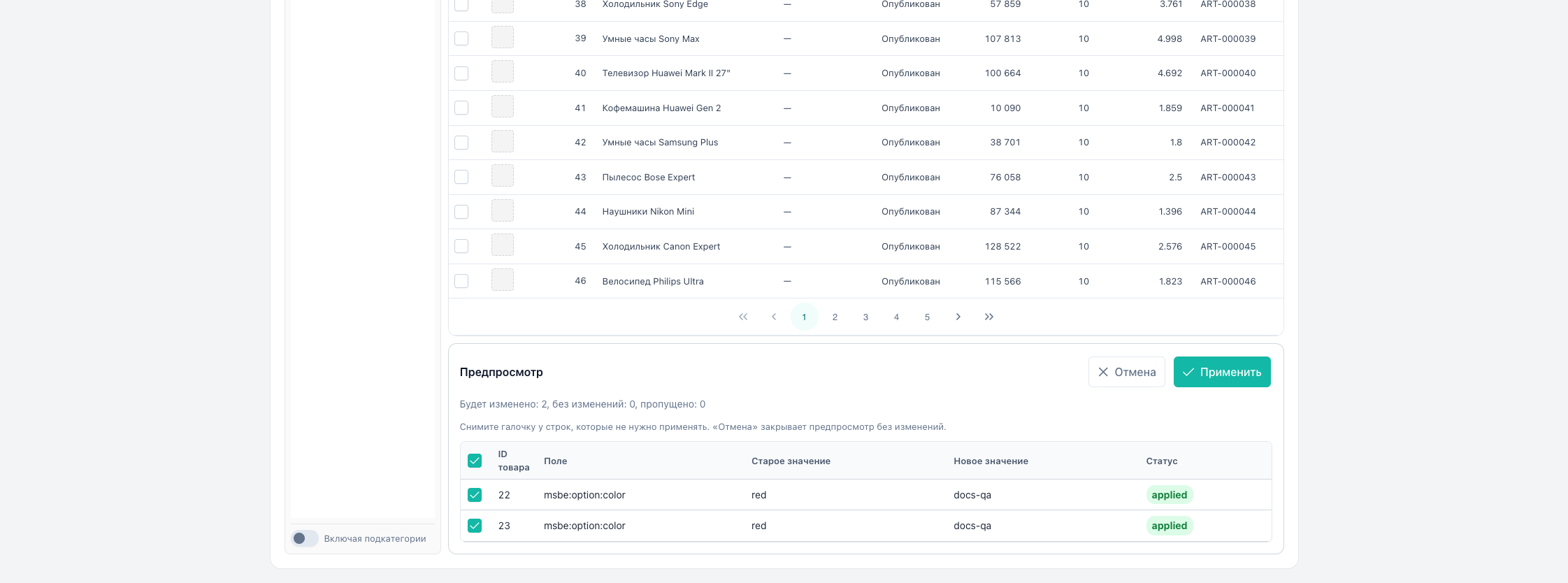 |
| Category tree |  |
Typical business scenarios
−10% discount on a category
- Category tree → branch → Include subcategories.
- Expert mode → check matching filter count.
- Run operation → Price → Percent, “−”,
10, rounding. - Optionally Copy current price to old_price.
- Preview → apply.
Bulk template change
- Filter by old template (more filters).
- Expert or page selection.
- Quick actions → Change template → new ID → preview → apply.
Stock update from Excel
- Export
id,stock(orid,count). - Edit in Excel → import → target field Stock → mapping → preview → apply.
Undo a bad promotion
- History → operation → Rollback or Changes → partial rollback.
Weekly repeatable operation
- Save a preset once.
- Next time: filter → selection → Apply preset.
Permissions and limits
| Permission | Actions |
|---|---|
msbulkeditor_view | Grid, preview, history read |
msbulkeditor_edit | Apply, inline, import apply |
msbulkeditor_rollback | Rollback |
msbulkeditor_presets | Preset CRUD |
msbulkeditor_import_export | File import/export |
System settings: msbulkeditor_expert_limit, msbulkeditor_preview_detail_limit, msbulkeditor_chunk_size, msbulkeditor_import_max_rows. See System settings.