



Preview and apply
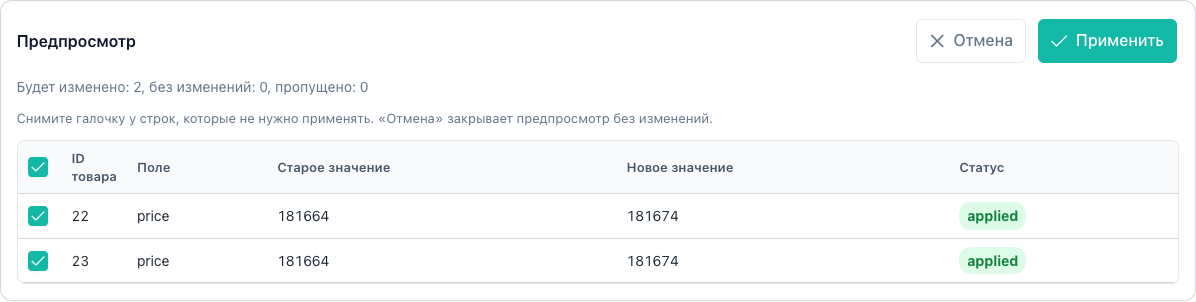
You check the before/after table, then press Apply. Nothing is written until then.
Steps
- Run operation / quick actions / preset → parameter dialog.
- Preview sends
products/preview. - A Preview block appears below the table.
- Optionally exclude rows (see below).
- Apply sends
products/applywith the same definition +excludeProductIds. - Progress polls
products/progressuntil complete.
Preview block
Summary
| Metric | Value |
|---|---|
| Will change | Rows with status changed |
| Unchanged | unchanged |
| Skipped | skipped (no effect or scope rule) |
Detail row limit: msbulkeditor_preview_detail_limit (default 100).
PreviewTable
Columns: product ID, field, before, after, status.
Statuses: changed, unchanged, skipped, error. After apply: applied, rolled_back.
Excluding rows from apply
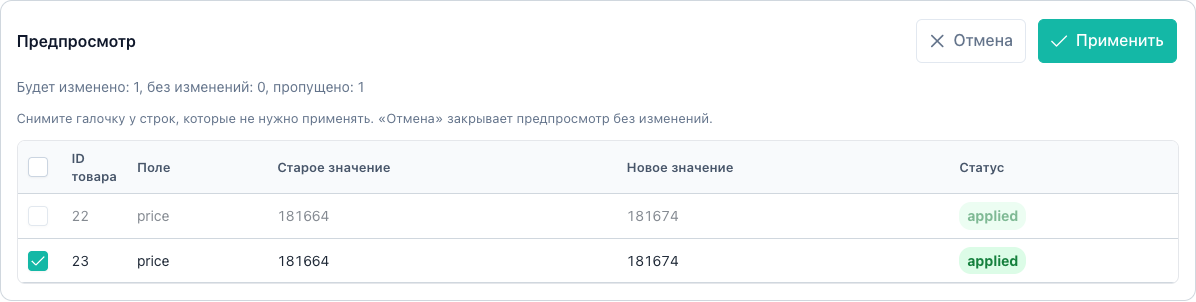
After preview, changed rows can be unchecked. The ID goes into excludeProductIds on apply.
- Hint above the table explains exclusion.
- Summary recalculates “Will change” excluding unchecked rows.
- Cancel clears preview and definition, then hides the block.
Rows with skipped, error, or unchanged (no value change) show a disabled checkbox with a tooltip. Only rows that will actually change can be excluded from apply.
Buttons
| Button | When active |
|---|---|
| Preview | In operation dialog, form valid |
| Apply | After preview, if “Will change” > 0 |
| Cancel (preview) | When preview block is visible |
Apply is disabled when msbulkeditor_apply_no_changes (0 changes).
Form validation errors (empty required field, invalid date, etc.) show in the dialog before the preview request. Keys: msbulkeditor_validation_*.
Over the expert limit the API returns msbulkeditor_expert_limit_exceeded. Narrow filters on the grid.
Chunked apply
Apply runs in chunks (msbulkeditor_chunk_size, default 50 products). Progress: “Processed X of Y”.
Each chunk fits the PHP time limit. The full catalog is processed as a series of chunks.
After completion, grid rows refresh without a full page reload.
Apply progress
A progress panel appears below the grid:

- operation title
- status (
running,completed,failed) processed / totalcounter and progress bar
The panel polls products/progress until a terminal status. While apply runs, a new Apply is blocked (one active bulk operation per site). There is no “Cancel apply” button.
| Status | Action |
|---|---|
completed | Check grid and History |
failed | Open History. Some items may be applied. Partial rollback is available |
Details: history.
TV operation
For type TV (fieldType: tv), the form adapts to field type from the catalog (fields/catalog, tvType, tvOptions):
| MODX TV type | Dialog widget |
|---|---|
list, dropdown, option, … | Select with options from elements |
checkbox | Toggle (values 1 / empty) |
image, file | Path + Browse (MODX media browser) |
others, dynamic @SELECT… | Text field (fallback) |
TV name is chosen from the template catalog when loaded.
Idempotency
Each apply sends an idempotencyKey. A repeat request with the same key does not create a duplicate operation (double-click protection).
Other operation types in the dialog
Full fieldType list: Features, flows.
- Resource fields: boolean_toggle, text_replace, seo, link, dates, resource_group. See resource fields
- Other: variant, gallery_regenerate, resource_utility, soft_delete. See product and prices, quick actions