


msBundles
Product bundles for miniShop3 with shared pricing, discounts, and cart sync
- MODX 3
- PHP 8.2
- miniShop3
- Vue 3

In about 20 minutes you install the package, build a two-product bundle, show it on a product page, and check the cart.
You already have MODX 3, miniShop3, VueTools ≥ 1.1.2-pl, pdoTools, and PHP 8.2+. Your manager role will need msbundles_view and msbundles_save. Grant them right after install.
The package is paid. It installs only from modstore.pro. Without the provider, install fails with Package provider not found.
https://modstore.pro/extras/msbundles_view and msbundles_save on the manager policy.On install the package creates tables, permissions, events, API routes, and binds the plugin to the miniShop3 cart.
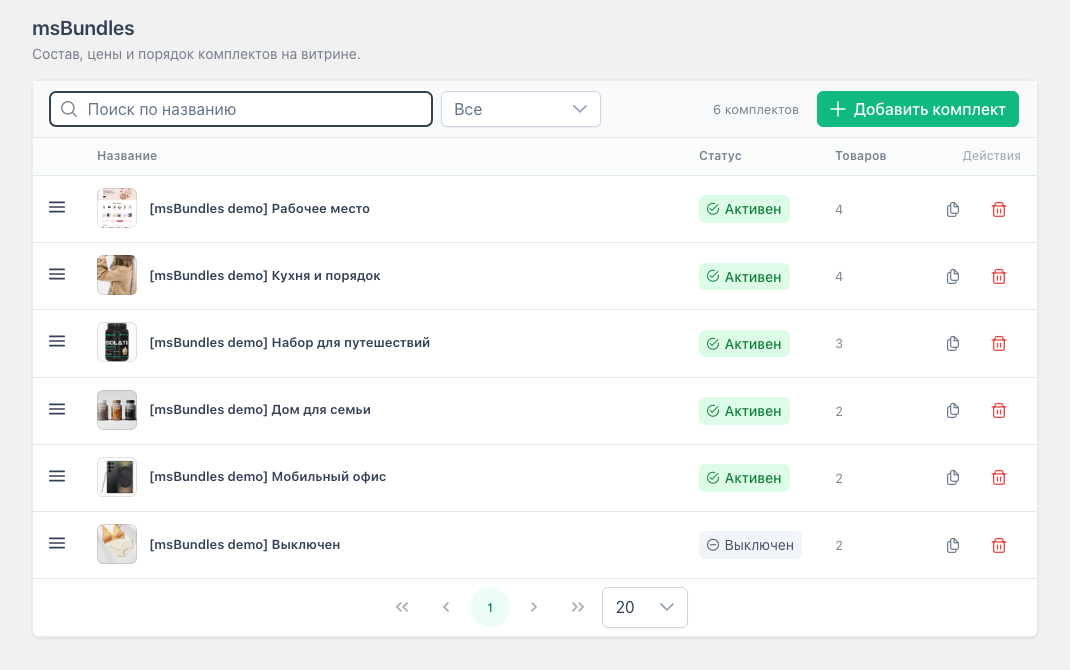
web). Enter a name, for example “Laptop + headphones”. Add a description and image via the media browser if you want.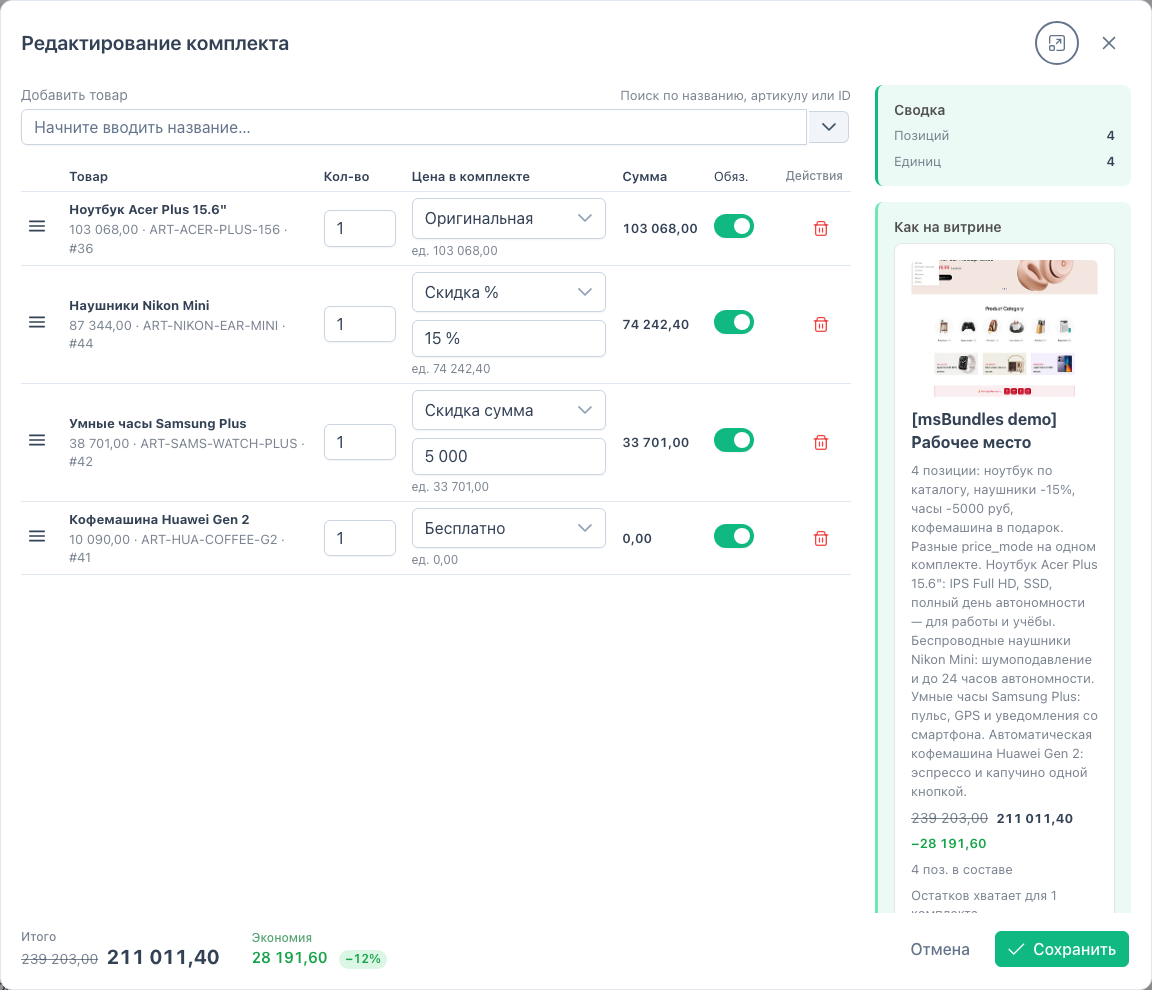
In the composition search, type a name, SKU, or ID. Add at least two lines. The same product cannot appear twice.
For each line set quantity, price mode, and Required. Reorder by dragging the left handle.
| Mode | What you enter | Result |
|---|---|---|
| Original | nothing | Product price from miniShop3 |
| Fixed | amount | Fixed unit price |
| Discount % | 0–100 | Percent off product price |
| Discount amount | amount | Subtracted from product price |
| Free | nothing | 0 per unit |
A simple start: leave the laptop on Original, set headphones to Discount % = 50. Check total and Savings in the editor footer.
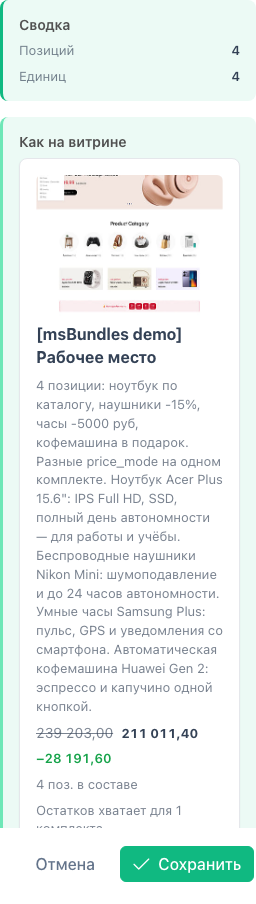
On the right, Summary shows line and unit counts. As on storefront shows price, savings, and availability for one bundle.
If a required product is out of stock, a warning appears above the form. Click Save. The button stays disabled until the set has products.
In the product template:
{'!msBundles' | snippet : [
  'product' => $_modx->resource.id,
  'tpl' => 'tplMsBundlesItem',
  'wrapperTpl' => 'tplMsBundlesList',
  'emptyTpl' => 'tplMsBundlesEmpty',
  'activeOnly' => true
]}[[!msBundles?
&product=`[[*id]]`
&tpl=`tplMsBundlesItem`
&wrapperTpl=`tplMsBundlesList`
&emptyTpl=`tplMsBundlesEmpty`
&activeOnly=`1`
]]In <head> of the same page (or shared layout):
{'!msBundles.initialize' | snippet}[[!msBundles.initialize]]Open any product from the set, for example “Headphones”. The “Laptop + headphones” card should be there.
On the bundle card set quantity and click add. In the cart table:
For the on-page cart HTML to refresh after add, pass selector to msCart. Under the product name in the cart chunk, call tplMsBundlesCartInfo. Details: Frontend.
{'!msCart' | snippet : [
  'tpl' => 'tpl.msCart',
  'return' => 'tpl',
  'selector' => '#ms-cart'
]}[[!msCart?
&tpl=`tpl.msCart`
&return=`tpl`
&selector=`#ms-cart`
]]| Problem | Check |
|---|---|
| Section will not open | VueTools ≥ 1.1.2-pl, msbundles_view |
| No card on the product | Active toggle, msBundles in the template |
| Add button does nothing | msBundles.initialize in head |
| Cart total and block do not update | selector on msCart |
| No “Bundle” badge in the cart | tplMsBundlesCartInfo in the cart chunk |