


modSizeControl
How much space a MODX 2 or 3 site takes, what exactly takes it and how much is left before the limit

Until the site is scanned, the dashboard widget is empty and offers the Scan button. The Extras → modSizeControl page shows the same button.
A scan walks through every file of the site: the root, the core, assets, the manager, the connectors and the file sources. On a site of a few gigabytes it takes a couple of minutes. The progress is shown both in the widget and on the page. You can close the page: the scan continues when you open the page or the dashboard again.
No limit is set by default: the widget shows the site size and the free space on the server disk. To see how much of the limit is used, put the limit in megabytes into the modsizecontrol_site_limit system setting, e.g. 1024 for 1 GB.
The System Settings button on the component page opens the modSizeControl settings.
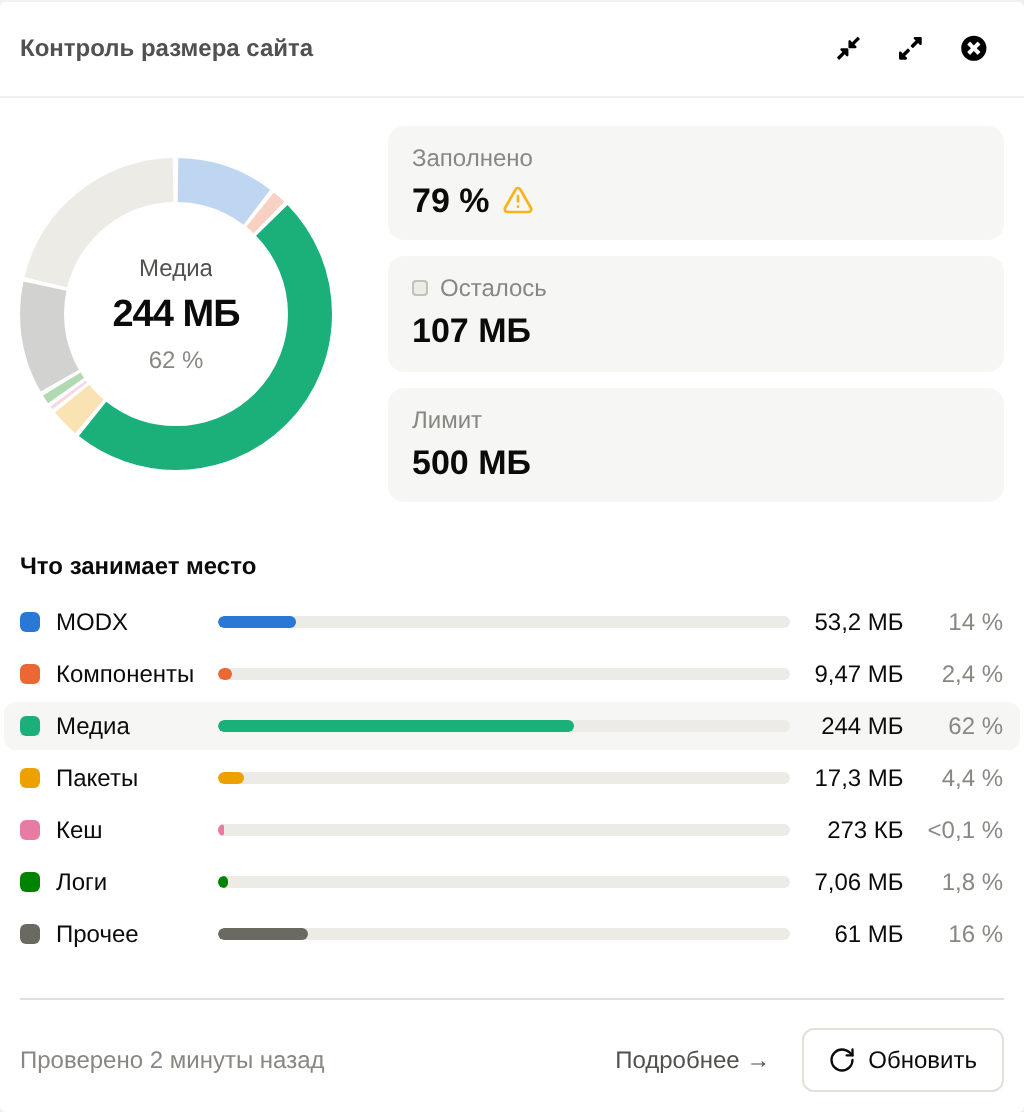
Open the component page with the Details link in the widget. Overview shows which category takes the most, and the category name opens its folders in the explorer. Next: Component page.
What can be removed without harm to the site is gathered in the Cleanup block.
The figures on the page and in the widget are as of the last scan. To keep them fresh and let History collect the growth, run the scan by cron, e.g. once a day:
0 3 * * * php /var/www/site/core/components/modsizecontrol/cli/scan.php > /dev/null 2>&1More: Scanning and cron.