


EasyFavicon
Favicons from the RealFaviconGenerator editor right in the MODX 2 and 3 manager

EasyFavicon calls RealFaviconGenerator with your key. The key is free: get it at realfavicongenerator.net/api and put it in the easyfavicon.api_key system setting.
Until the key is set, the component page reminds you about it. The System Settings button next to New profile opens System Settings already filtered to EasyFavicon, with the key first in the area.
Open Extras → EasyFavicon and press New profile. The wizard has two steps:
/favicon/ by default, / for the root. The description, contexts (when the site has more than one) and the Active profile checkbox are here too.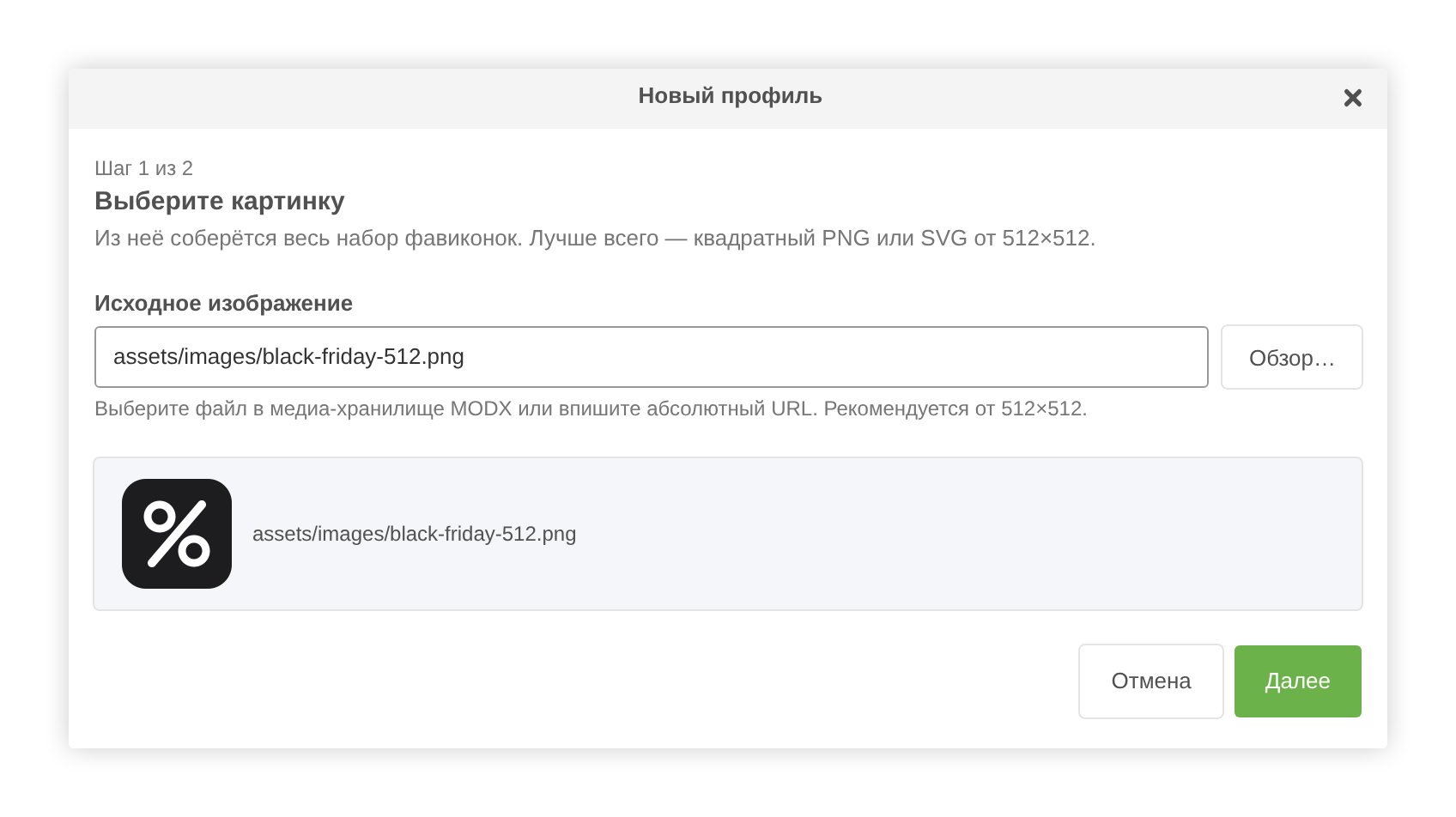
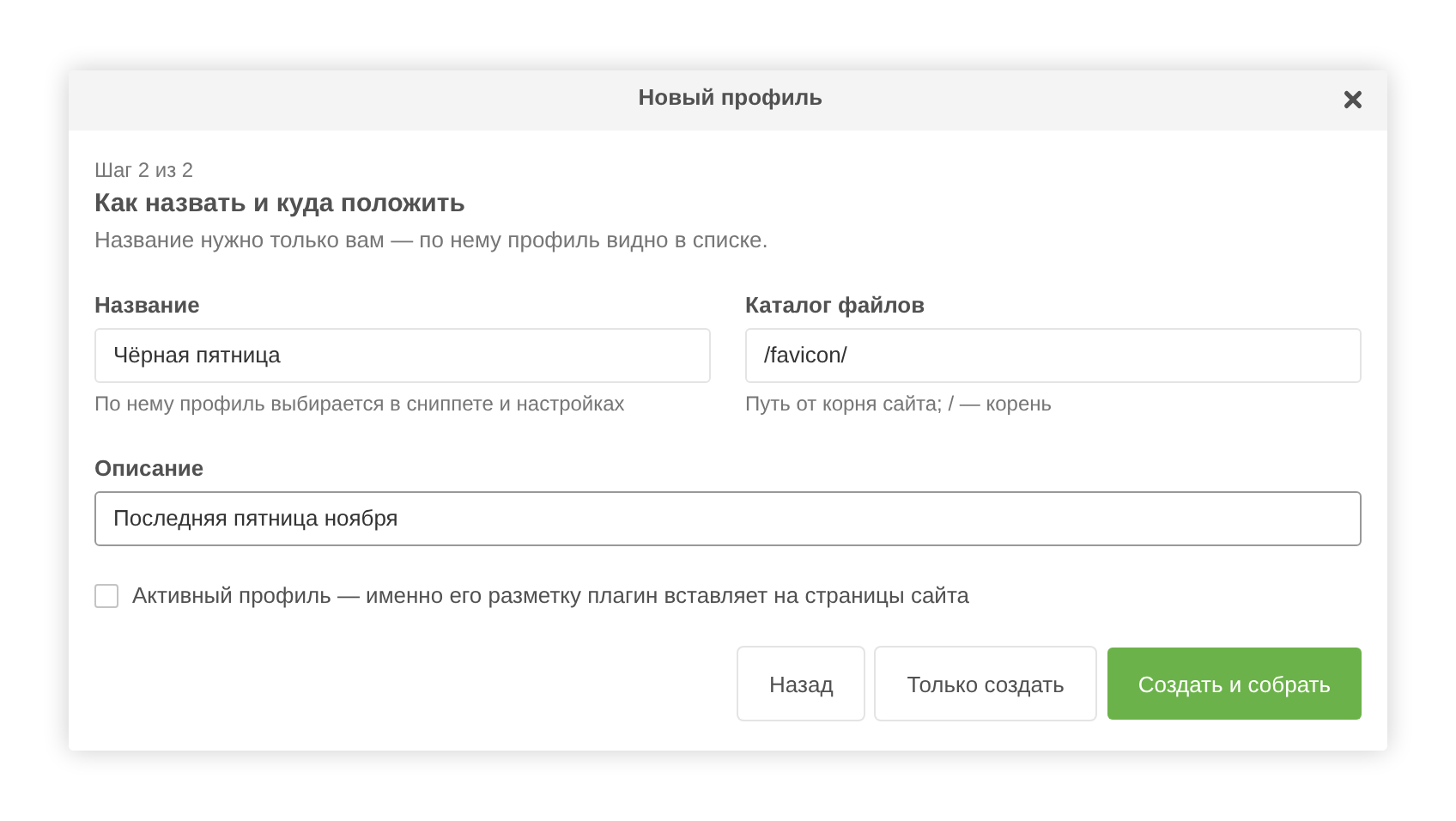
Create and build saves the profile and opens the editor right away; Just create only saves it.
EasyFavicon sends a picture from disk to the service itself, so it must be inside the site but not in core/, and be a real image: PNG, JPG, GIF, WebP or SVG. A picture given by URL is downloaded by the service.
The Build favicon button in the profile row asks for confirmation and opens the RealFaviconGenerator editor. The manager closes meanwhile.
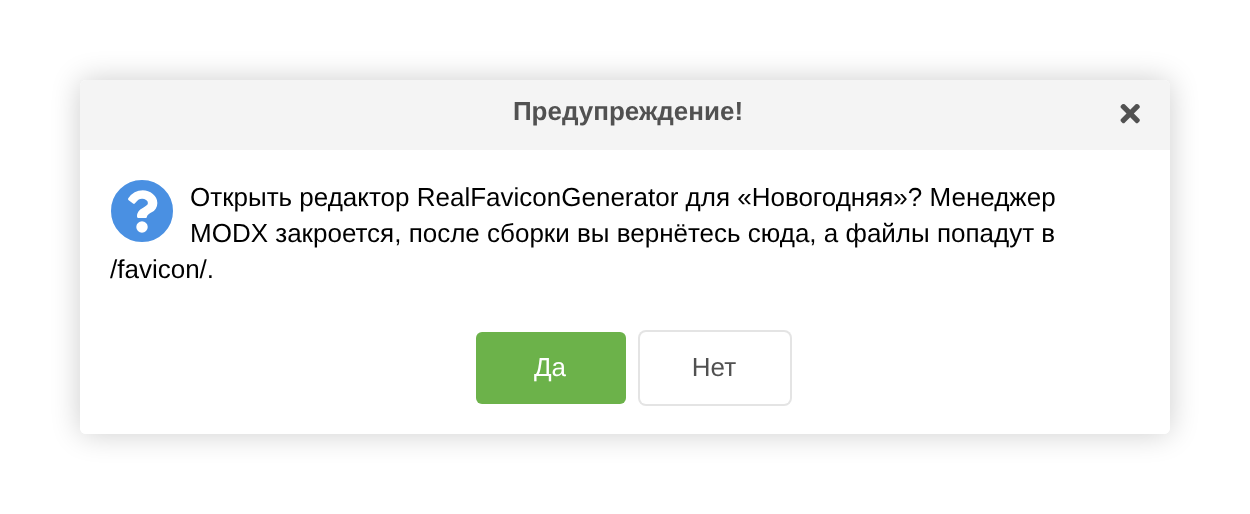
Set the icons up in the editor and press Generate. The browser comes back to MODX, and EasyFavicon downloads the set, unpacks it into the profile directory, completes the manifest and stores the markup. A manager notice reports the outcome. If you changed the files directory in the editor, the profile picks up the new one.
Внимание
You can come back from the editor only to the manager session the build was started in: the return link works once and lives for six hours. If the session has expired, press Build favicon again.
The plugin puts the markup on the pages for the active profile. The active profile has its switch on in the Active column. Open any page of the site and look into <head>.
More: Profiles, Output on the site.