


EasyFavicon
Favicons from the RealFaviconGenerator editor right in the MODX 2 and 3 manager

A profile is a picture, a files directory and the result of the latest build: a set of files and the markup.
A profile row shows the favicon of its latest build, or the source picture if the profile has not been built yet. The switch in the Active column turns the profile on and off, and on the right are the Build favicon, View (built profiles only), Edit and Remove buttons. The Contexts column appears when the site has more than one context.
The search above the table looks through names, descriptions and picture paths. Escape clears it.
Clicking the Profile, Source, Directory or Updated header sorts the list by that column, clicking again reverses the order. Dates start with the latest builds. The server does the sorting, so the order holds across all pages of the list.
Right-clicking a row opens a menu with the same actions, like the context menu of the MODX grids.

There is one active profile per context. The plugin puts its markup on the pages, and its files are in the site directory. To change the active profile, turn on the switch in another row: the previous profile of the same contexts turns off by itself. Turning the switch off takes the favicon off the profile's contexts. Profiles for different contexts: Contexts.

EasyFavicon stores the archive of every build in core/packages/easyfavicon/. On switching, the profile publishes its files again, so you can keep, say, a regular and a New Year favicon and swap them in one click. Links in the markup get a ?v=… build stamp, so the browser does not show the old icon from its cache.
Подсказка
If the profile archive could not be stored (the directory is not writable), switching changes only the markup, and the site keeps the files of the latest build. EasyFavicon warns about it — build the profile again.
Two profiles with the same directory share its files. Building an inactive profile into that directory stores the archive but does not publish the set until the profile becomes active.
The View button shows the build result:
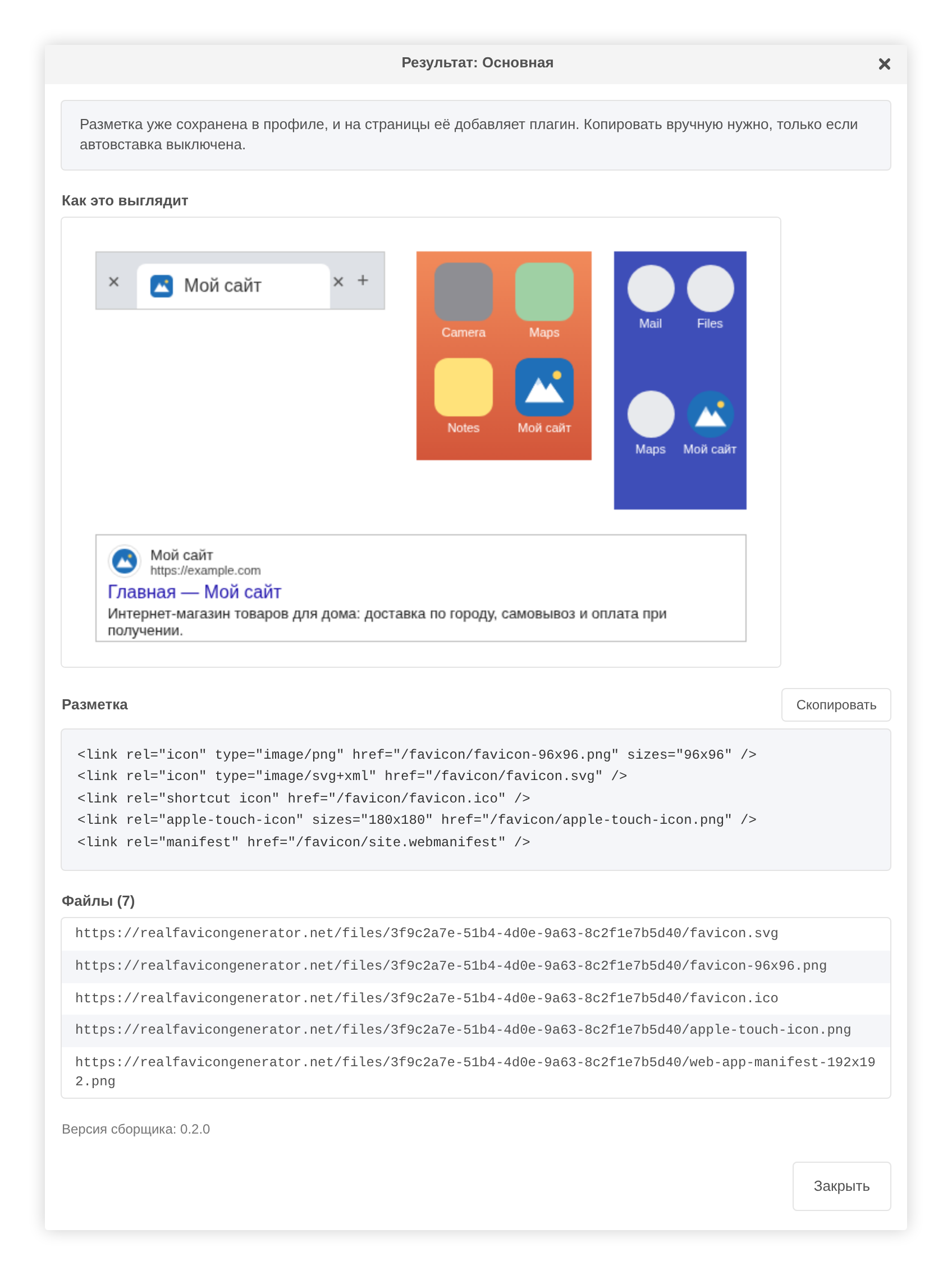
The preview is hosted by the service and may disappear a few hours after the build — the set itself is not affected.
The Copy button copies the markup, but you need that only if auto injection is off.
Edit opens the name, files directory, description, master picture, contexts (when the site has more than one) and the Active profile checkbox. After changing the picture or the directory, build the profile again.
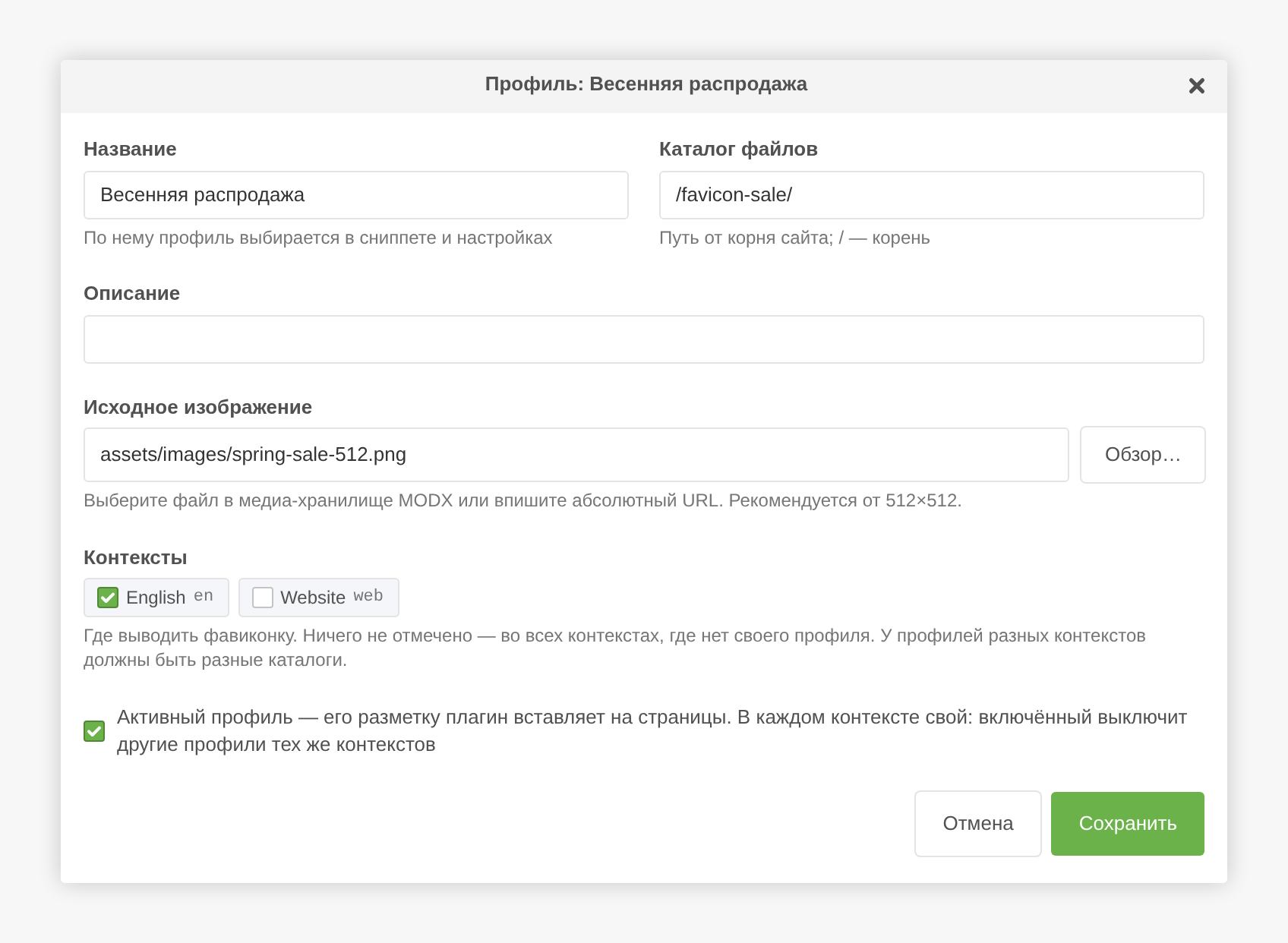
Remove asks for confirmation. The stored archive and thumbnail go together with the profile, while the files in the site directory stay — they may already be in use.
RealFaviconGenerator puts a site.webmanifest with placeholders instead of the app name and without start_url into the set. After unpacking, EasyFavicon completes the manifest with the site's data:
| Field | Source |
|---|---|
name | easyfavicon.manifest_name, otherwise site_name |
short_name | easyfavicon.manifest_short_name, otherwise site_name |
start_url, id | base_url |
lang | cultureKey |
Only empty fields and the service's placeholders are filled: a name entered in the RealFaviconGenerator editor stays as it is. The manifest is completed on every publish — both after a build and on switching profiles.