



Interface
Areas
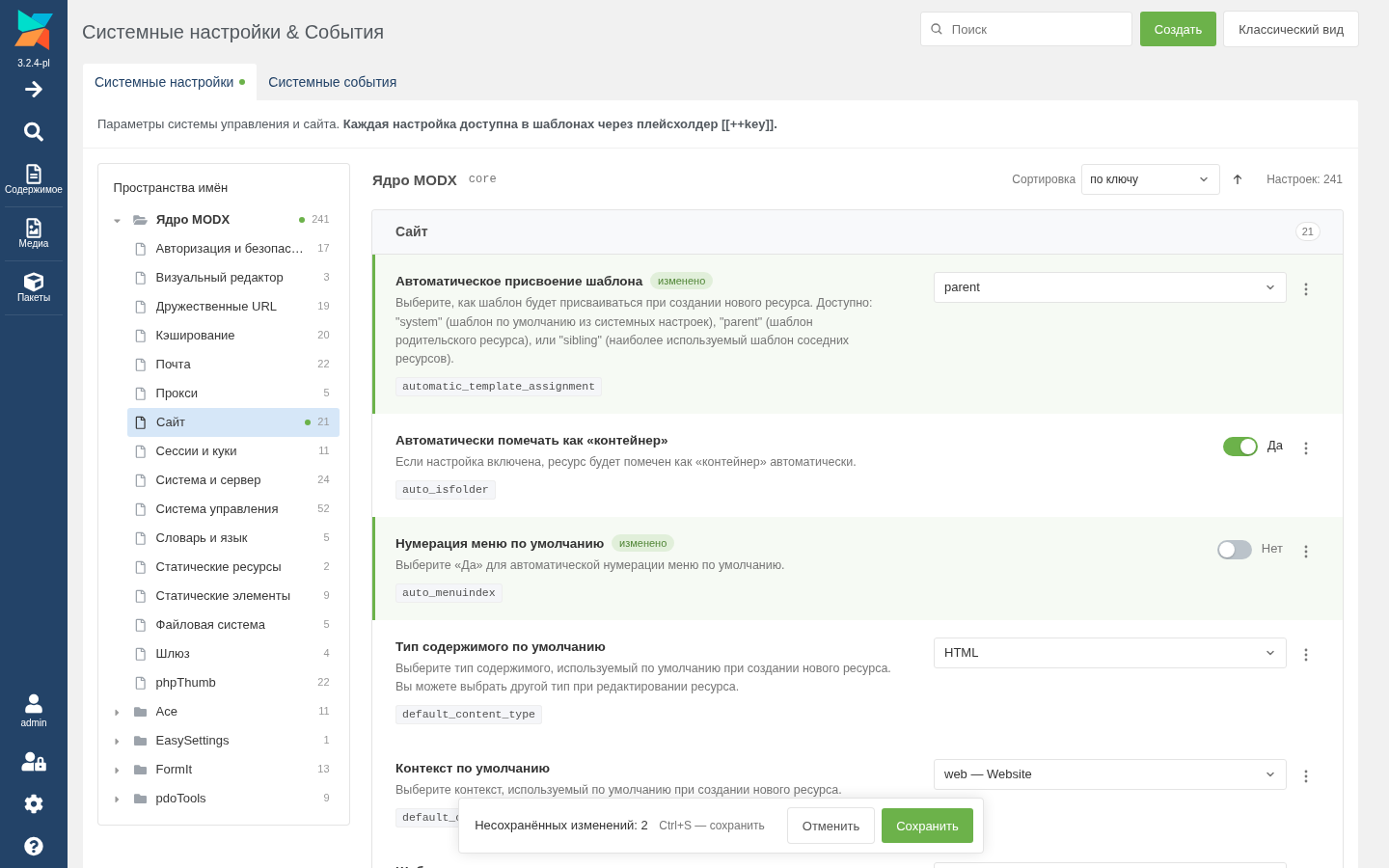
On the left there is a MODX-style tree: namespaces are folders, areas are nodes, with the number of settings next to them. A click opens an area as a page of its own with its own address, for example ?a=system/settings&ns=core&area=site. The browser's Back and Forward work, and a link to an area opens in a new tab.
The page does not reload on the way, so unsaved changes are kept. A folder and an area with such changes are marked with a dot in the tree, and so is the System Settings tab. The settings of an area load when you open it, so the page opens equally fast on a site with any number of extras. Expanded folders and the tree scroll position are remembered.
On a narrow screen there is no tree: the namespace and the area are picked from two lists.
Search
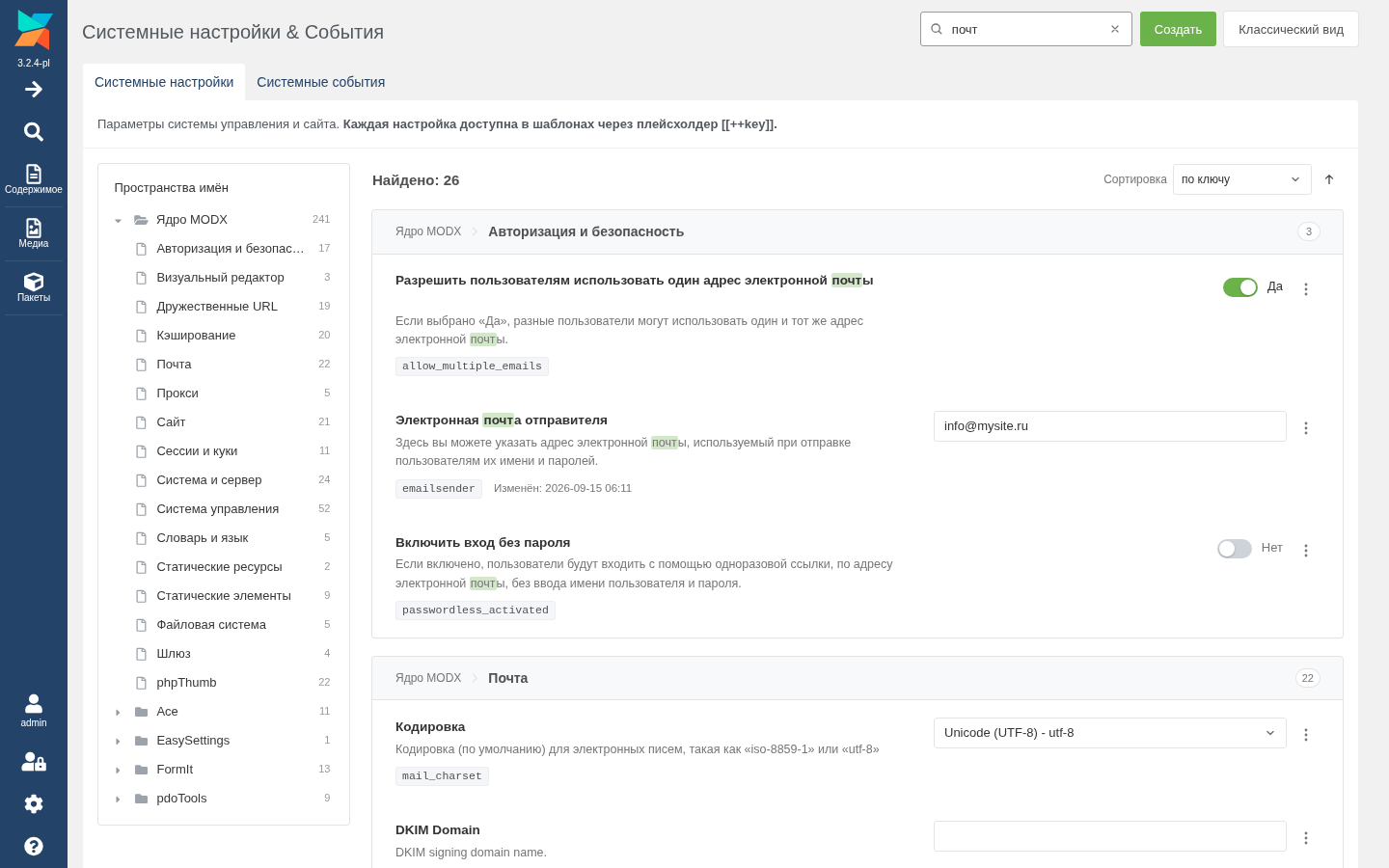
The search field looks through the name, key, description, value and area in every namespace at once and highlights the matches. With several words in the query, all of them must match. It also finds translations from lexicon files, which the core search misses. Password values are left out of the search.
The first 100 matches are shown; for the rest the page asks you to narrow the query down. Escape in the search field clears it.
Sorting
Above the list there is a sort selector with a direction arrow. Settings are ordered by key, by name or by the date of the last change, and the arrow reverses the order. Sorted by date, recently changed settings come first, and the ones that have never been changed stay at the end in either direction.
Changing values
Every setting is a row: the name, description, key and the date of the last change on the left, the field on the right. The field depends on the setting type:
| Type | Field |
|---|---|
combo-boolean | Yes/No switch |
numberfield | number with validation |
text-password | password with a Show button |
textfield | a single line; a long or multi-line value gets a field that grows with the text |
textarea | a field that grows with the text |
modx-grid-json | monospace field with JSON validation |
datefield | date |
| core combos | list with the same options: language, context, template, media source and others |
| extras' xtypes | the extra's own component |
Core text settings with a known set of values (log_level, link_tag_scheme, friendly_alias_translit and others) are shown as a list. A non-standard value is not lost: it stays in the list, marked as not in the list.
A click on the key copies it.
Saving
Changed rows are marked, and a bar with the number of changes and the Discard and Save buttons appears at the bottom. Ctrl+S saves too.
Every setting is saved by the core processor, so all of the MODX logic works: the configuration is reloaded, URIs are rebuilt when friendly_urls changes, permissions are checked. If one setting fails, the others are still saved, and the failed one shows its message. While changed fields have validation errors (not a number, invalid JSON), saving does not start: the page shows a message and scrolls to the first such field.
After manager_language is changed, the page reloads so the interface comes in the new language. If other unsaved changes are left, the page only warns about it.
Leaving the page with unsaved changes asks for confirmation.
Row menu
The row menu opens with the "⋯" button at the end of a row or with a right click on the row, just like the context menu of a MODX grid. In input fields a right click still opens the browser menu, with Paste.
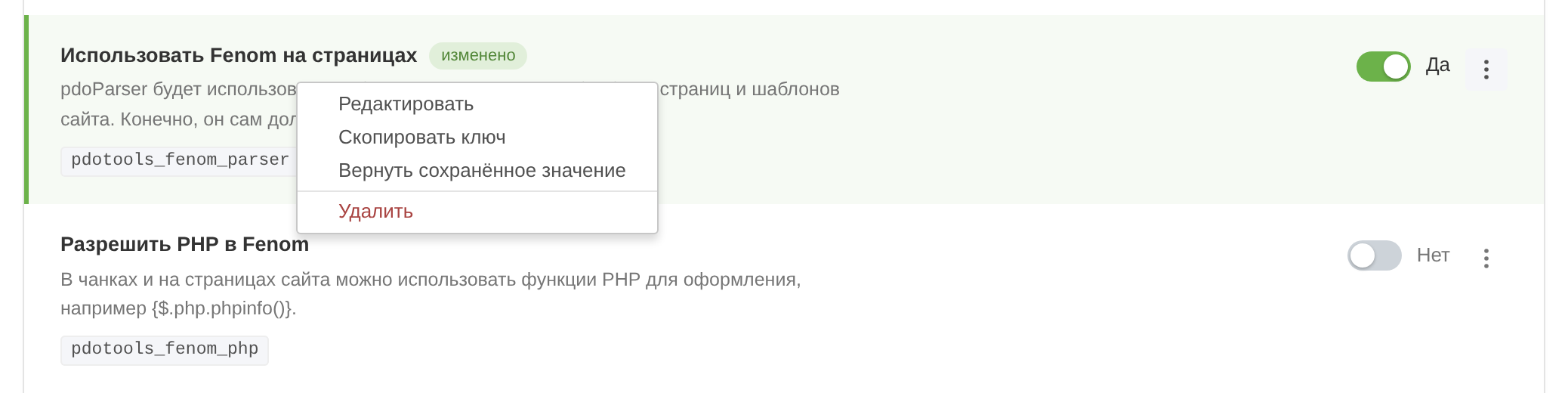
The menu has Edit, Copy key, Restore the saved value (when the value has been changed) and Remove. Removing asks for confirmation. Menus and windows close with Escape.
Creating and editing
The edit window changes the field type, namespace, area, name, description and value; the key stays the same. Fields and hints are the same as in the standard MODX window. An extra's type that is missing from the standard list shows up as an item of its own, and a custom xtype can be entered via "Other…".
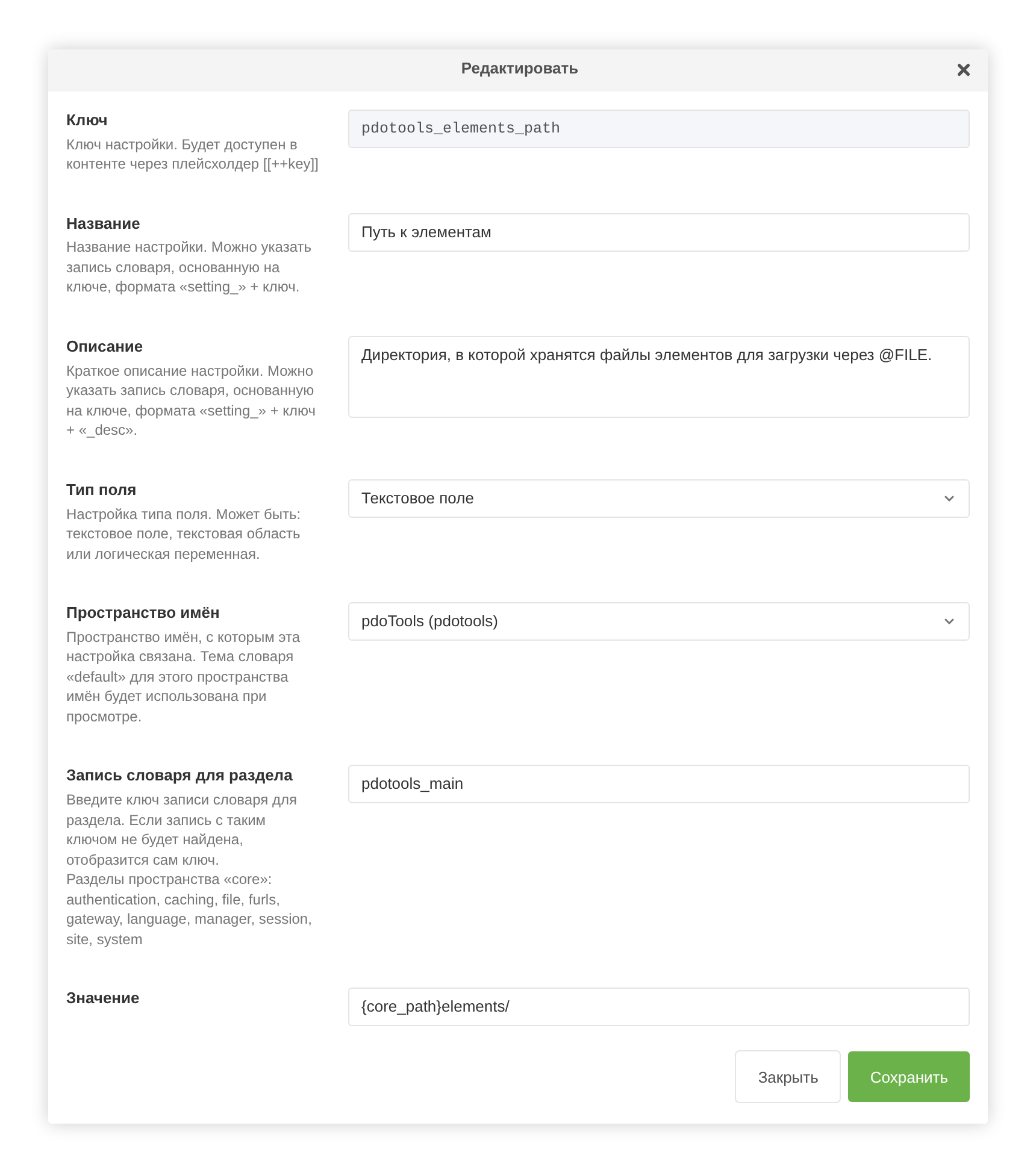
The name and description are written to the lexicon of the manager language, and only when they were changed, so a translation in another language does not turn into English.
A new setting is created with the Create button in the page header (Create New Setting in MODX 2). The window is the same as for editing, except that the key can be entered.
Events
The System Events tab lists events by group together with the plugins subscribed to them. Search on this tab looks through the event name, group and plugins, and the list can be sorted by name or by the number of plugins.
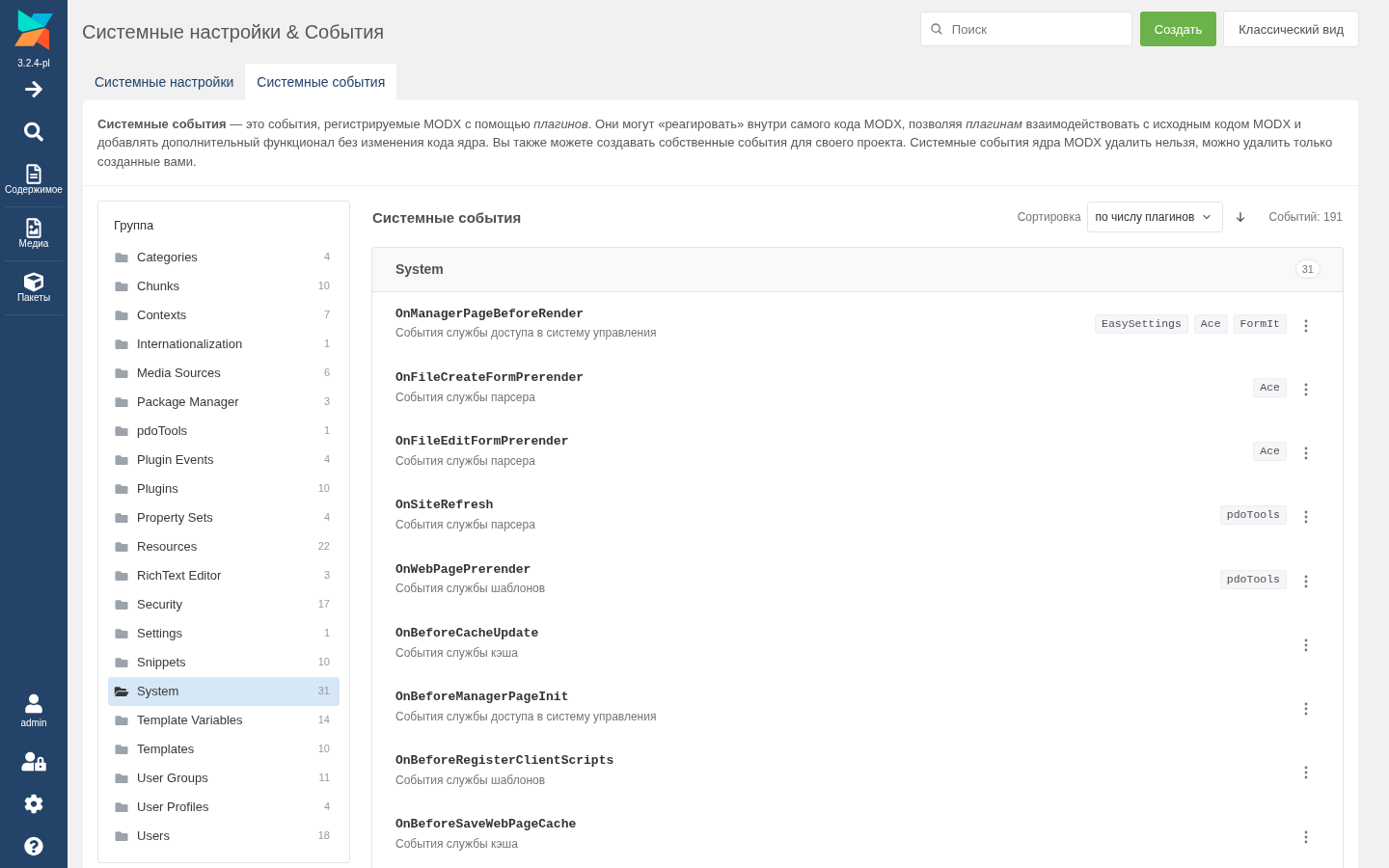
User events can be created and removed. A new event goes to the open group by default. Core events cannot be removed — just like in the standard grid: their menu only has Copy name and a note that this is a MODX system event.
Classic view
The Classic view button opens the standard MODX grid. There, next to the Help! button, an Easy view button takes you back to EasySettings. The address ?a=system/settings&classic=1 opens the standard grid as well.
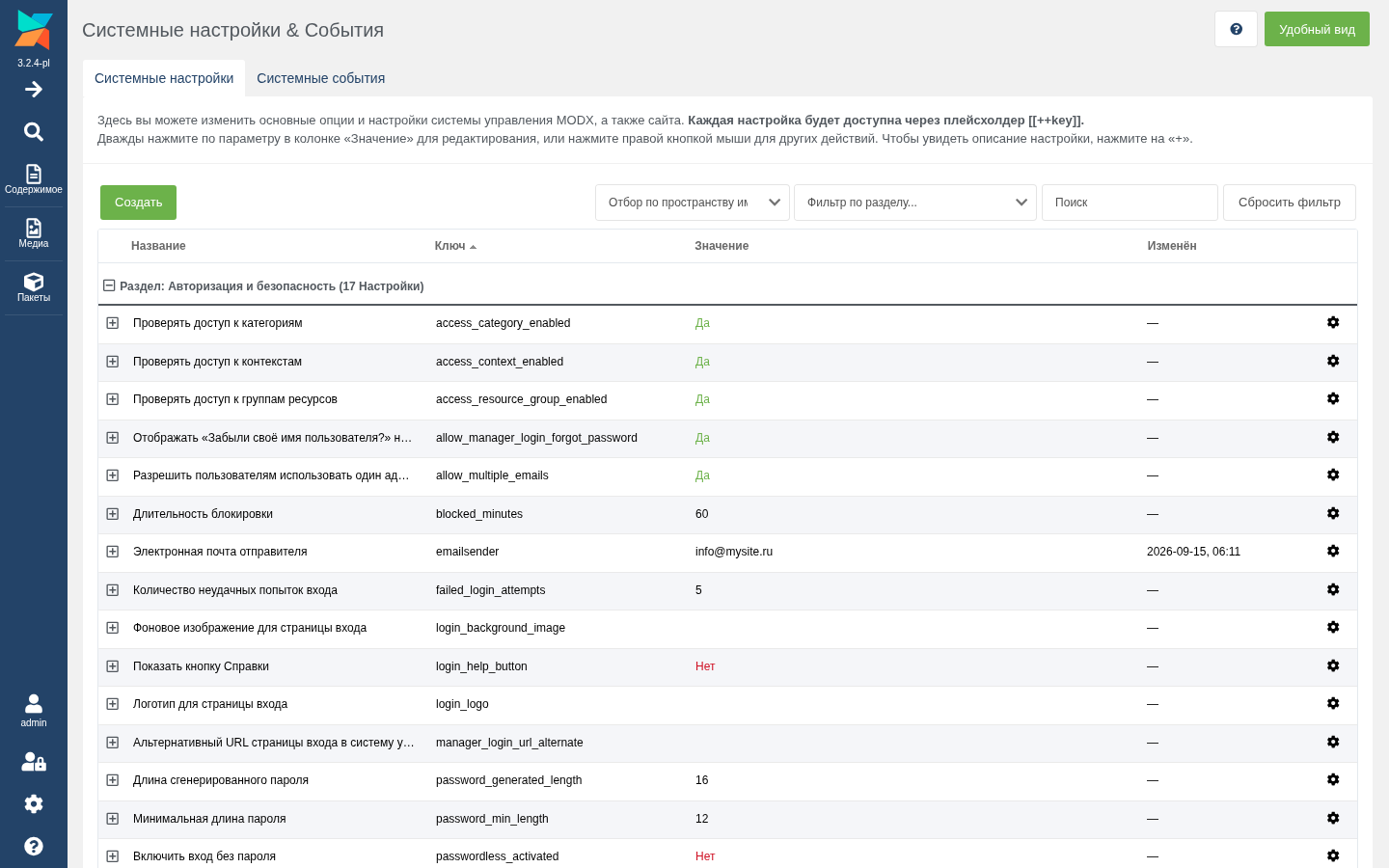
To turn EasySettings off completely, use the easysettings.enabled setting.